How to Change Edge’s Office File Download Settings

You change Microsoft Edge’s Office file download settings to control how Word, Excel, and PowerPoint files are handled when you click a download link.
This setting determines whether Office documents automatically open in the browser for preview or download directly to your computer’s storage.
For instance, you can configure Edge to always save Excel spreadsheets to your Downloads folder, bypassing the in-browser preview entirely.
This flexibility lets you choose the most efficient workflow for your documents.
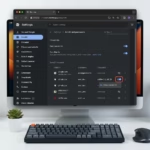
Open Edge settings, click Downloads, and toggle the “Open Office files in the browser” switch. Turn it off to download files automatically, or on to open them directly in Edge.
Disable or enable opening Office files with Edge
You can easily change whether Microsoft Edge opens Office files like Word, Excel, and PowerPoint right in the browser or downloads them to your computer instead.
- Open the Microsoft Edge browser.
- Click the Settings and more (three dots) icon in the top right corner.
- Select Settings.
- Click on Downloads in the left-hand menu.
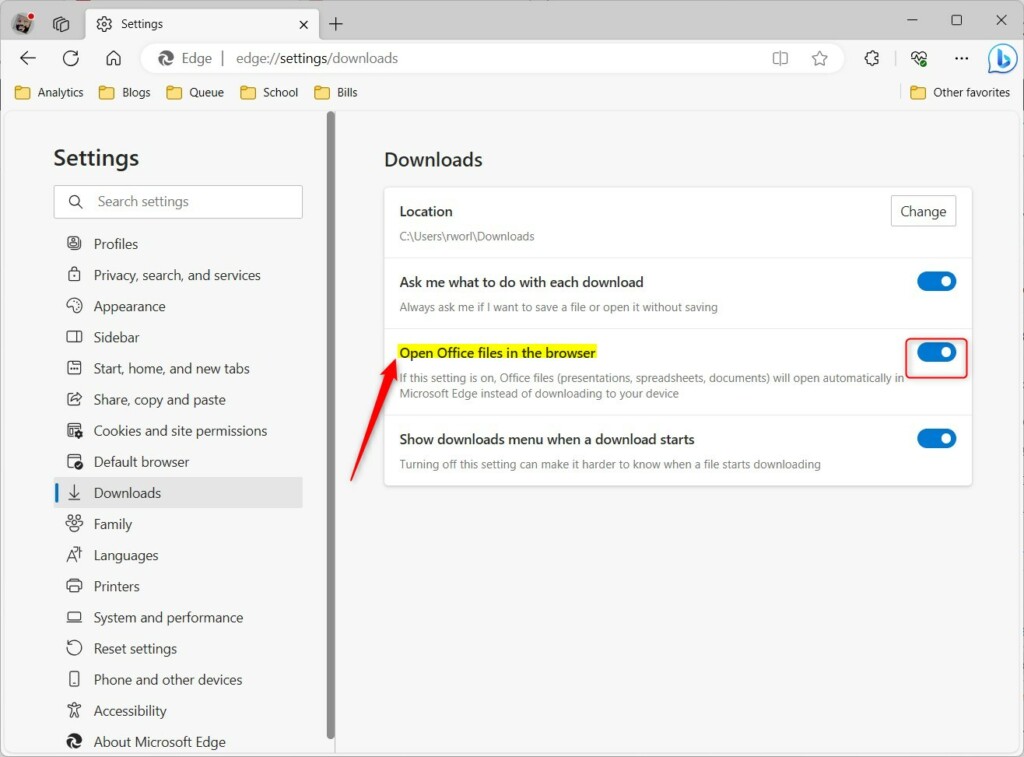
- Look for the Open Office files in the browser setting.
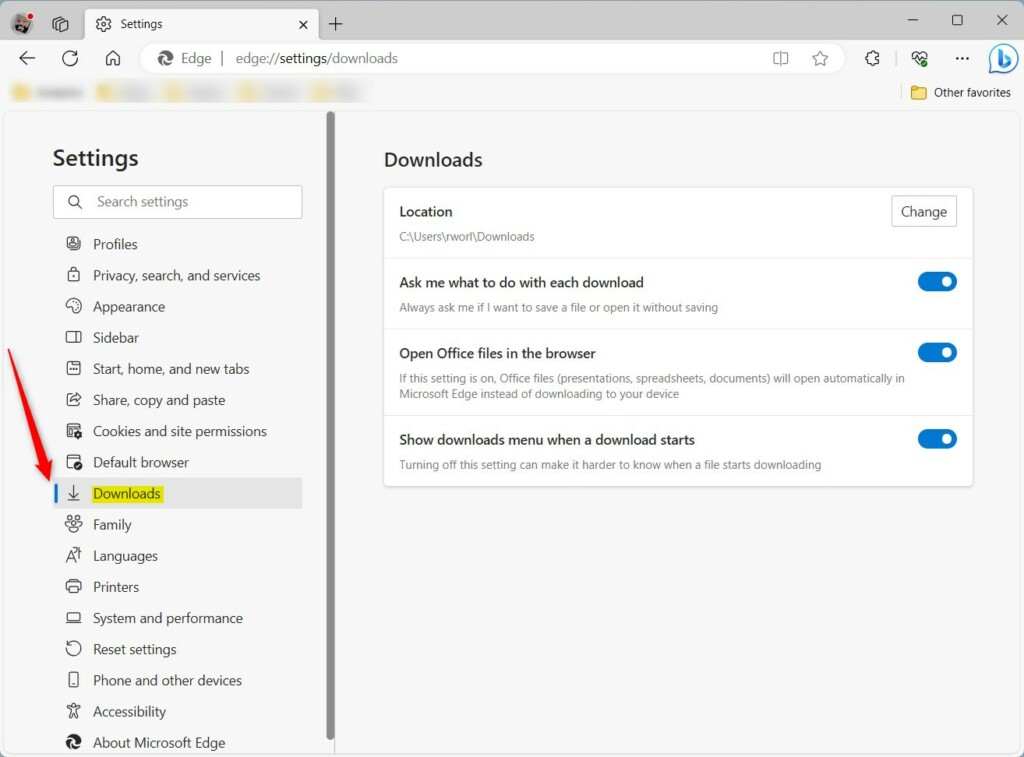
Toggle the switch to Off if you want files to download automatically. Toggle it to On if you prefer them to open in the browser.
Note: If you use the Microsoft 365 sidebar or have installed “Progressive Web Apps” (PWAs) for Office, these tools may override your browser settings and force files to open in their own dedicated windows.
Turn on or off open Office files in the browser via Windows Registry Editor
For more control over how Edge handles Office file downloads, you can use the Windows Registry Editor to turn this feature on or off.
The QuickViewOfficeFilesEnabled controls this policy, which is the specific registry entry that controls this feature.
- Open the Windows Registry.
- Navigate to the following path: 🗝️HKEY_CURRENT_USER\SOFTWARE\Policies\Microsoft\Edge.
- If the Edge folder does not exist, right-click the Microsoft folder, select New, and create a key named Edge.

- Right-click in the empty space on the right side. Select New then DWORD (32-bit) Value.
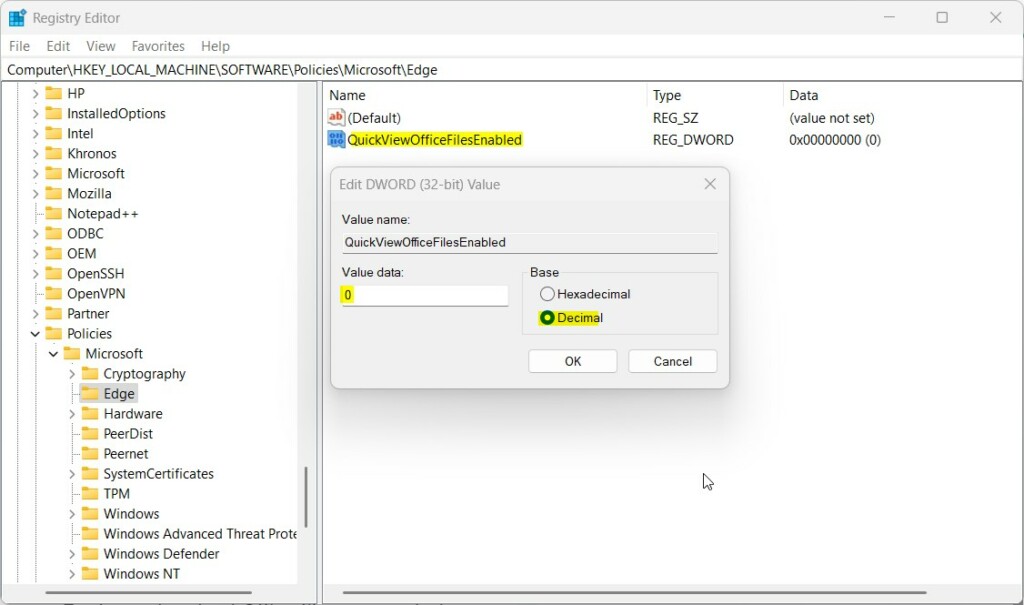
- Name this item QuickViewOfficeFilesEnabled.
- Double-click the new item. Ensure the Base is set to Decimal.
- Set the Value data to 1 to enable opening in the browser, or 0 to disable it and force a download.
Restart your browser or computer to apply these changes. You have now successfully customized how Edge handles your documents.
Where does Microsoft Edge download files?
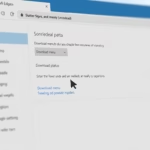
To see where your browser is saving downloads, look in your browser's settings. For example, in the new Microsoft Edge , select Settings and more > Settings > Downloads . The file path for your downloaded files (for example, 📁C:\Users\[your name]\Downloads) is listed under Location.
Was this guide helpful?

About the Author
Richard
Tech Writer, IT Professional
Richard, a writer for Geek Rewind, is a tech enthusiast who loves breaking down complex IT topics into simple, easy-to-understand ideas. With years of hands-on experience in system administration and enterprise IT operations, he’s developed a knack for offering practical tips and solutions. Richard aims to make technology more accessible and actionable. He's deeply committed to the Geek Rewind community, always ready to answer questions and engage in discussions.

No comments yet — be the first to share your thoughts!