How to Change Downloads Location in Windows 11

You can change the default download location in Windows 11 to a different drive or folder, making file management much easier.
This means you direct where Windows 11 saves your downloaded files, instead of relying on the default path.
By default, Windows 11 saves downloads to 📁C:\Users\[YourUsername]\Downloads. Moving this folder, especially off your C: drive, helps prevent your system from slowing down as your storage fills up.
After you complete this simple process, all new downloads will automatically go to your chosen spot.
Right-click the Downloads folder in File Explorer, select Properties, then click the Location tab and Move to choose a new folder. Confirm moving existing files to complete the change.
How to Change the Default Downloads Folder in File Explorer
You can change where Windows 11 saves your downloads directly through File Explorer by adjusting the default Downloads folder location.
- Click the File Explorer folder icon on your taskbar.
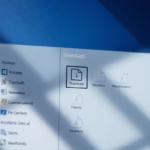
windows 11 file explorer icon on taskbar - When File Explorer opens, right-click on the Downloads folder in the sidebar. Select Properties from the menu.
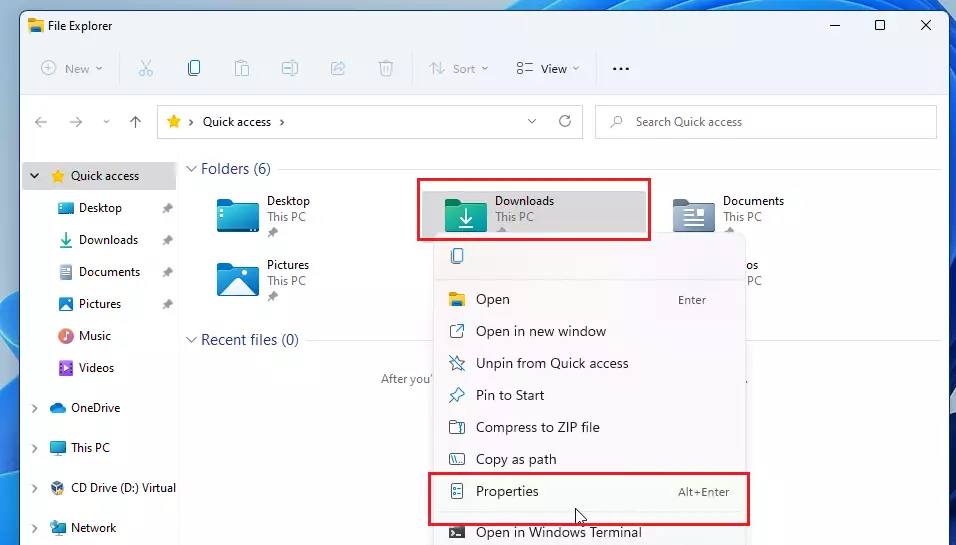
windows 11 move download folder - In the window that appears, click the Location tab. Click the Move button.
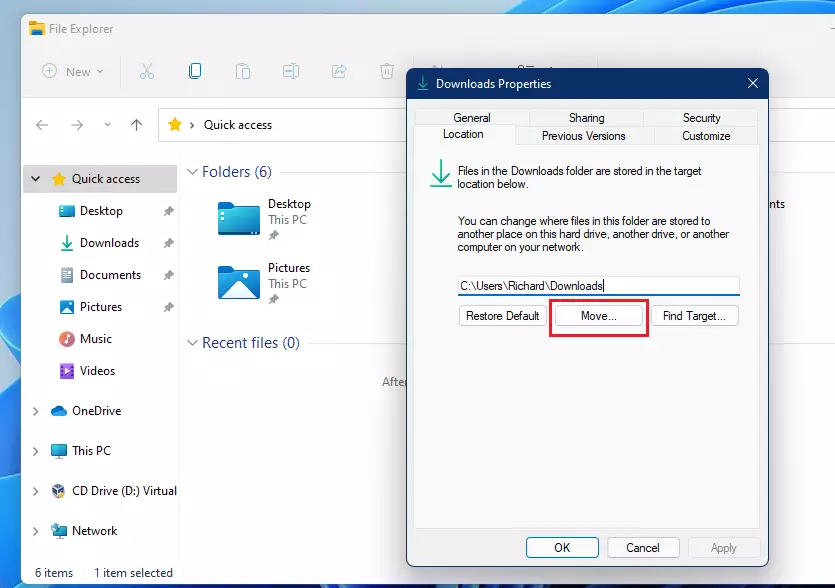
windows 11 move download folder to desktop - Find your new folder using File Explorer, click it, and then click Select Folder.
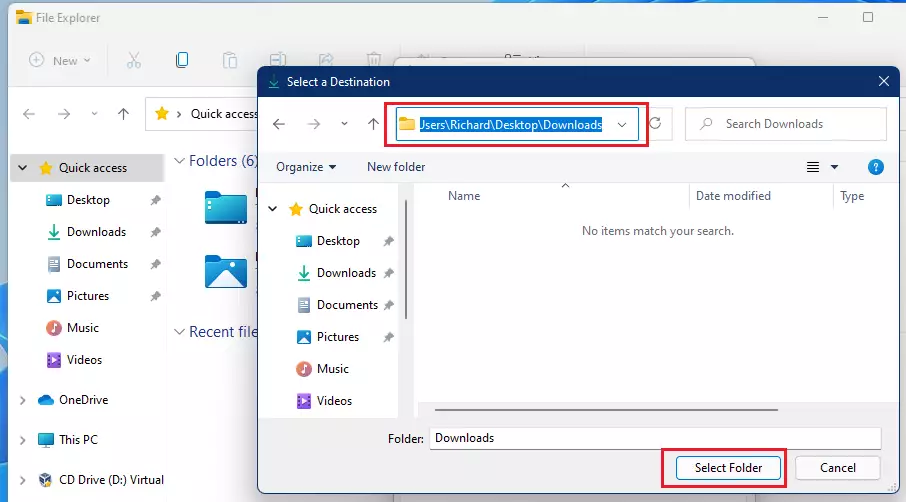
windows 11 select new download folder - Click OK. You will see a message asking if you want to move all your existing files to the new spot. Click Yes to finish.
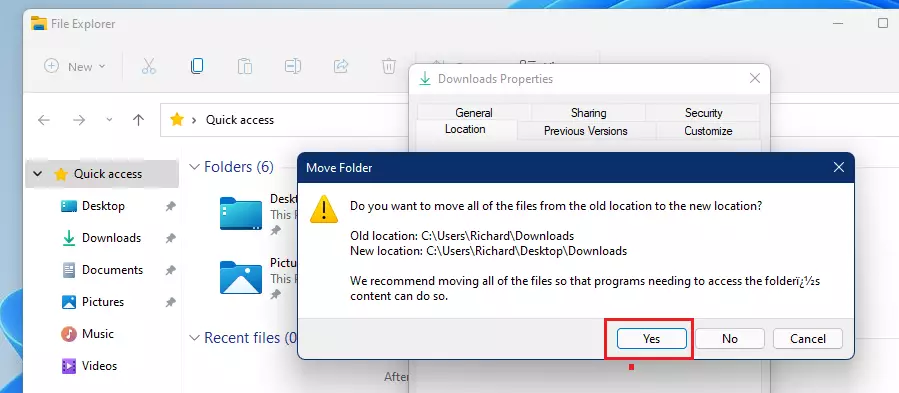
windows 11 desktop downlaods folder
Note: If you are moving folders to a restricted system directory, you may require admin privileges to complete the change.
Browser-Specific Download Settings
Sometimes you only want to change the download path for a specific browser rather than the whole system.
Google Chrome
Open Chrome, click the three dots in the top right, and go to Settings > Downloads. Click Change to pick a new folder.
Microsoft Edge
Open Edge, click the three dots, and go to Settings > Downloads. Click Change to select your preferred path.
Comparison: External Drive vs. Secondary Partition
| Option | Pros | Cons |
|---|---|---|
| External Drive | Easy to swap between PCs | Can be disconnected by accident |
| Secondary Partition | Always available | Uses space on the same physical drive |
Summary
Changing your default download location in Windows 11 helps you save space on your main drive or keep your files neatly organized.Does changing the download location affect existing files?
Yes. When you move the folder via File Explorer properties, Windows will ask if you want to move your existing files to the new location. Selecting yes ensures all your previous downloads are migrated to the new drive automatically.


I am on Active Directory and the MOVE button is not there. I am an admin on the domain. The choice is not available. I’m guessing some GPO is preventing me from changing this. Do you have any ideas on how to override this?