How to Find Your Downloads Folder in Windows 11

You find your Downloads folder in Windows 11 by opening File Explorer and navigating to the default location.
Your Downloads folder is a special system folder that automatically stores all files you download from the internet, such as applications, documents, and images.
On Windows 11, this folder is typically located at `📁C:\Users\[YourUsername]\Downloads`, where `[YourUsername]` is your specific Windows login name.
Accessing this folder quickly allows you to manage and locate all your saved files without having to search your entire computer.
Open File Explorer and click on “Downloads” in the Quick access list on the left. Your Downloads folder is typically located at 📁C:\Users\[YourUsername]\Downloads.
How to locate the Downloads folder in 🪟 Windows 11
1. Click the folder icon on your taskbar to open File Explorer.
2. Look at the left side of the window. You will see a list called Quick access. Click on Downloads to open your files.

How to Pin Downloads to Quick Access
If you want to reach your files faster, pin the folder to the top of your sidebar.
- Open File Explorer.
- Right-click the Downloads folder.
- Select Pin to Quick access.
How to add the Downloads folder to the Start menu
You can put your Downloads folder right on the Windows 11 Start menu so it’s easy to find. Just go to Personalization, then Start, and click on Folders. Turn on the switch next to Downloads, and a shortcut will appear near the Power button.
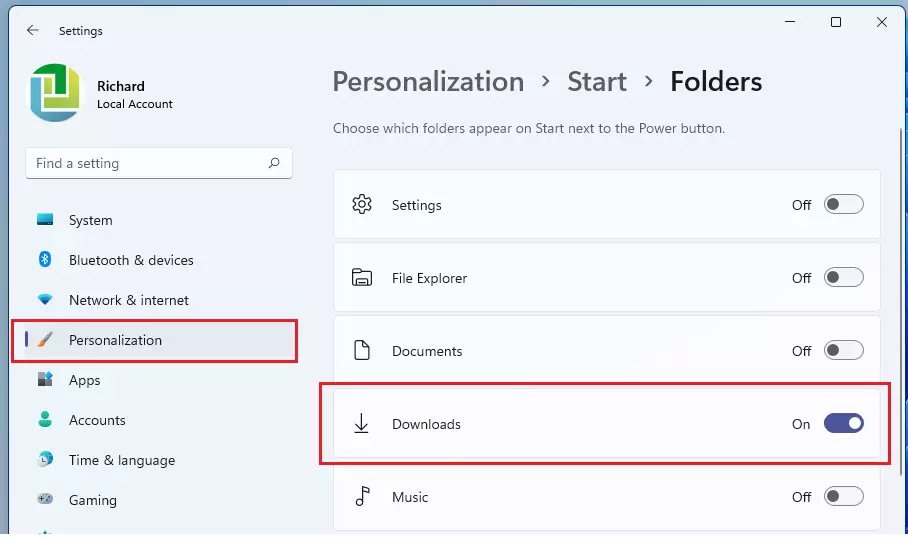
Now, when you click your Start button, you will see a shortcut to your Downloads folder right next to the Power button.

Troubleshooting and Customization
Why is my Downloads folder grouping files by date?
Windows sometimes groups files by date to help you find recent items. To change this, right-click in an empty space inside the folder, select Group by, and choose (None).
How to show hidden files within the Downloads folder?
Sometimes files are hidden. In File Explorer, click the View menu at the top, select Show, and check Hidden items.
How to reset the folder view
If your folder looks cluttered, you can reset it. Open File Explorer Options from the search bar, go to the View tab, and click Reset Folders.
Managing Storage with Storage Sense
If your Downloads folder is getting full, you can use Storage Sense. Go to Settings > System > Storage. Turn on Storage Sense to automatically clean up temporary files and free up space on your drive.
Related Topics
- How to manage File Explorer view settings
- Using Storage Sense to clean your PC
- Understanding File Extensions in Windows 11
Summary
- The Downloads folder is the default home for internet files.
- Pin it to Quick Access for faster navigation.
- Use the View menu to change how files are sorted or grouped.
- Enable Storage Sense to keep your drive clean and organized.
How do I restore the Downloads folder if I accidentally deleted it?
If you deleted the folder, check your Recycle Bin first. If it is gone, you can recreate it by right-clicking in your user profile folder, selecting New, and naming it Downloads. You may need to reset the folder properties to ensure it functions as a system folder.
How can I change the default download location in 🪟 Windows 11?
To change where files save, open your web browser settings. Look for the Downloads section and click Change to select a new folder. This ensures all future files go to your preferred drive or location instead of the default 📁C:\Users\GenericUser\Downloads path.
Was this guide helpful?

About the Author
Richard
Tech Writer, IT Professional
Richard, a writer for Geek Rewind, is a tech enthusiast who loves breaking down complex IT topics into simple, easy-to-understand ideas. With years of hands-on experience in system administration and enterprise IT operations, he’s developed a knack for offering practical tips and solutions. Richard aims to make technology more accessible and actionable. He's deeply committed to the Geek Rewind community, always ready to answer questions and engage in discussions.

can i import music and write in my folder
It does not match my pc screen