How to Reset File Explorer Folder View in Windows 11

You reset File Explorer folder view in Windows 11 by clearing specific registry keys and cache files.
This action forces File Explorer to revert all folder view settings, like icon size, layout, and column order, back to their default configurations.
Corrupted ShellBag registry entries or cached data frequently cause File Explorer issues, such as forgetting your preferred view or the Navigation Pane unexpectedly expanding.
Resetting these settings typically resolves these common annoyances, ensuring File Explorer correctly remembers your customizations.
You can reset File Explorer folder views using Folder Options or the Registry Editor. In Folder Options, click the three dots, select Options, go to the View tab, and click Reset Folders. For the Registry Editor, navigate to 🗝️HKEY_CURRENT_USER\Software\Classes\Local Settings\Software\Microsoft\Windows\Shell, then delete the BagMRU and Bags folders.
What happens when you reset?
Resetting your File Explorer view removes custom settings like column widths and sort orders, returning them to how they were when Windows was first installed.
Method 1Using Folder Options (GUI)
Resetting your File Explorer view is simple using the Folder Options. This is the easiest and safest way for most people to get their folders looking right again.
- Open File Explorer by pressing the Windows key + E.
- Click the three dots (the ellipse) in the top menu bar.
- Select Options from the dropdown menu.
windows 11 select options in file explorer - Click on the View tab in the File Explorer Options window.
- Click the Reset Folders button.
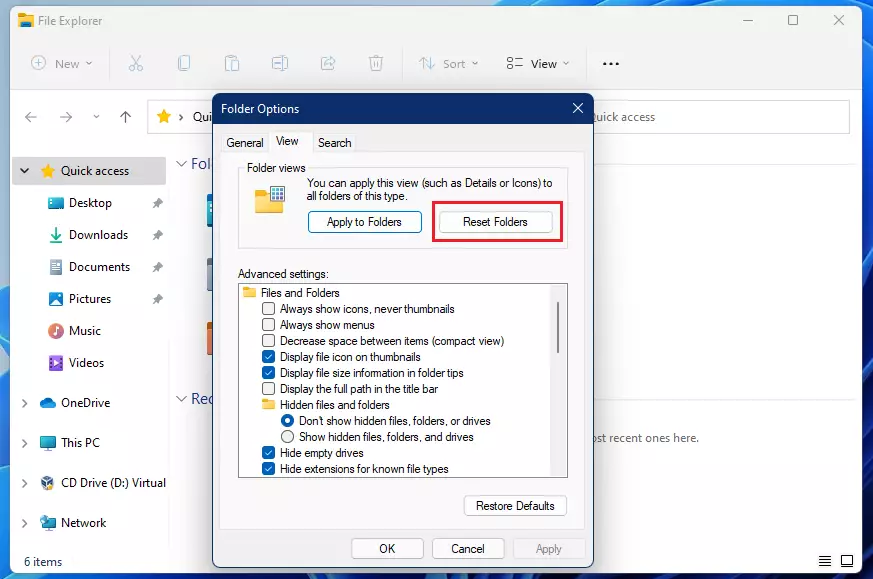
reset file explorer folder view windows 11 - Click Yes in the confirmation box to restore the default view for all folders of this type.
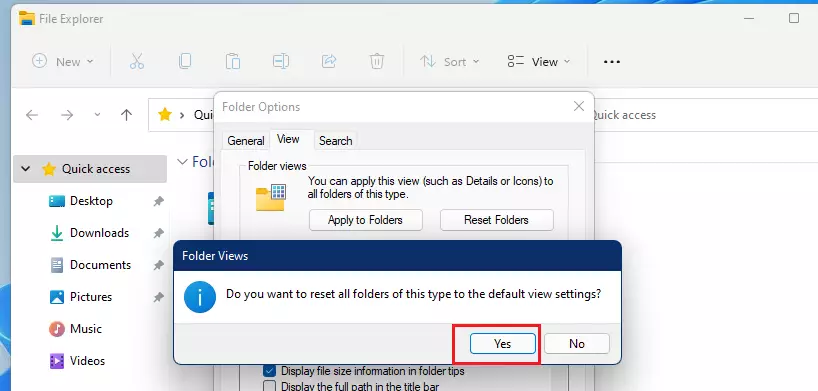
windows 11 reset folder views confirmation
Method 2Using Registry Editor
If you can’t reset your File Explorer view using Folder Options, you can try the Registry Editor. This method involves making a small change in Windows’ system settings.
- Press Windows key + R, type regedit, and press Enter.
- Navigate to the following path: 🗝️HKEY_CURRENT_USER\Software\Classes\Local Settings\Software\Microsoft\Windows\Shell
- Right-click the BagMRU folder and select Delete.
- Right-click the Bags folder and select Delete.
- Restart your computer to apply the changes.
Troubleshooting
Troubleshooting issues when resetting your File Explorer view, especially with the Registry Editor, often involves checking permissions and ownership settings.
Summary
Resetting your File Explorer view is a straightforward process that helps fix display issues and restore default folder layouts without risking your data.
Why does Windows keep changing my folder view settings automatically?
Windows uses a feature called ShellBags to remember how you view folders. If this database becomes corrupted or reaches its size limit, Windows may fail to save your settings correctly or revert them to default layouts unexpectedly. Resetting your folder views clears this cache and fixes the behavior.
Can I reset folder views for a single folder only?
The standard Windows reset tool affects all folders of a specific template type (like General, Documents, or Pictures). Windows does not provide a built-in button to reset just one specific folder. You must manually adjust the view settings for that individual folder to your preferred layout.
How do I reset the Navigation Pane specifically?
Resetting the File Explorer Navigation Pane can be done through its view settings, and a full folder view reset will also apply to the Navigation Pane.
Was this guide helpful?

About the Author
Richard
Tech Writer, IT Professional
Richard, a writer for Geek Rewind, is a tech enthusiast who loves breaking down complex IT topics into simple, easy-to-understand ideas. With years of hands-on experience in system administration and enterprise IT operations, he’s developed a knack for offering practical tips and solutions. Richard aims to make technology more accessible and actionable. He's deeply committed to the Geek Rewind community, always ready to answer questions and engage in discussions.


No comments yet — be the first to share your thoughts!