How to Reset File Associations in Windows 11

You reset file associations in Windows 11 to fix when the incorrect program opens a specific file type, such as your images opening in a text editor instead of the default Photos app.
File associations are essential Windows settings that link a file extension, like .jpg or .pdf, to the application designed to open it. When these connections become corrupted or a new application mistakenly takes ownership of a file type, resetting them becomes necessary.
This process ensures your files open with their intended software. Windows 11 provides straightforward methods within the Settings app to restore default application assignments for hundreds of file types, guaranteeing your files launch as expected.
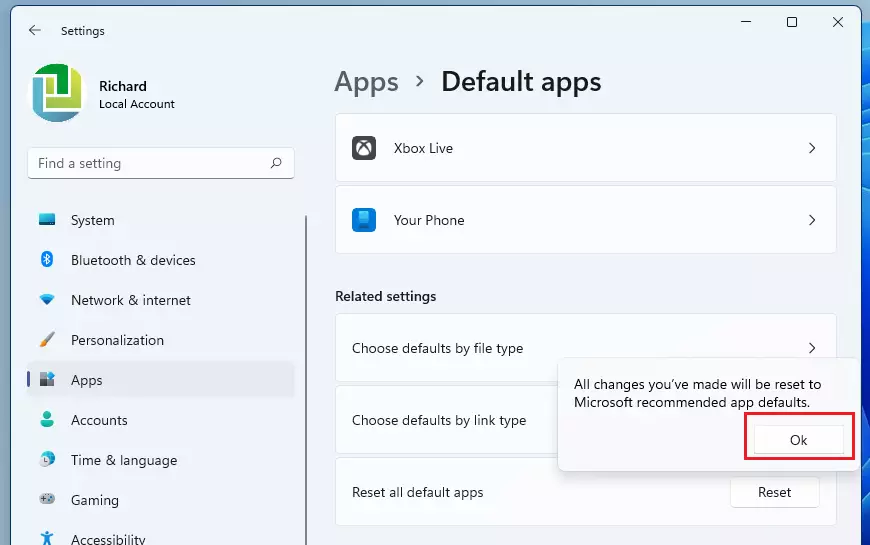
Open Settings, click Apps, then Default apps. Scroll down and click Reset to restore all default apps. This will revert custom choices, so you’ll need to re-select your preferred applications.
What happens when you reset file associations?
When you perform a reset, Windows clears all your custom choices. Windows will revert any app you previously set as a default for photos, videos, or web links to its factory default. You’ll need to re-select your preferred apps the next time you open those file types.
How to reset default apps via Settings
This is the safest way to fix file extension mapping issues.
1. Press Windows key + I to open Settings.
2. Click Apps, then select Default apps.
3. Scroll to the very bottom to find the Reset all default apps section.
4. Click the Reset button.
5. Click OK to confirm.
Fixing corrupted associations with the Open With dialog
If a file isn’t opening correctly, you can often reset its association using the ‘Open With’ option.
If you’re facing a specific file issue, the ‘Open With’ dialog offers another solution.
Advanced: Resetting via Registry Editor (Admin Required)
You can reset file associations in Windows 11 using the Registry Editor if other methods don’t work, but this advanced step needs administrator permission and careful attention.
- Press Windows key + R, type regedit, and press Enter.
- Navigate to:
HKEY_CURRENT_USER\Software\Microsoft\Windows\CurrentVersion\Explorer\FileExts - Find the folder for the file extension (e.g., .png), right-click the UserChoice folder, and select Delete.
4. Restart your computer.
Advanced: Using DISM to repair system defaults (Admin Required)
If your file associations are still messed up, the DISM tool can fix them by restoring Windows system defaults, which is a more advanced repair method.
- Open Command Prompt as Administrator.
- Type the following command and press Enter:
dism /online /import-defaultappassociations:C:\Windows\System32\appdefaults.xml
This command tells Windows to re-apply the core system defaults using the installation files.
Summary
Resetting file associations fixes broken file links and restores system defaults. You can use the Settings app for a quick fix, or use Command Prompt and Registry Editor for deeper troubleshooting. Always back up your registry before making changes to system files.
Why do my file associations keep resetting after a Windows update?
Windows updates might reset your file associations to default apps to keep your system secure and stable, especially if a program isn’t properly set up to handle certain files.
Windows updates often reset file associations to Microsoft-recommended apps to ensure security and stability. If an app is not properly registered as a valid handler, Windows may revert the setting to a default browser or media player to prevent potential malware or compatibility issues during the update process.
Can I export and import file associations in 🪟 Windows 11?
Yes, you can save your current file association settings to a file and then use that file to set them on another computer.
Yes, you can save your current file association settings to a file and then use that file to set them on another computer.
Was this guide helpful?

About the Author
Richard
Tech Writer, IT Professional
Richard, a writer for Geek Rewind, is a tech enthusiast who loves breaking down complex IT topics into simple, easy-to-understand ideas. With years of hands-on experience in system administration and enterprise IT operations, he’s developed a knack for offering practical tips and solutions. Richard aims to make technology more accessible and actionable. He's deeply committed to the Geek Rewind community, always ready to answer questions and engage in discussions.



[…] UserChoice Protection Driver is a Windows feature that helps prevent unauthorized changes to file type associations. When a user sets a default program for opening a specific file type, Windows adds an entry for […]
Resetting file type associations? Why on earth some wants all those unwanted Microsoft apps back on its PC? The opposite is true, I guess.
I prefer other apps (Firefox, Thunderbird and so on), so I deleted Edge from W10 a long time
ago, and I am glad with that decision. The EU was not able to stop those Seattle alligators, better do that on our own (with a litte help from henrypp’ s simplewall).