How to Enable or Disable Windows 11 Search Indexing

You enable or disable Windows 11 search indexing to control how quickly your PC finds files and how much system resource the search function uses.
Windows 11 uses a process called SearchIndexer.exe to create and maintain a catalog (an index) of your files. This index acts like a library card catalog, allowing Windows to locate your files almost instantly by referencing the catalog instead of scanning your entire hard drive every time.
For example, with Windows 11 search indexing enabled, searches typically return results in under a second. Disabling it forces Windows to perform a full scan for every query, significantly slowing down your search capabilities and consuming more processing power.
When indexing is active, your PC maintains a detailed list of file properties. Turning it off means slower searches and the potential for some files to be completely missed by the search function.
To disable Windows 11 search indexing, open Services, find “Windows Search,” click Stop, and set Startup type to Disabled. To enable it, set Startup type to Automatic (Delayed Start) and click Start.
Pros and Cons of Disabling Indexing
| Pros | Cons |
|---|---|
| Slightly lower CPU and disk usage | Search results become very slow |
| Less background disk activity | Some files may not show up in search |
| Reduced wear on older hard drives | Outlook PST files may not be searchable |
How to Rebuild the Index
If your Windows 11 search isn’t finding files or shows old results, rebuilding the search index can help by creating a fresh catalog of your computer’s content.
1. Open the Control Panel and select Indexing Options.
2. Click the Advanced button. Note: You’ll need admin privileges to access this.
3. Under the Troubleshooting section, click the Rebuild button.
4. Click OK. Your computer will now re-scan your files, which may take some time depending on how many files you have.
Troubleshooting Indexing Issues
If Windows 11 search indexing is paused, it often means your computer is busy or on battery power; check that it’s plugged in and the Windows Search service is set to start automatically.
Managing Indexed Locations
You can manage Windows 11 search indexing locations by adding or removing specific folders in the Indexing Options, which helps reduce system workload by excluding unnecessary files.
Disable Windows Search Indexing
You can stop Windows 11 search indexing by turning off the Windows Search service, which prevents it from running in the background and using resources.
- Open the Services console on your PC.
- Scroll down and find the service named Windows Search.
3. Click on Windows Search to open its settings.
4. Click Stop to turn off the service immediately.
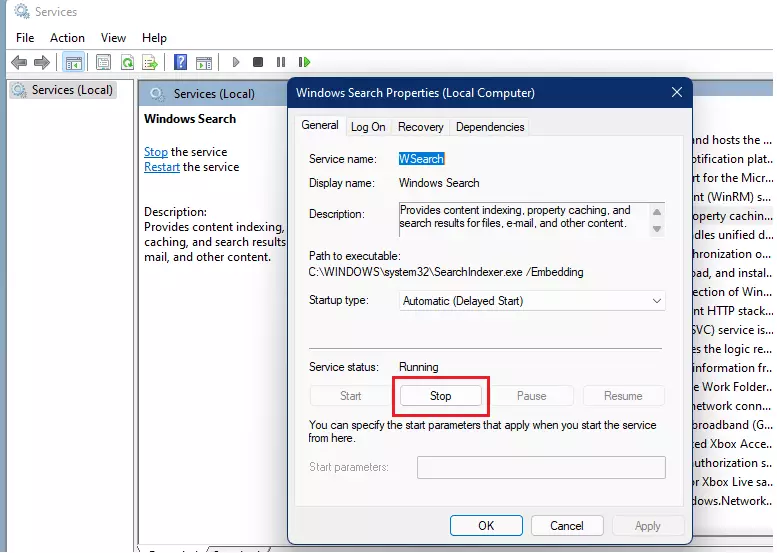
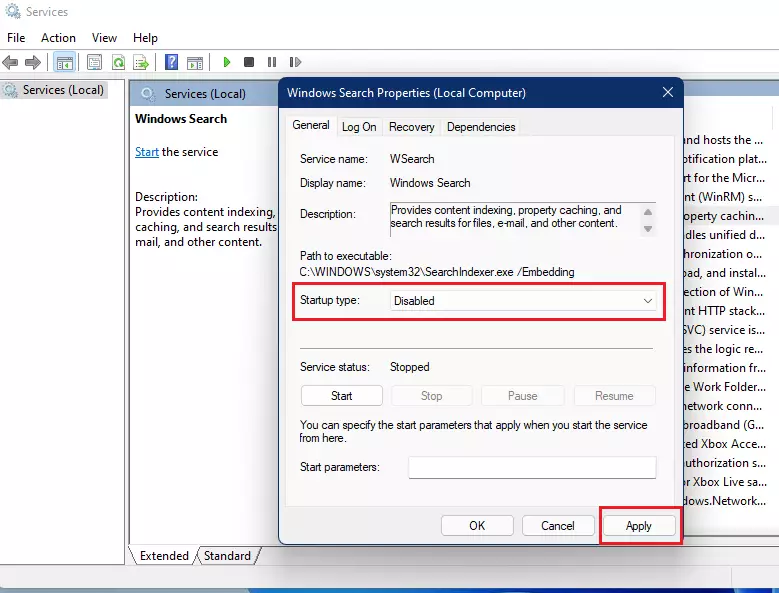
5. In the Startup type menu, select Disabled.
6. Click Apply to save.
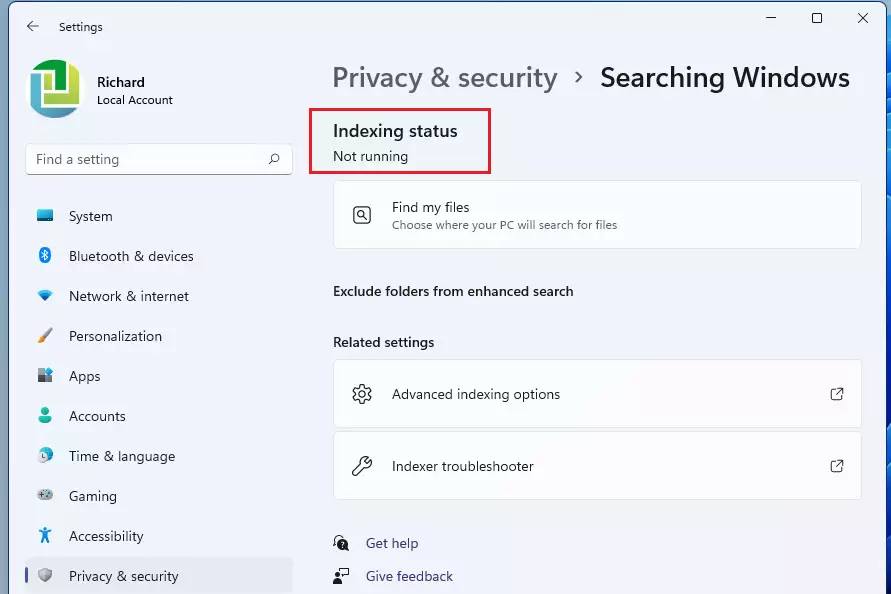
The indexing service is now turned off. You can verify this by checking that the status says “Not running.”
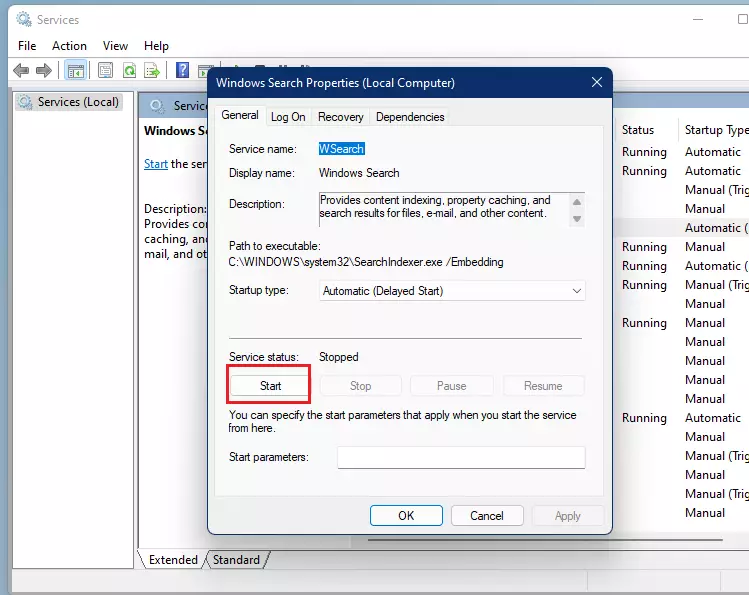
Enable Windows Search Indexing
Note: You’ll need admin privileges to change these settings.
If you want to turn the feature back on, follow these steps:
1. Open the Services console and find Windows Search.
2. Set the Startup type to Automatic (Delayed Start).
3. Click Apply.
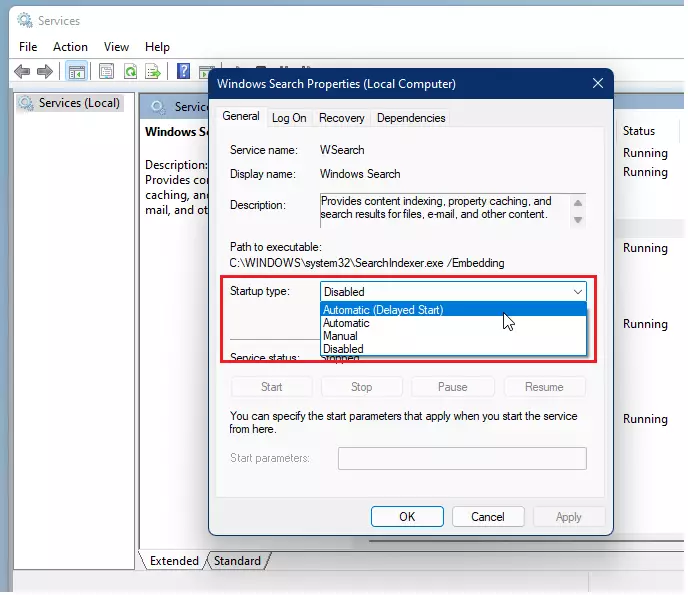
4. Click the Start button to begin the service.
Use Command Prompt
Note: You must run Command Prompt as an administrator to use these commands.
To use this method, open the Command Prompt as administrator.
To enable indexing:
sc config "wsearch" start=delayed-auto && sc start "wsearch"To disable indexing:
sc stop "wsearch" && sc config "wsearch" start=disabledSummary
Windows 11 search indexing builds a list of your files so you can find them quickly, with options for searching just specific folders or your whole PC, and you can manage it through system tools.- Indexing creates a catalog of your files to make searching faster.
- You can choose between Classic (limited folders) or Enhanced (entire PC) modes.
- Disabling the indexer stops the background search process but slows down future search results.
- You can control this feature through the Services menu or the Command Prompt.
- For more information, visit the official Microsoft Support page.
Why does indexing automatically run at all times?
Indexing runs in the background to ensure your search catalog stays current. Whenever you create, move, or edit a file, the indexer updates its records. This constant monitoring ensures that when you search for a file, the results are accurate and appear immediately without needing a full system scan.
How much disk space does the search index use?
The Windows 11 search index typically uses between 500MB and 2GB of disk space, depending on your number of files, which is usually small compared to modern storage.
Was this guide helpful?

About the Author
Richard
Tech Writer, IT Professional
Richard, a writer for Geek Rewind, is a tech enthusiast who loves breaking down complex IT topics into simple, easy-to-understand ideas. With years of hands-on experience in system administration and enterprise IT operations, he’s developed a knack for offering practical tips and solutions. Richard aims to make technology more accessible and actionable. He's deeply committed to the Geek Rewind community, always ready to answer questions and engage in discussions.




I would break this into two articles.
Also, there are countless typos and grammatical errors which need to be corrected.