How to Rebuild the Windows Search Index in Windows 11

You rebuild the Windows Search Index in Windows 11 when file searches are slow or inaccurate.
The Windows Search Index is a database that helps Windows 11 quickly locate your files, apps, and settings. When this index becomes corrupted, search functionality suffers, leading to missing results or a completely unresponsive search bar.
Rebuilding the index effectively wipes out a damaged database and forces Windows 11 to scan your system again from scratch, creating a fresh and accurate index. This process, often initiated via the `SearchIndexer.exe` service, is a key troubleshooting step for common search issues.
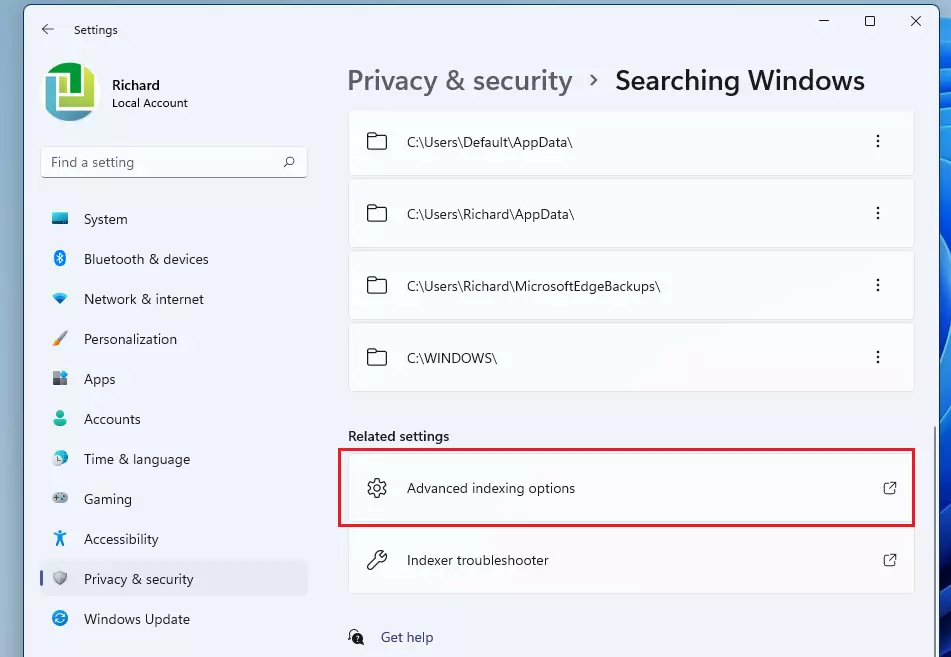
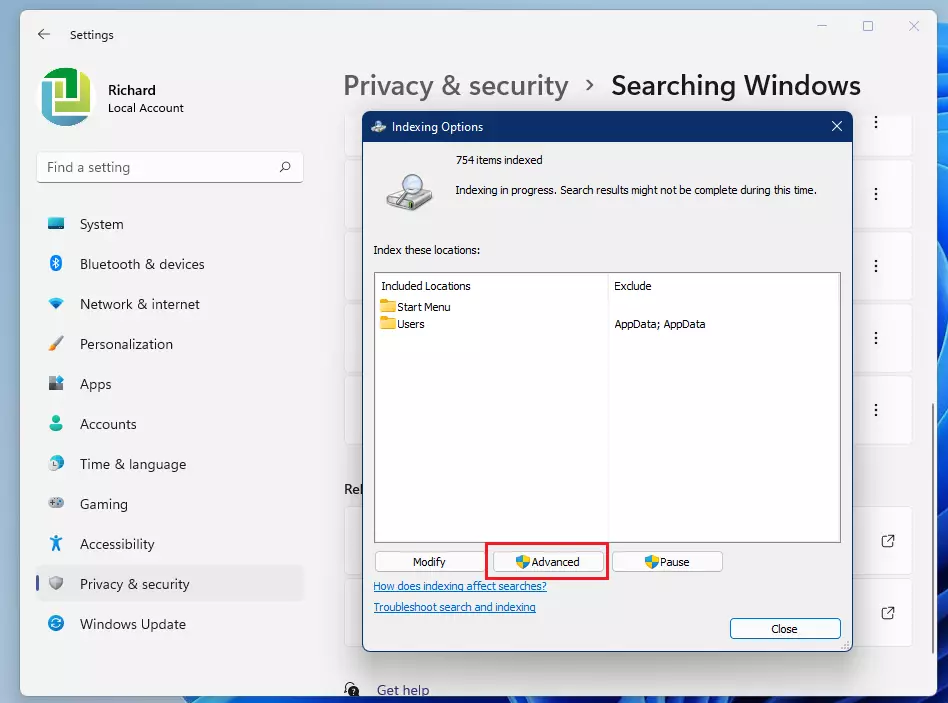
You rebuild the Windows Search Index by going to Settings > Privacy & security > Searching Windows > Advanced indexing options, then clicking Advanced and Rebuild. This process clears the old index and creates a fresh one to fix search issues.
What happens when done?
After you rebuild the Windows Search Index, your computer gets a fresh, updated list of all your files, making searches accurate and fast again.
How to rebuild the Windows Search Index
You can rebuild the Windows Search Index by going into your computer’s Settings menu, which you can open by pressing Windows key + I.
You can manage your search settings through the main Settings menu. You can open this by pressing the Windows key + I on your keyboard or by clicking Start and selecting Settings.
Once the Settings window opens, follow these steps:
- Click on Privacy & security in the left menu.
- Select the Searching Windows tile on the right side.
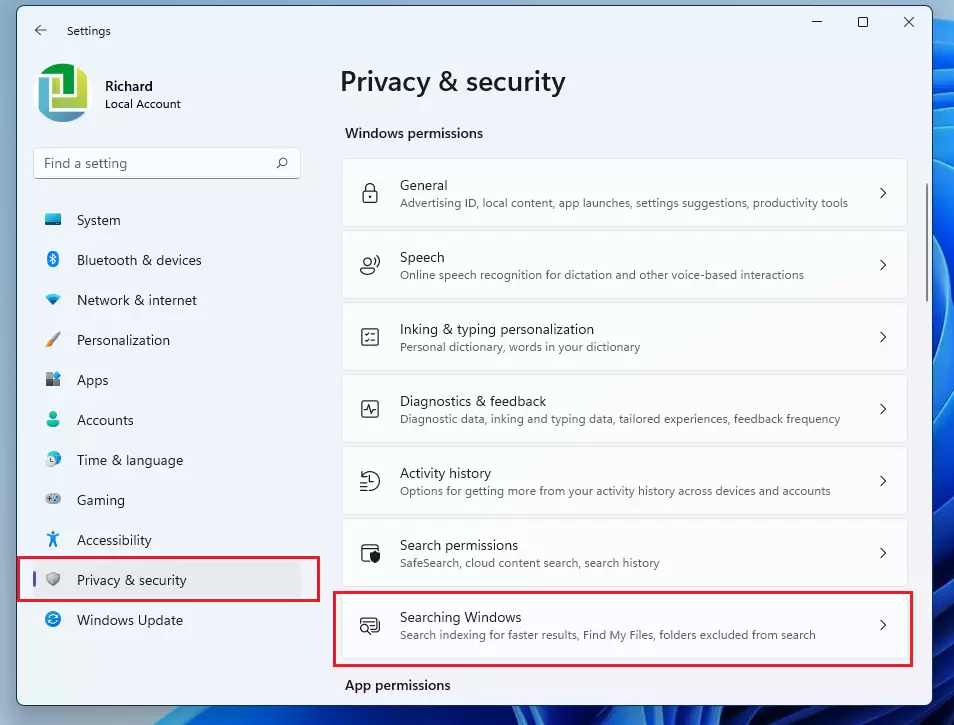
- Scroll down to the bottom and click Advanced indexing options under the “Related settings” section.
- In the new window that pops up, click the Advanced button.
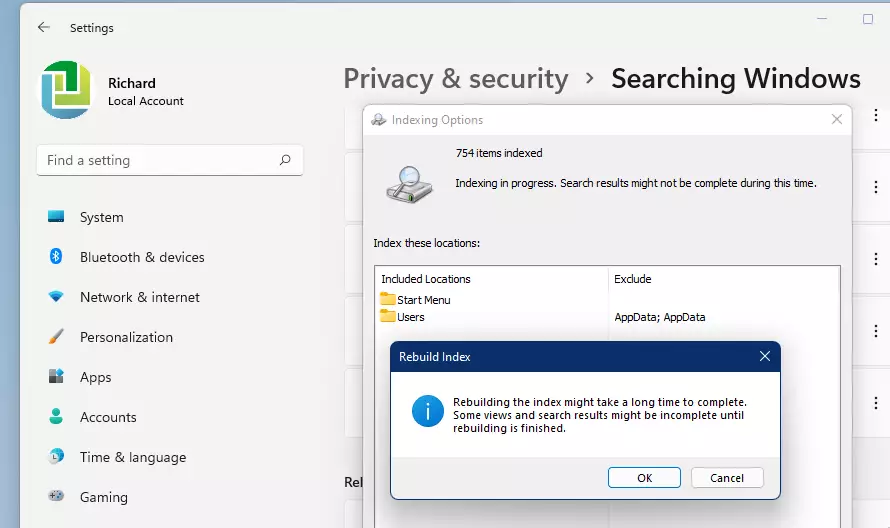
- Click the Rebuild button to start the process.
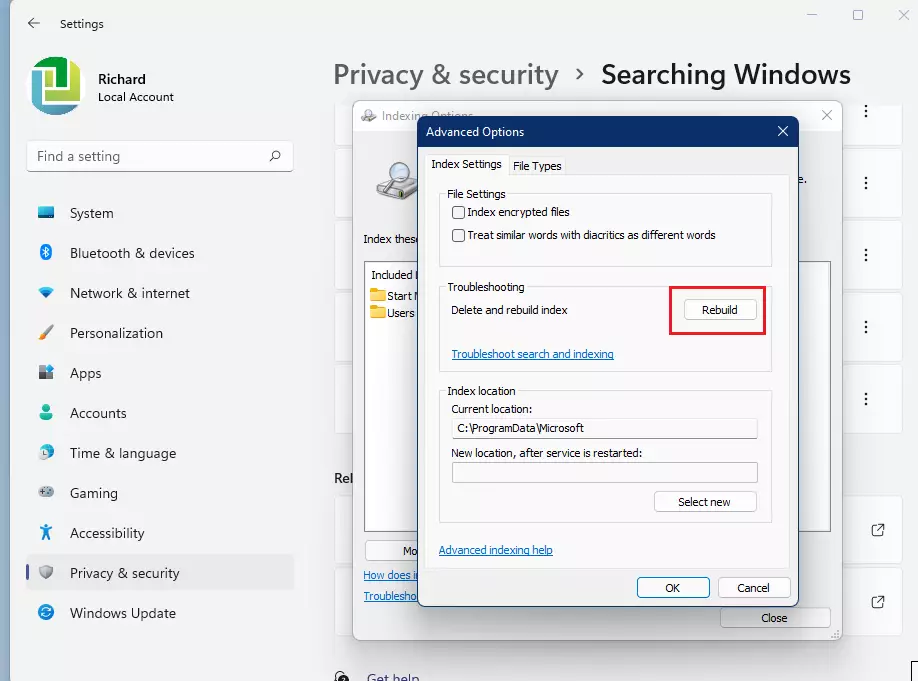
- A confirmation box will appear. Click OK to begin.
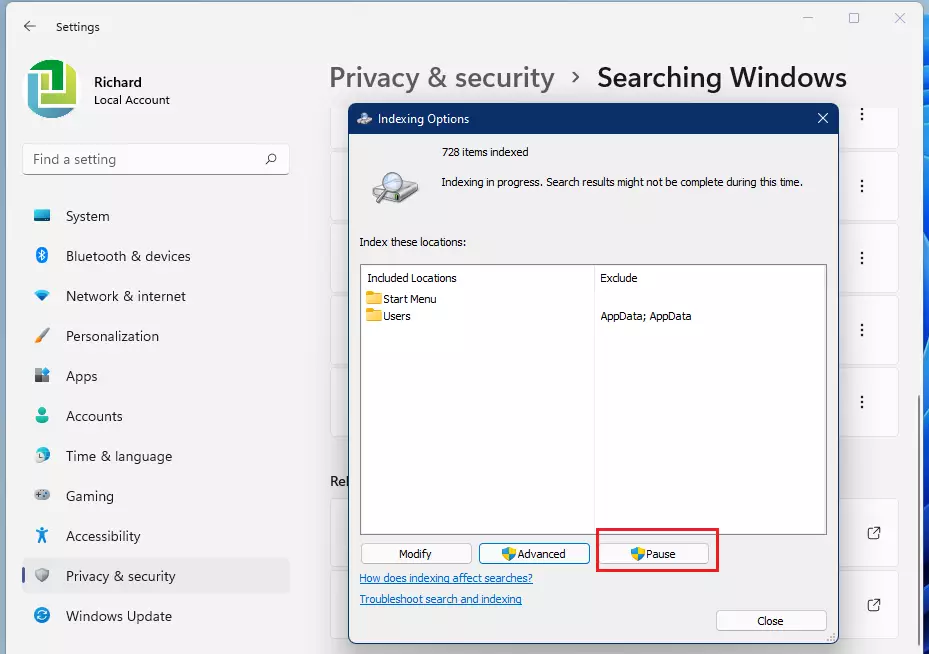
The computer will now start scanning your files. This can take a while depending on how many files you have. You can click Pause if you need to stop it for a moment.
Troubleshooting the Windows Search Service
If rebuilding the index doesn’t fix your search problems, you might need to check the Windows Search service itself to get things working again.
- Press Windows key + R, type services.msc, and press Enter.
- Locate Windows Search in the list.
- Right-click it and select Restart. If it is stopped, select Start.
If the service fails to start, you may need to run the official Windows Search Troubleshooter to identify deeper system conflicts.
Index Performance Tuning and Management
Managing your search database size helps keep your Windows search fast, and you can do this by telling it which folders not to search.
Summary
Rebuilding your Windows 11 search index is a simple fix for broken search results, creating a fresh map of your files so your computer can find things quickly.
For more information on managing your files, you can add additional locations to include new folders in your search or switch from Classic to Enhanced mode to exclude them to keep your results clean.
How long does it take to rebuild the Windows Search Index?
The time required depends on the number of files on your drive and your hardware speed. On a modern SSD, it may take 15 to 30 minutes. If you have a large mechanical hard drive with millions of files, it could take several hours to complete the full re-indexing process.
Will rebuilding the index delete my files?
No, rebuilding the Windows search index will not delete or change any of your actual files; it only rebuilds the list Windows uses to find them.
Why is my Windows Search Indexing paused?
Windows automatically pauses indexing when it detects that you are using your computer for intensive tasks, such as gaming or video editing. This is done to preserve system resources. You can manually resume indexing in the Indexing Options window if you need the search results to be updated immediately.
Was this guide helpful?

About the Author
Richard
Tech Writer, IT Professional
Richard, a writer for Geek Rewind, is a tech enthusiast who loves breaking down complex IT topics into simple, easy-to-understand ideas. With years of hands-on experience in system administration and enterprise IT operations, he’s developed a knack for offering practical tips and solutions. Richard aims to make technology more accessible and actionable. He's deeply committed to the Geek Rewind community, always ready to answer questions and engage in discussions.


No comments yet — be the first to share your thoughts!