How to Search for Files in Windows 11

You can easily search for files in Windows 11 directly from the File Explorer.
The File Explorer search feature lets you quickly find any document, image, video, or other file type saved on your PC, saving you valuable time.
Windows 11’s search capabilities are quite robust. You can pinpoint files not just by their name, but also by their content or when they were last modified. For instance, to find all documents created last Tuesday, you would type “date:last tuesday” into the search bar.
Search for files using the Taskbar’s search bar for quick PC and web results, or open File Explorer and type your query into the top-right search box for local file searches. You can find files by name, content, or date.
Using the Taskbar Search
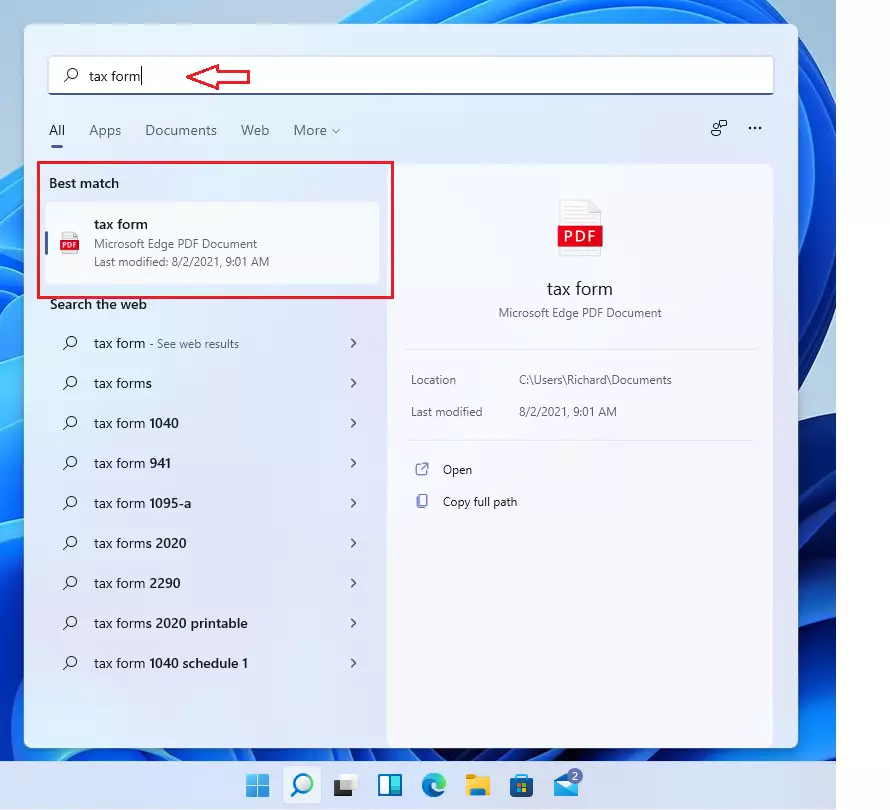
The fastest way to look for anything is the search bar on your Taskbar. It checks your PC, your cloud storage, and even the web.
- Click the Search icon on your Taskbar.
- Type the name of your document or a keyword.
- Look at the Best match section to see your results.
You can also use this feature to find settings or apps. Type what you need, and Windows will show you the most relevant items.
Searching in File Explorer
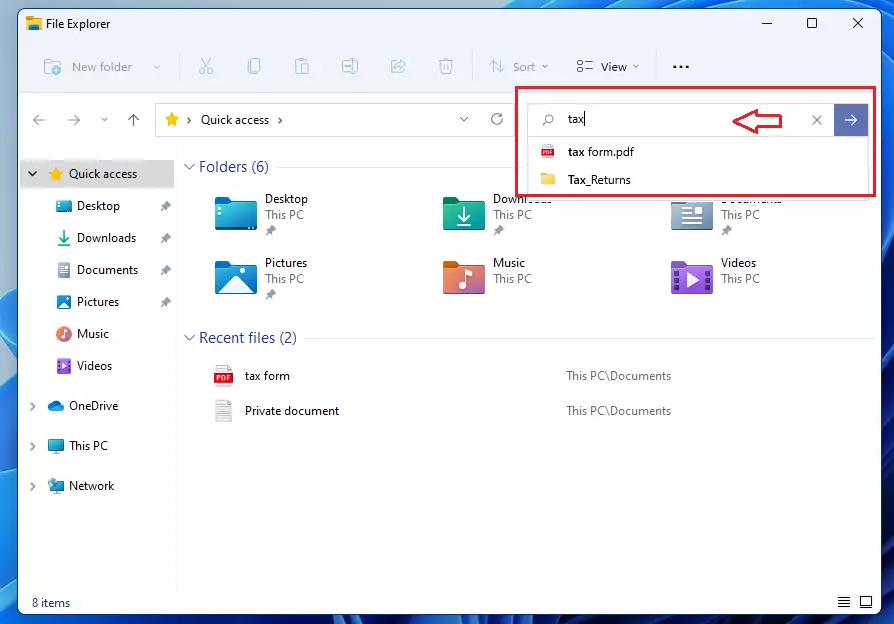
If you only want to look for files stored on your computer, use File Explorer. This method ignores web results and keeps your search focused.
- Open File Explorer from your Taskbar or by right-clicking the Start button.
- Choose a specific folder on the left side, such as Documents or This PC.
- Type your keyword in the search box located in the top right corner of the window.
For more advanced searches, you can use the Command Prompt. This requires admin privileges and lets you find files by their path.
dir C:\Users\GenericUser\Documents /s /bSummary
Searching in Windows 11 is quite straightforward. Use the Taskbar for a quick check of your PC and the web. Use File Explorer for a deeper look into your local drives. Keeping your files organized helps these search tools work even better for you.
Was this guide helpful?

About the Author
Richard
Tech Writer, IT Professional
Richard, a writer for Geek Rewind, is a tech enthusiast who loves breaking down complex IT topics into simple, easy-to-understand ideas. With years of hands-on experience in system administration and enterprise IT operations, he’s developed a knack for offering practical tips and solutions. Richard aims to make technology more accessible and actionable. He's deeply committed to the Geek Rewind community, always ready to answer questions and engage in discussions.




I am looking for documents that I have saved on this computer. For some reason Windows 11 was downloaded without my knowledge or request. The documents that I have saved are EXTREMELY important to me. PLEASE explain (in plain English) how I go about getting to my saved folders. I am not tech-know savy and this situation is EXTREMELY frustrating.
[…] Open Windows Search or press the keyboard short Windows key + S. […]
[…] Open Windows Search or press the keyboard short Windows key + S. […]
[…] Windows Search is a built-in feature that allows you to search for documents and app settings from a particular folder or the entire PC. […]
[…] Windows Search is a built-in tool that lets you search your whole computer or specific folders. […]