How to Remove Library Locations in Windows Media Player

You remove library locations in Windows Media Player by managing your library settings within the player itself.
Windows Media Player is a tool for organizing and playing your digital media files, and it scans designated folders to build its library.
These scanned locations, often defaulting to your Music and Videos folders, determine what appears in your player. You can add custom folders, but sometimes you need to remove one.
Deleting a library location stops Windows Media Player from scanning that specific folder, ensuring only your desired media content remains accessible through the player.
Open Windows Media Player, click Settings, then select the Music or Video library tile. Click the drop-down arrow and press the X button next to any folder you wish to remove from your library.
Remove a library location in Media Player
Follow these steps to remove a folder from your library:
- Click the Settings button located on the left sidebar.
- Select the Music or Video library tile.
- Click the drop-down arrow to see the list of folders.
- Click the X button next to the folder you want to remove.
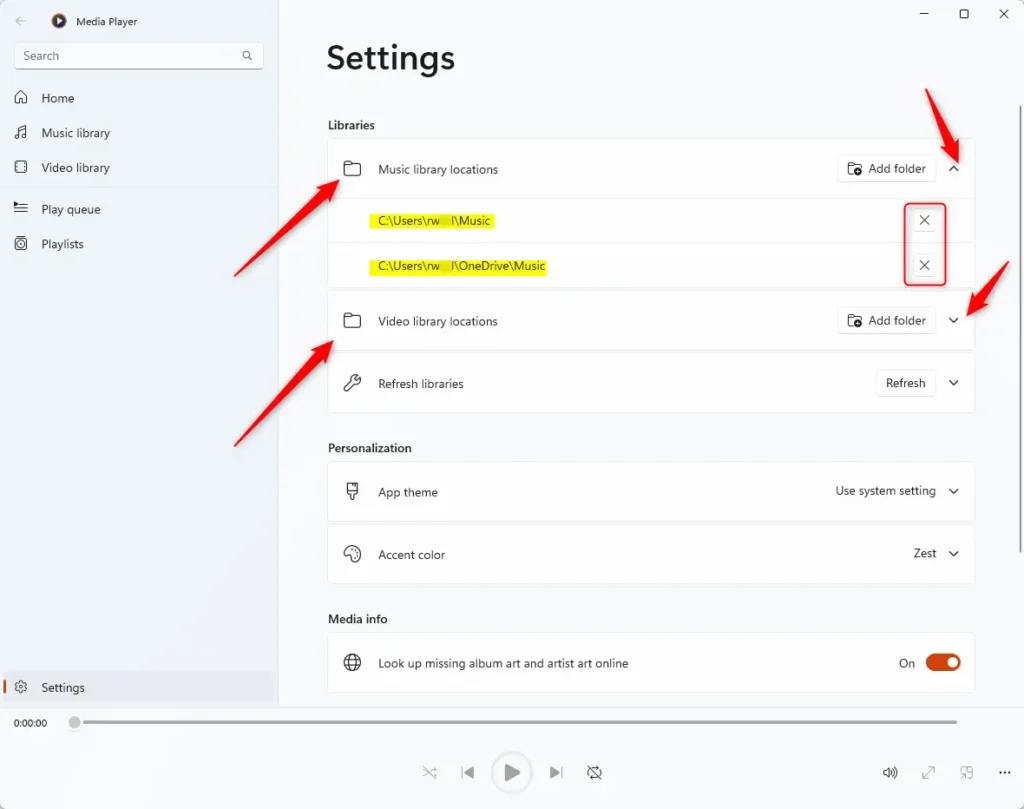
Exit the Settings page when you are finished.
Summary
All in all, Windows Media Player is a handy tool for keeping your media organized. By adding and removing library locations, you keep your collection tidy and simple to browse. You can manage these folders anytime by visiting the Settings menu within the app.
Was this guide helpful?
0% of readers found this helpful (1 votes)

About the Author
Richard
Tech Writer, IT Professional
Richard, a writer for Geek Rewind, is a tech enthusiast who loves breaking down complex IT topics into simple, easy-to-understand ideas. With years of hands-on experience in system administration and enterprise IT operations, he’s developed a knack for offering practical tips and solutions. Richard aims to make technology more accessible and actionable. He's deeply committed to the Geek Rewind community, always ready to answer questions and engage in discussions.



No comments yet — be the first to share your thoughts!