How to Install Windows 11 Insider Preview

This guide shows you how to install the Windows 11 Insider Preview. This is an early version of Windows 11, meaning you can test it before it’s officially released to everyone.
Confirm your PC meets requirements with the PC Health Check tool, then sign up for the Windows Insider Program. Go to Settings > Update & Security > Windows Insider Program, link your Microsoft account, choose the Dev Channel, and check for updates to download and install the preview.
Why Join the Insider Program?
Microsoft lets people test new Windows 11 features early through the Windows Insider Program, a program for early testers. You get to try the latest updates before they’re released to the public. This helps Microsoft find problems and make Windows 11 better.
Check If Your PC Can Run 🪟 Windows 11
First, make sure your computer meets the requirements for Windows 11. Microsoft has a tool that checks this for you.
Download the Windows 11 PC Health Check tool below.
https://aka.ms/GetPCHealthCheckApp
Run the tool. It will tell you if your PC is ready for Windows 11.
Join the Windows Insider Program
Once your PC passes the check, you can join the Windows Insider Program. Visit the link below to sign up with your Microsoft account.
https://insider.windows.com/en-us
Update Your 🪟 Windows 10 Machine
To get the Windows 11 Insider Preview, you’ll need to link your Microsoft account to your Windows 10 PC after joining the Windows Insider Program.
- Sign in to your Windows 10 computer.
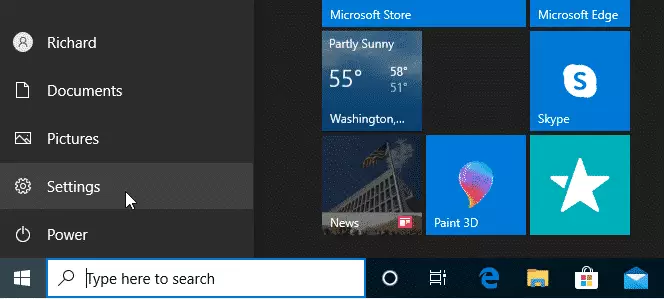
- Click the Start button to open Settings.
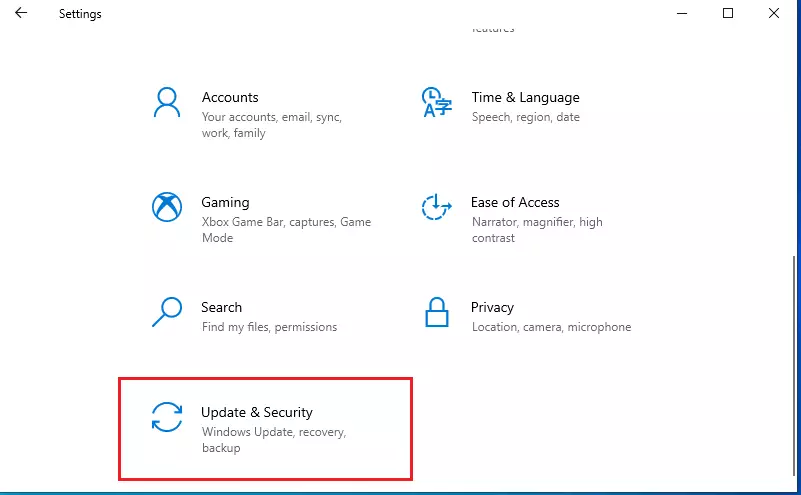
- Click Update & Security.
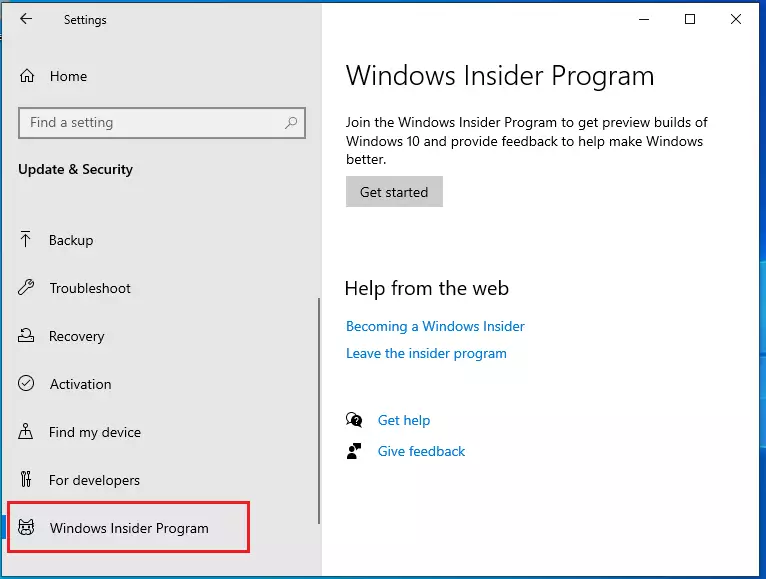
- In the left menu, select Windows Insider Program.
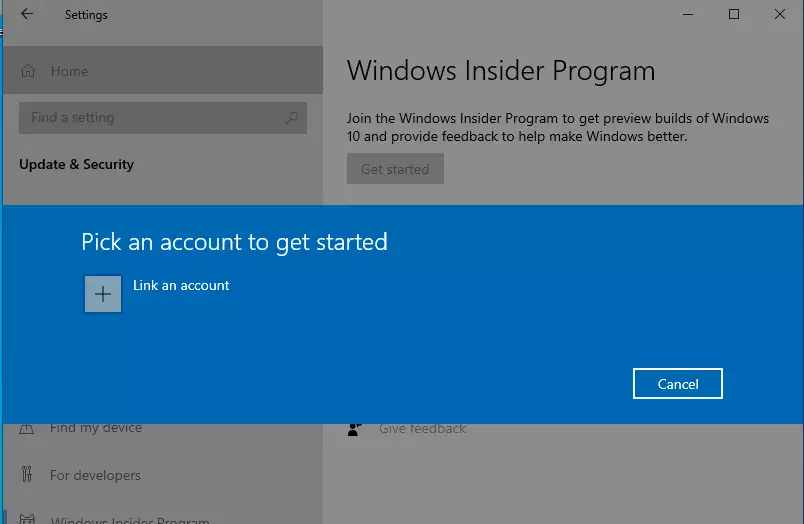
- Click Get Started. Link the Microsoft account you used to register for the Insider Program.
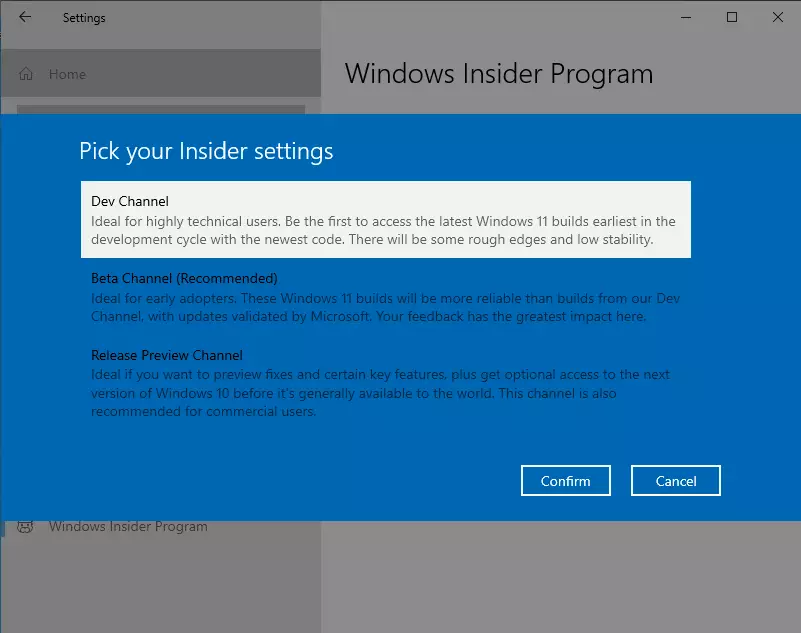
- Choose the Dev Channel to get the newest builds.
- Go back to Windows Update and check for new updates.
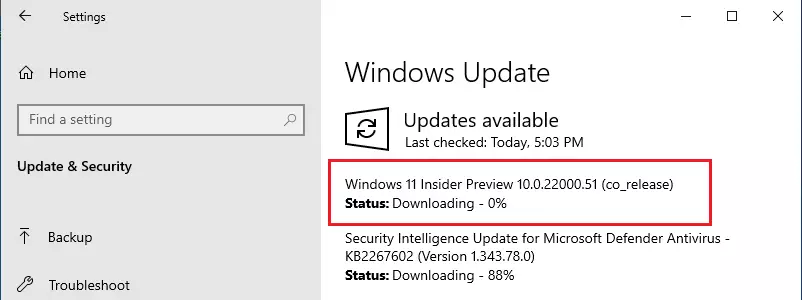
Your PC will start downloading Windows 11; this might take a while depending on your internet speed.
When the download finishes, restart your computer. Windows 11 will install automatically during the restart.
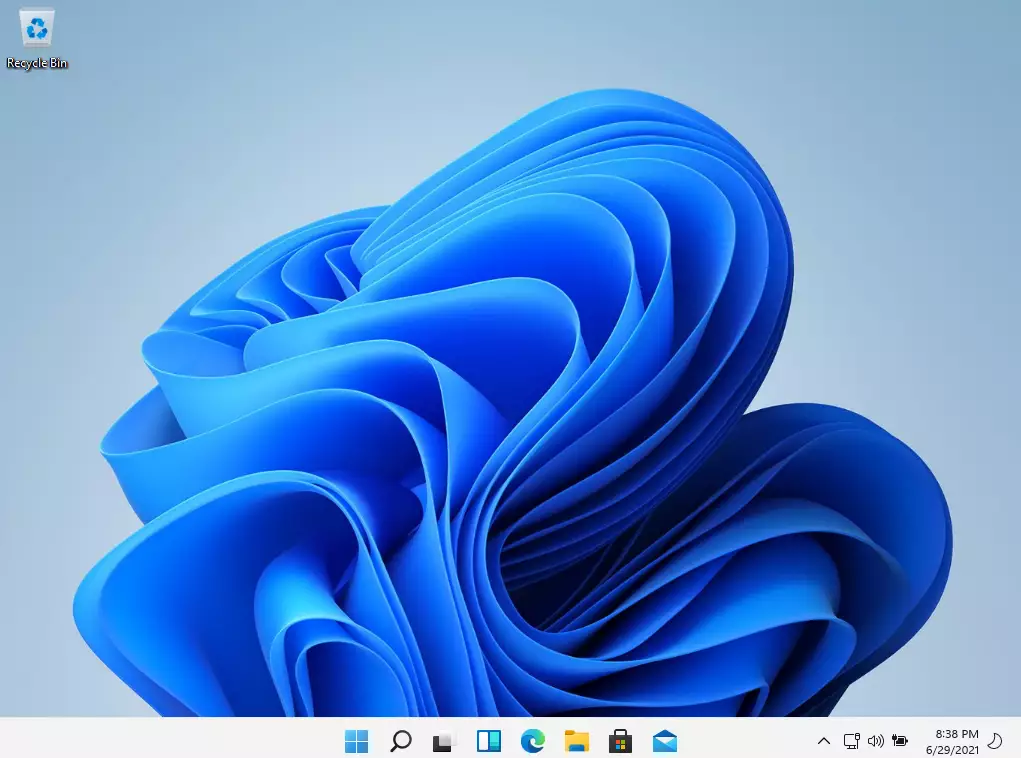
You’re now running Windows 11 Insider Preview!
Summary
Installing the Windows 11 Insider Preview involves checking your PC’s compatibility, signing up for the Windows Insider Program, and linking your Microsoft account in your Windows 10 settings.
- Use the PC Health Check tool to confirm your computer meets Windows 11 requirements.
- Register for the Windows Insider Program on Microsoft’s website.
- Open Windows 10 Settings and go to Update & Security.
- Select Windows Insider Program and click Get Started.
- Link your Microsoft account to your PC.
- Choose the Dev Channel for the latest builds.
- Check for updates in Windows Update.
- Download and install Windows 11, then restart your computer.
Now you can test Windows 11 before it’s released to everyone. As an Insider, you can help Microsoft improve Windows by sharing feedback about what you find.
Was this guide helpful?

About the Author
Richard
Tech Writer, IT Professional
Richard, a writer for Geek Rewind, is a tech enthusiast who loves breaking down complex IT topics into simple, easy-to-understand ideas. With years of hands-on experience in system administration and enterprise IT operations, he’s developed a knack for offering practical tips and solutions. Richard aims to make technology more accessible and actionable. He's deeply committed to the Geek Rewind community, always ready to answer questions and engage in discussions.



[…] can use the tool if you’d like to test hidden features in Windows Insider builds. The steps below will show you […]
[…] Voice access is not yet available in the Windows 11 stable build. It was just added to the Insider Preview version of Windows 11. If you need Voice access right now, join the Microsoft Insider Preview program. […]
[…] most recent release of Windows 11 to computers enrolled in its Insider Preview program allows files to be pinned to Quick access. In addition, Pin to Quick access support has been […]
[…] new stickers feature is available only to computers enrolled in the Microsoft Insider Preview program, specifically machines that have installed Windows 11 build 25162 or […]
[…] steps to turn on or offtthe desktop search box in Windows 11. In addition, devices enrolled in the Microsoft Insider Preview program may begin to see a search box displayed on their desktop that enables them to search the […]
[…] This post shows students and new users steps to enable or disable Suggested actions in Windows 11. Suggested action is a new feature currently available to devices enrolled in the Microsoft Insider Preview program. […]
[…] available to all computers. This is only available in Windows Dev channels and PCs enrolled in the Microsoft Insider Preview […]
[…] feature is still in development and only available to computers enrolled in the Microsoft Insider Preview program. However, it may be released to all PCs in the near […]
[…] work across multiple locations simultaneously. This is currently available to computers enrolled in the Microsoft Insider Preview […]
[…] You are registered for the Windows Insider Program, your PC runs Windows 11, and your PC is opted into any of the 4 Insider Channels. […]
[…] App Control is a new feature rolled out to PCs enrolled in the Microsoft Insider Program that protects users from malware and new and emerging threats, including blocking malicious or […]
[…] the Start menu. Unfortunately, this is only available on computers registered and enrolled in the Microsoft Insider Preview […]
[…] As of now, it’s not available to all Windows devices. However, the latest Snipping Tool app (version 11.2211.35.0) is available for Windows 11 devices enrolled in the Windows Insiders in the Dev Channel. […]
[…] new Copilot feature is only available to some machines enrolled in the Microsoft Insider Preview […]
[…] Windows 11 Insider Program Build: Dev Channel. […]
[…] In the development version of Windows 11, Microsoft is testing a new feature that adds Access Keys shortcuts to the XAML context menu in File Explorer. Unfortunately, this is only available on computers registered and enrolled in the Microsoft Insider Preview program. […]
[…] PC must be in the Beta Channel. If you are new to the Windows Insider Program, click here to get started with registration and joining your PC to the Beta […]
[…] The recent Windows 11 builds in the DEV channel have options to get more pins or recommended items in Windows 11, but you must be enrolled in the Insider Preview program. […]
[…] mentioned above, the recent builds of Windows 11 in the DEV channel added a weather widget to the taskbar in Windows […]
[…] now, this feature is being tested by Windows Insiders, so it might not be on all PCs […]
[…] DNR is a new feature that’s only available if you are part of the Windows Insider Preview program. This program lets you try new Windows features before they’re made available to […]
[…] previous post, we mentioned that Windows Subsystem for Android is currently only available for Windows Insiders in the Beta Channel in the United States. If you’re in another location, […]
[…] out through Windows 11 build 23440 and affects the search highlights. It is currently part of Microsoft Insider Preview […]
[…] clean, blank window every time you start it. This feature is currently rolling out to users in the Microsoft Insider Preview […]
[…] Right now, this feature is rolling out in stages to Windows Insiders. […]