How to Enable or Disable Hover Search in Windows 11

You can enable or disable the hover search feature in Windows 11 to control how the taskbar search icon behaves.
Hover search allows the Windows search interface to automatically expand when you move your mouse cursor over the search icon on the taskbar, bypassing the need for a click.
This feature, often tied to Windows 11’s Search Highlights, can reveal trending topics and recent files instantly. You decide if you want this quick peek or prefer to initiate search with a manual click.
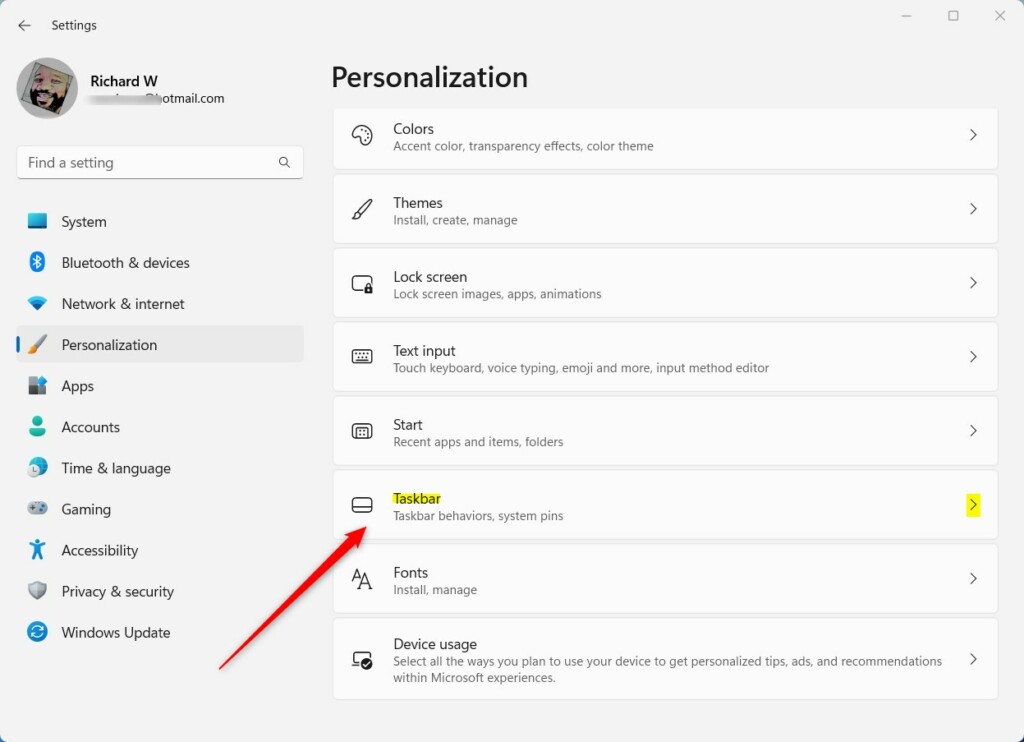
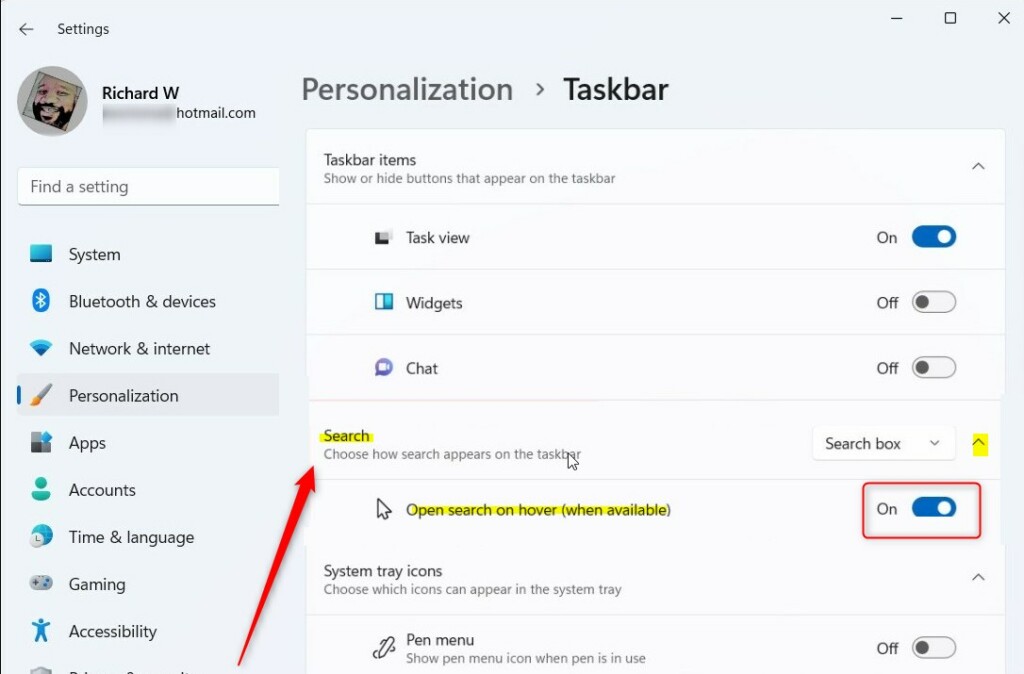
To enable or disable hover search in Windows 11, open Settings, go to Personalization, then Taskbar, and toggle the “Open search on hover” option. Alternatively, use the Registry Editor to modify the OpenOnHover value under 🗝️HKEY_CURRENT_USER\Software\Microsoft\Windows\CurrentVersion\Feeds\DSB.
Enable or Disable Search Hover via Settings
Windows 11 hover search can be turned on or off easily using the Settings app.
- Open the Settings app by pressing Windows Key + I.
- Select Personalization from the left-hand sidebar.
- Click on the Taskbar tile.
- Expand the Taskbar items or Search section.
- Locate Open search on hover and toggle the switch to On or Off.
Advanced Configuration via Registry Editor
You can change Windows 11 hover search settings using the Registry Editor for more control, but be careful as it requires admin rights and mistakes can cause system problems.
- Press Windows Key + R, type
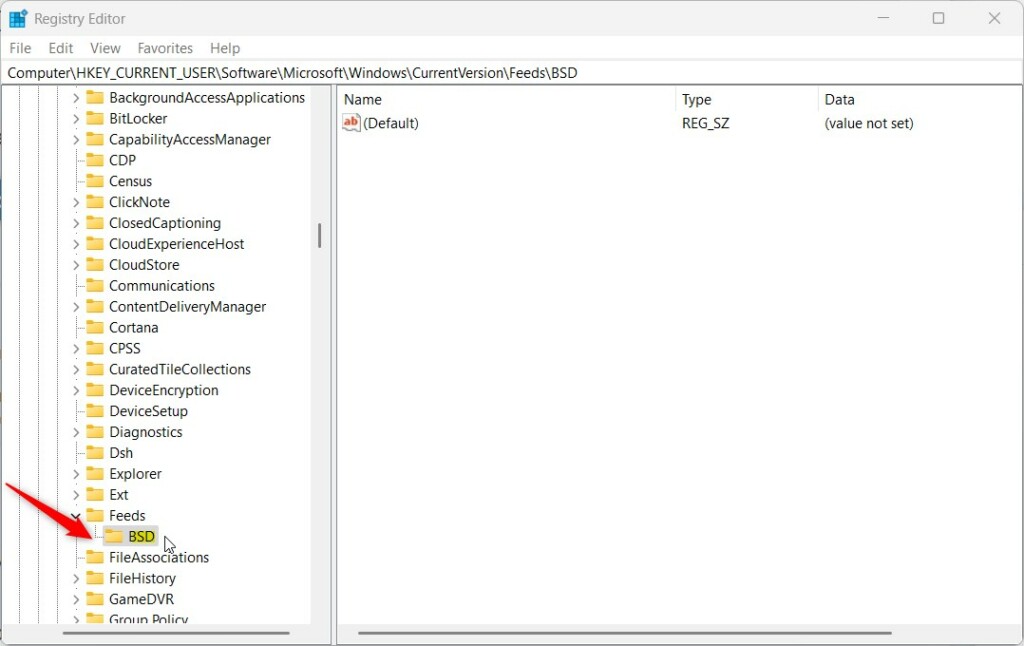
regedit, and press Enter. - Navigate to:
HKEY_CURRENT_USER\Software\Microsoft\Windows\CurrentVersion\Feeds\DSB - If the DSB key is missing, right-click Feeds, select New > Key, and name it DSB.
- Right-click in the right pane, select New > DWORD (32-bit) Value.
- Name the value
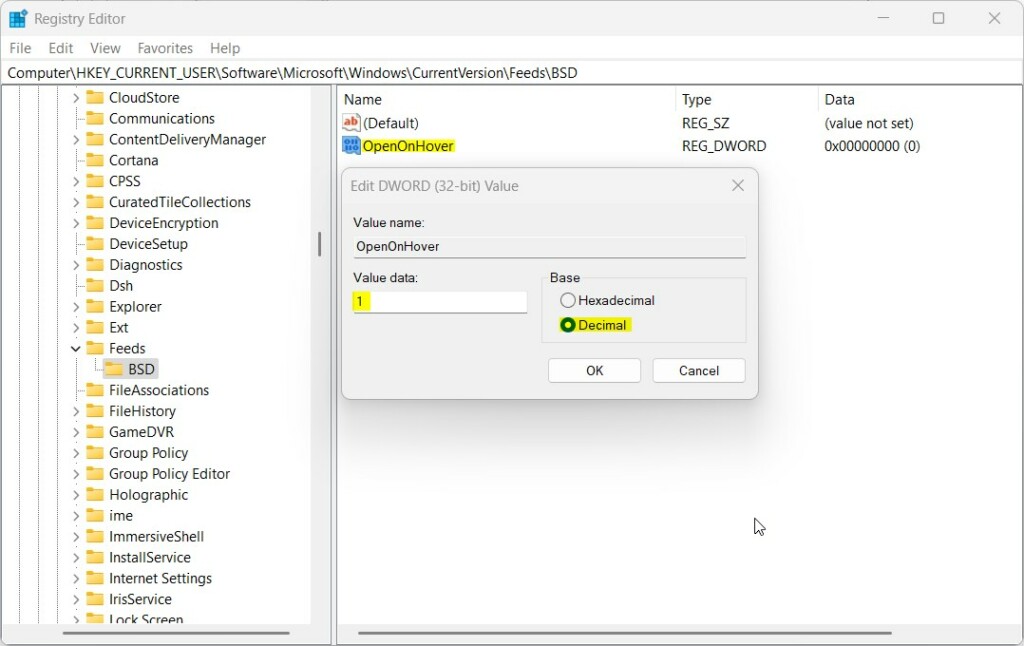
OpenOnHover. - Double-click
OpenOnHoverand set the Value data to1to enable or0to disable. - Restart your computer to apply changes.
Troubleshooting Common Search UI Bugs
If your Windows 11 search menu looks strange, like being transparent or not responding, it’s often fixed by restarting the Windows Explorer process.
Summary
Managing the Windows 11 hover search feature lets you customize your taskbar for better efficiency, with easy options in Settings or the Registry Editor, and simple fixes for common bugs.
Why does my search menu turn transparent when I hover?
Your Windows 11 search menu might turn transparent due to graphics driver issues or old Windows Explorer processes, often fixed by restarting Explorer.
How do I disable Search Highlights in 🪟 Windows 11?
You can turn off Search Highlights in Windows 11 by going to Settings, then Personalization, and finding the Taskbar options.
Is hover search a system resource hog?
Generally, the Windows 11 hover search feature doesn’t use many system resources, though turning it off might slightly improve performance on older computers.
Was this guide helpful?

About the Author
Richard
Tech Writer, IT Professional
Richard, a writer for Geek Rewind, is a tech enthusiast who loves breaking down complex IT topics into simple, easy-to-understand ideas. With years of hands-on experience in system administration and enterprise IT operations, he’s developed a knack for offering practical tips and solutions. Richard aims to make technology more accessible and actionable. He's deeply committed to the Geek Rewind community, always ready to answer questions and engage in discussions.


[…] or hide the “Open Bing Chat in Edge” and “Find results in Web” icons in the Windows Search gleam or Start […]