How to Disable Pinning on Windows 11 Taskbar

You disable pinning on the Windows 11 Taskbar by editing a specific registry value.
This process stops users from adding or removing app shortcuts from the Taskbar, locking the layout in place. This is incredibly useful for shared PCs, such as those in offices or schools, where you want a consistent experience for everyone.
By default, Windows 11 lets anyone pin and unpin programs freely. However, if you manage multiple user accounts on a PC, or an IT admin looking to standardize settings, preventing Taskbar changes simplifies maintenance and avoids accidental personalization.
You disable Taskbar pinning by editing the Registry or Group Policy. For Registry Editor, navigate to 🗝️HKEY_CURRENT_USER\Software\Policies\Microsoft\Windows\Explorer, create a DWORD value named NoPinningToTaskbar, and set its data to 1. For Group Policy, enable “Do not allow pinning programs to the Taskbar” under User Configuration\Administrative Templates\Start Menu and Taskbar.
What happens when you are done?
Once you apply these changes, the options to pin or unpin programs will disappear from the right-click menu. The icons on your Taskbar will stay exactly where they are. Existing pinned items will remain, but users cannot add new ones or remove current ones.
Using Group Policy Editor (Pro/Enterprise)
Windows 11 Pro and Enterprise users can stop programs from being pinned to the taskbar by using the Group Policy Editor.
- Open the Local Group Policy Editor by pressing the Windows key, typing
gpedit.msc, and pressing Enter. windows 11 edit group policy - In the menu on the left, click through these folders:
User Configuration\Administrative Templates\Start Menu and Taskbar. - Look for the setting named “Do not allow pinning programs to the Taskbar” in the right-hand list. Double-click it.
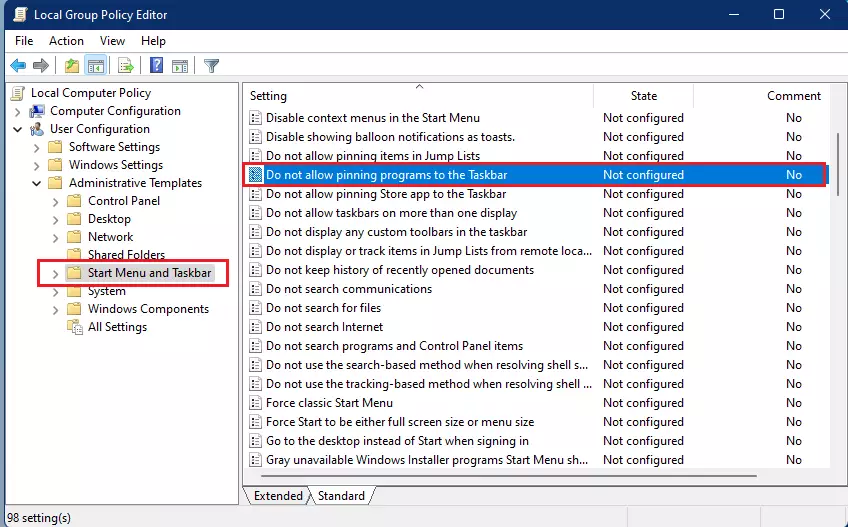
windows 11 do not allow pinnning programs to the taskbar - In the new window that appears, select Enabled.
- Click OK to save your changes and close the window.
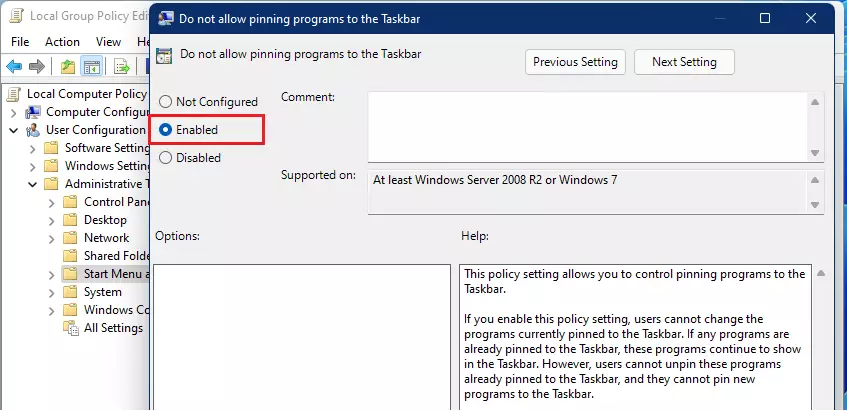
windows 11 enabled to disable pinning of app to taskbar
Using Registry Editor (Home Edition)
Windows 11 Home users can prevent programs from being pinned to the taskbar by making changes in the Registry Editor.
- Press ⊞ Win+R, type
regedit, and press Enter. - Navigate to:
HKEY_CURRENT_USER\Software\Policies\Microsoft\Windows\Explorer. If the Explorer key does not exist, right-click the Windows folder, select New > Key, and name itExplorer. - Right-click in the right pane, select New > DWORD (32-bit) Value.
- Name it
NoPinningToTaskbar. - Double-click it and set the Value data to
1. - Restart your computer or restart Windows Explorer via Task Manager.
Automation with PowerShell
You can apply this setting using a simple command. Note: This process requires admin privileges.
New-ItemProperty -Path "HKCU:\Software\Policies\Microsoft\Windows\Explorer" -Name "NoPinningToTaskbar" -Value 1 -PropertyType DWORD -Force
Summary
Locking your Taskbar is a great way to keep your desktop organized and prevent unwanted changes. Whether you use the Group Policy Editor for enterprise control or the Registry Editor for home versions, you can easily manage your Windows 11 UI customization to ensure a consistent experience for all users.
Does disabling pinning affect existing pinned items?
No, disabling the pinning feature does not remove the items currently on your taskbar. It only prevents users from adding new shortcuts or removing the ones that are already there. Your current layout remains locked in place until you re-enable the feature.
Why are my pinned items reappearing after a restart?
If your items reappear, it is likely because the policy is not being applied correctly or a sync setting is overriding your changes. Ensure you have saved the Group Policy or Registry changes properly and check if your Microsoft account settings are syncing taskbar preferences across devices.
Was this guide helpful?

About the Author
Richard
Tech Writer, IT Professional
Richard, a writer for Geek Rewind, is a tech enthusiast who loves breaking down complex IT topics into simple, easy-to-understand ideas. With years of hands-on experience in system administration and enterprise IT operations, he’s developed a knack for offering practical tips and solutions. Richard aims to make technology more accessible and actionable. He's deeply committed to the Geek Rewind community, always ready to answer questions and engage in discussions.



No comments yet — be the first to share your thoughts!