How to Enable Desktop Search Box in Windows 11

You can enable a desktop search box in Windows 11 to quickly find files and web content directly from your screen.
This desktop search box acts as a convenient shortcut, eliminating the need to open a separate browser for quick lookups.
Currently, this feature is often found in testing builds, like Windows 11 version 23H2, especially among Microsoft Insider Preview participants.
You simply type your query into the box, and Windows 11 will search your local files as well as the web using Bing.
Right-click an empty space on your desktop, select “Show more options,” then click “Show search” to toggle it on or off. This feature is currently limited to the Windows Insider Preview program.
How to show or hide the desktop search box
Windows 11 lets you easily show or hide the desktop search box right from your desktop.
Follow these steps to manage the search bar. Note: This process does not require admin privileges.
- Right-click on an empty space on your desktop.
- Select “Show more options” from the menu that pops up.
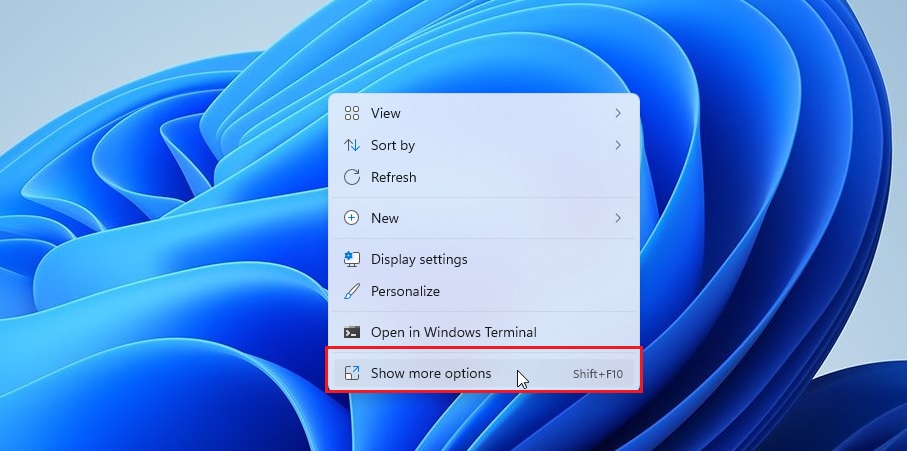
- Click on “Show search” to toggle it on or off.
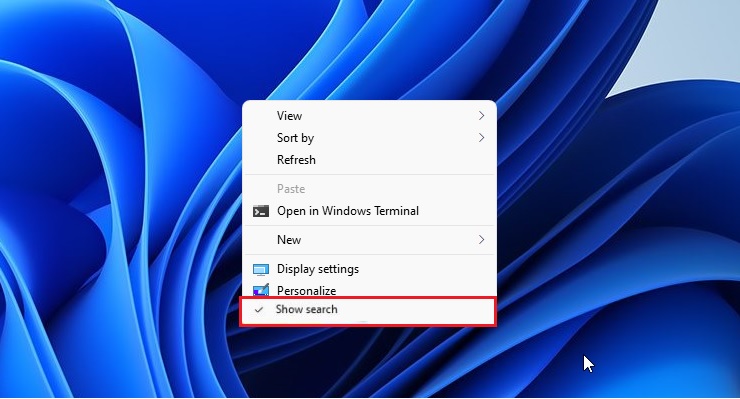
And that’s it!
Summary
- The desktop search box is a tool for quick web and file searching.
- It is currently limited to users in the Microsoft Insider Preview program.
- You can toggle the search box by right-clicking the desktop, choosing “Show more options,” and selecting “Show search.”
Was this guide helpful?
0% of readers found this helpful (1 votes)

About the Author
Richard
Tech Writer, IT Professional
Richard, a writer for Geek Rewind, is a tech enthusiast who loves breaking down complex IT topics into simple, easy-to-understand ideas. With years of hands-on experience in system administration and enterprise IT operations, he’s developed a knack for offering practical tips and solutions. Richard aims to make technology more accessible and actionable. He's deeply committed to the Geek Rewind community, always ready to answer questions and engage in discussions.


No comments yet — be the first to share your thoughts!