How to Remove Weather Widget from Windows 11 Taskbar

Windows 11 includes a weather widget on your taskbar. It shows you the current conditions and temperature at a glance. You might find this helpful, or you might find it distracting. If you prefer a cleaner look, you can easily turn it off.
Why remove the weather widget?
Some users feel the weather icon takes up unnecessary space on the taskbar. Others prefer a minimalist desktop. Removing it helps clear up your interface so you can focus on your work.
What happens when you are done?
Once you complete these steps, the weather icon will disappear from your taskbar immediately. If you ever change your mind, you can follow the same steps to turn it back on.
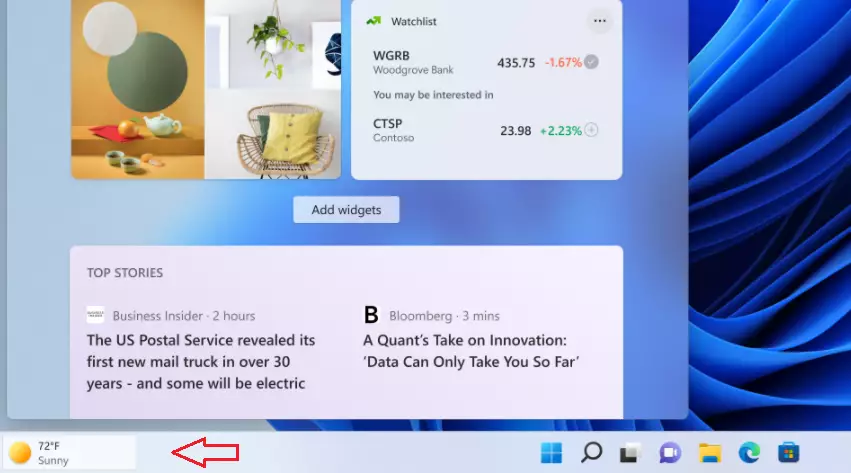
Microsoft added this feature for users in the DEV channel program. Here is what the icon looks like on your screen:
How to hide the weather widget using Settings
You do not need special permissions to change this setting.
- Click the Start button.
- Select Settings.

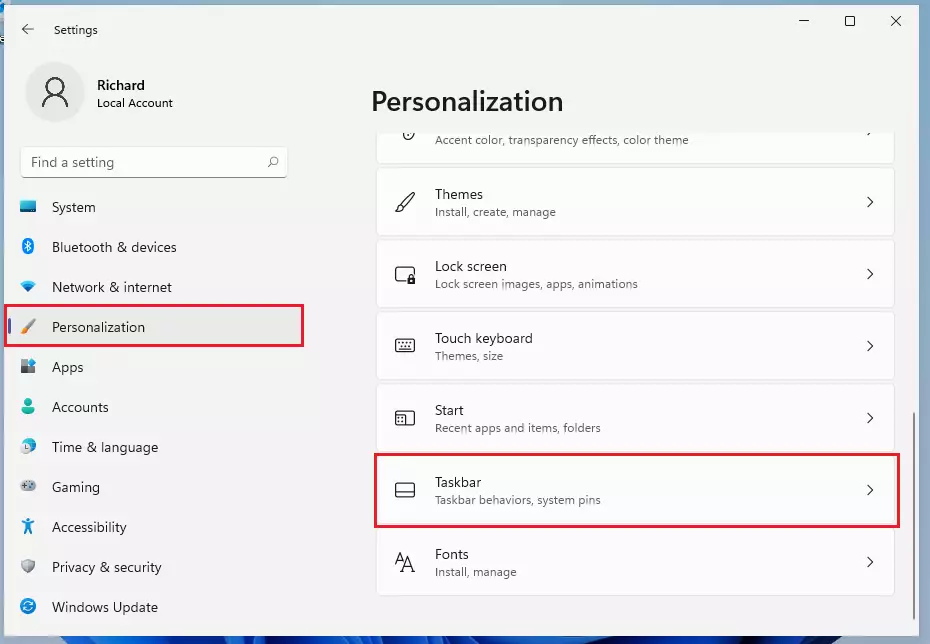
- Click Personalization in the menu on the left.
- Scroll down and click Taskbar.
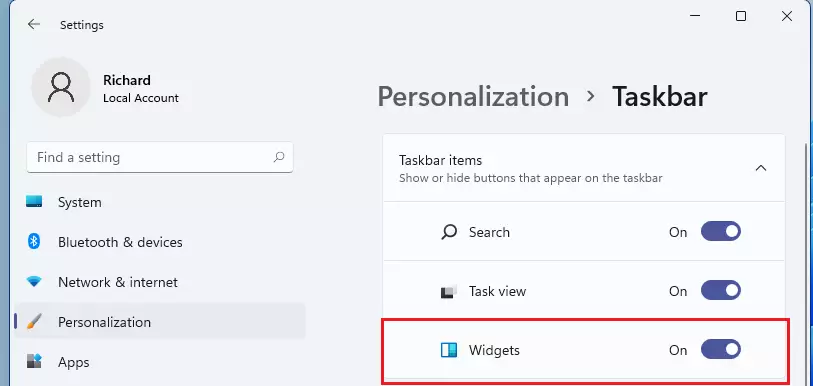
- Find the Widgets option.
- Toggle the switch to Off.
How to hide the weather widget using the Registry
Note: This method requires admin privileges and should be used with caution. Modifying the registry can cause system issues if done incorrectly.
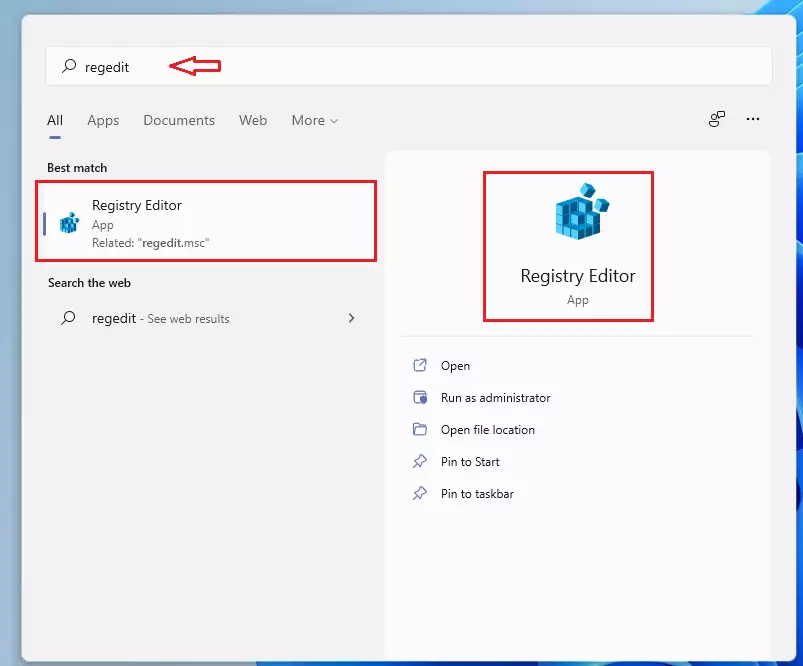
- Click the Start button and type
regeditin the search bar. - Select Registry Editor from the results.
- Use the path bar at the top to navigate to:
HKEY_CURRENT_USER\Software\Microsoft\Windows\CurrentVersion\Explorer\Advanced\TaskbarDa
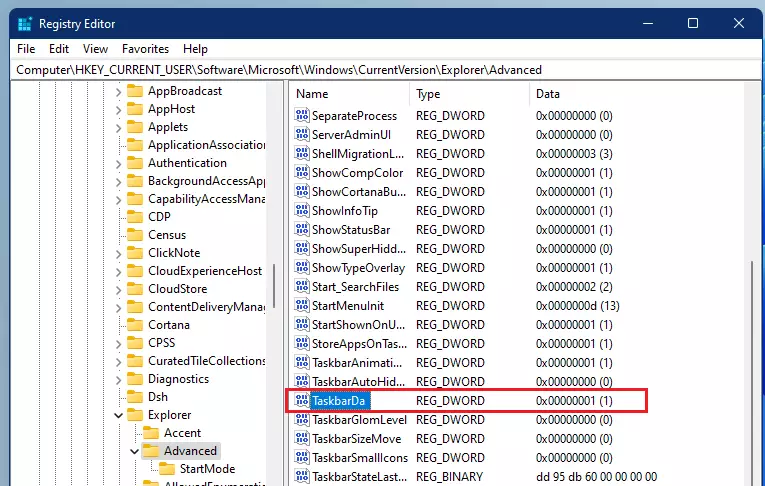
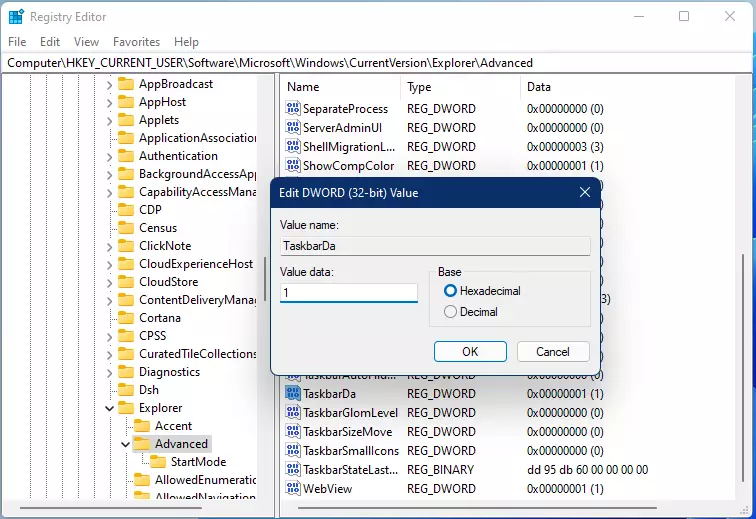
- Double-click the TaskbarDa item.
- Change the “Value data” to
0to remove the widget or1to add it back.
Summary
The Windows 11 weather widget is a quick way to check the forecast, but it is not for everyone. You can easily remove it using the standard Taskbar settings menu. Advanced users can also use the Registry Editor to toggle this feature. By removing it, you can keep your taskbar clean and customized to your liking.
Was this guide helpful?


Leave a Reply Cancel reply