
This guide explains how to control where your cursor starts when you open a new Copilot tab in Microsoft Edge. You can choose to have it focus on the page itself or jump straight to the address bar.
Go to Edge Settings > AI innovations > Copilot Mode preferences. Toggle “Focus on new tab page” On or Off to control where your cursor starts when a new Copilot tab opens.
Why do this?
By default, your browser might focus on the search box when you open a new tab. Changing this setting lets you decide whether you want to start typing a web address or interact with the Copilot AI interface immediately.
What happens when done?
Once you adjust this setting, your browser will behave exactly how you prefer every time you open a new tab. It saves you an extra click and keeps your workflow smooth.
How to change your settings
You can change how Copilot focuses on new tabs in Microsoft Edge by adjusting a simple setting.- Open Microsoft Edge.
- Click the Settings and more menu (the three dots in the top right corner) and select Settings.
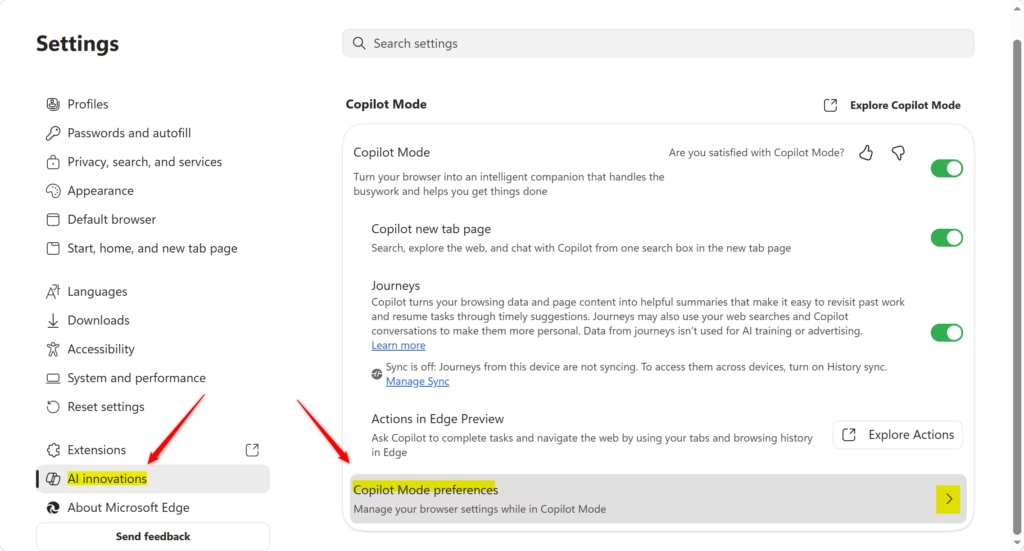
- Click on AI innovations on the left side of the screen. Then, click on Copilot Mode preferences on the right.
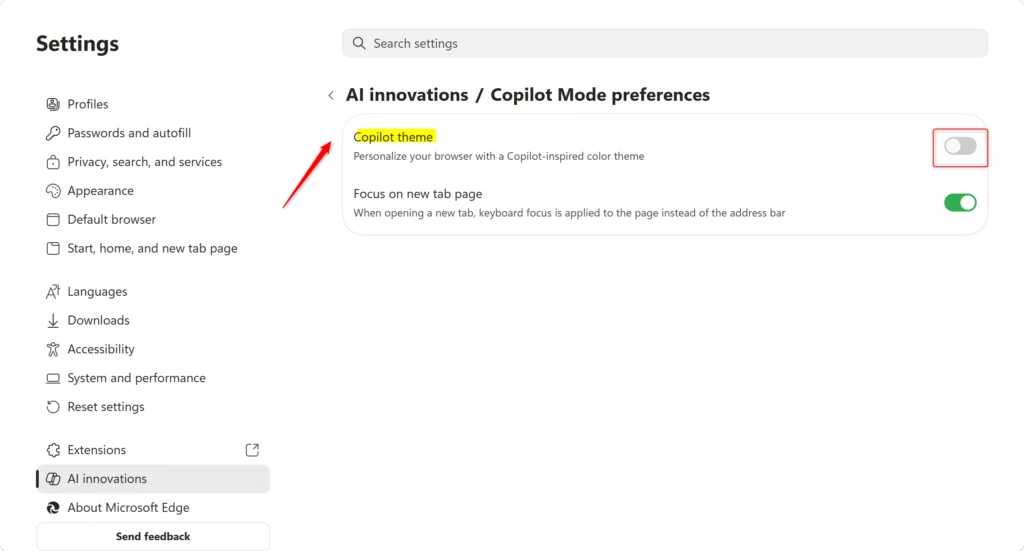
- Find the setting labeled Focus on new tab page. Toggle this switch On or Off based on your preference.
Note: This option is only available if you have the Copilot new tab page enabled. - You can now close the Settings tab.
References
Introducing Copilot Mode in Edge: A new way to browse the web
Summary
You can easily toggle the focus for your Copilot new tab page through the Edge settings menu. This ensures your cursor lands exactly where you want it every time you open a new tab, helping you browse faster and stay focused on your tasks.
How to force Edge to open links in new tab?
You can easily make Edge open links in a new tab by holding the Ctrl key while clicking, using the right-click menu, or clicking with your mouse scroll wheel.
How to disable Copilot discover in Edge?
To disable the Copilot sidebar, click the 'Settings and more' menu (three dots) in the top right corner and select 'Settings.' Navigate to 'Sidebar' in the left menu, click on 'Copilot,' and toggle the 'Show Copilot' switch to the 'Off' position to remove it from your browser interface.
How do I open Copilot in a new tab?
Opening Copilot in a new tab is simple; you can go straight to copilot.microsoft.com or, if you’ve set it up, just opening a new tab in Edge will show Copilot.
How do I change open new tab settings in Edge?
To change new tab settings, click the 'Settings and more' menu (three dots) and select 'Settings.' Navigate to 'Start, home, and new tabs' to customize what appears when you open a new tab. For Copilot-specific focus settings, visit 'AI innovations' and adjust the 'Focus on new tab page' toggle.
Was this guide helpful?

About the Author
Richard
Tech Writer, IT Professional
Richard, a writer for Geek Rewind, is a tech enthusiast who loves breaking down complex IT topics into simple, easy-to-understand ideas. With years of hands-on experience in system administration and enterprise IT operations, he’s developed a knack for offering practical tips and solutions. Richard aims to make technology more accessible and actionable. He's deeply committed to the Geek Rewind community, always ready to answer questions and engage in discussions.



No comments yet — be the first to share your thoughts!