
Exporting your passwords from Microsoft Edge is a great way to back up your data or move to a dedicated password manager. This process creates a CSV file containing your login credentials. Why do this? It gives you full control over your data and helps you switch to more secure tools. What happens when you are done? You get a plain-text file that you can import into other browsers or secure vaults.
Note: The mobile version of Microsoft Edge does not currently support the password export feature. You must use a desktop computer to perform these steps.
Step 1Open Edge Settings
Ensure you are signed into your Microsoft account. Click the three-dot menu in the top right corner and select Settings.
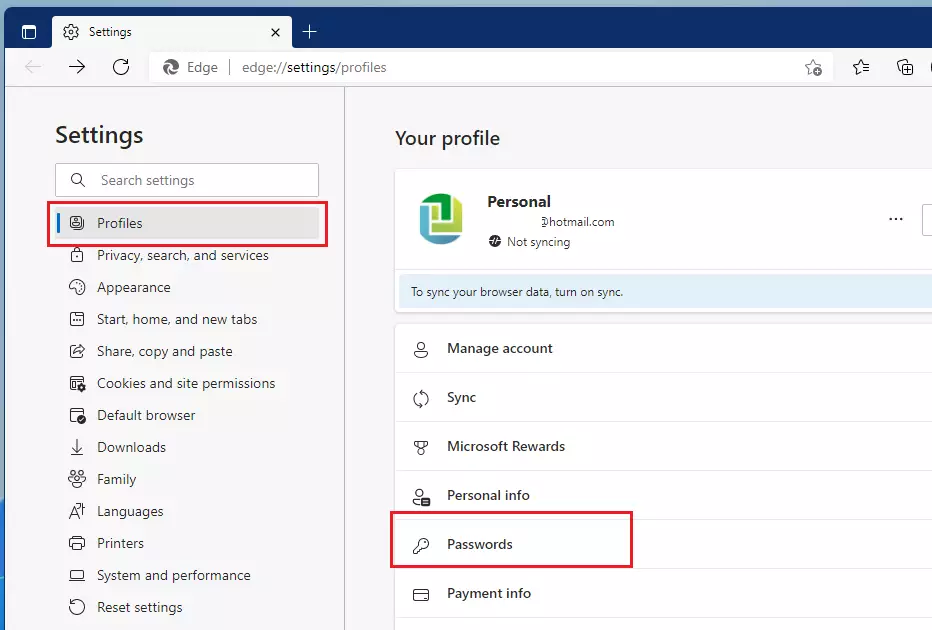
Step 2Go to Your Profile Passwords
Click Profiles on the left sidebar, then click the Passwords tile.
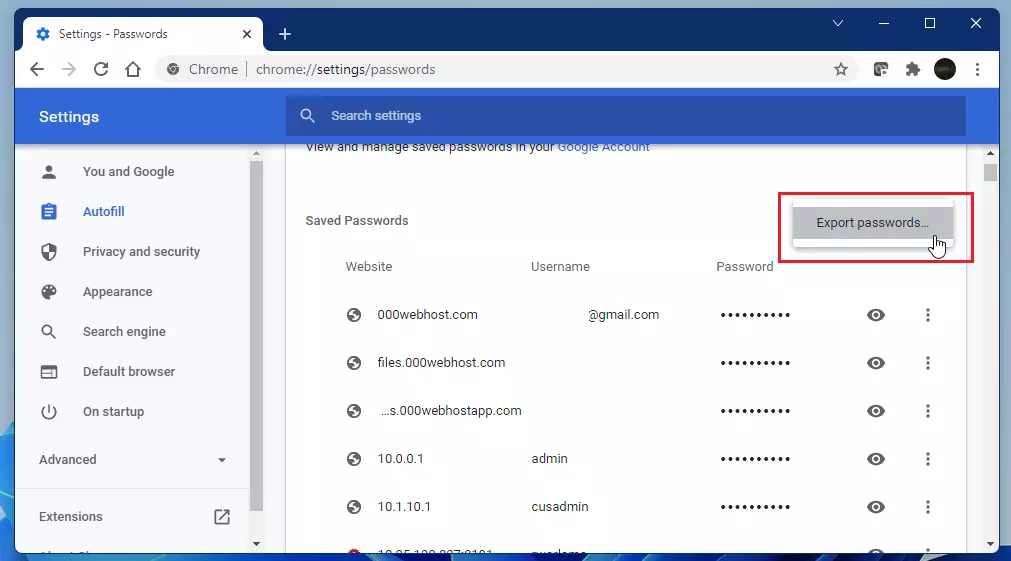
Step 3Click Export Passwords
Click the three vertical dots next to the ‘Saved passwords’ header and select Export passwords.
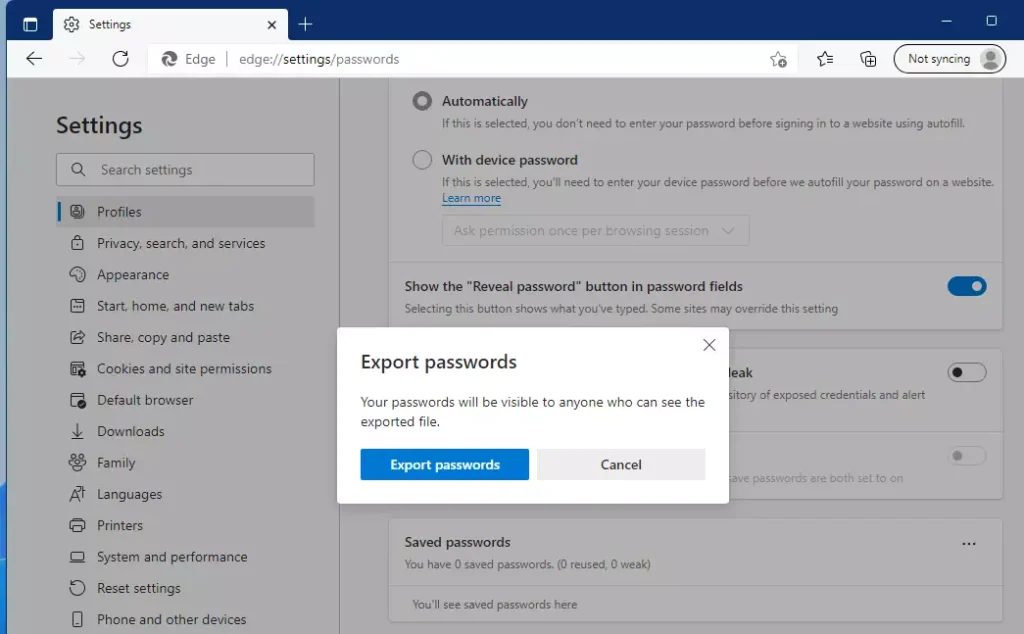
Step 4Confirm the Export ⚠️ Admin Privileges Required
A warning will appear explaining the risks. Click the Export passwords button to proceed.
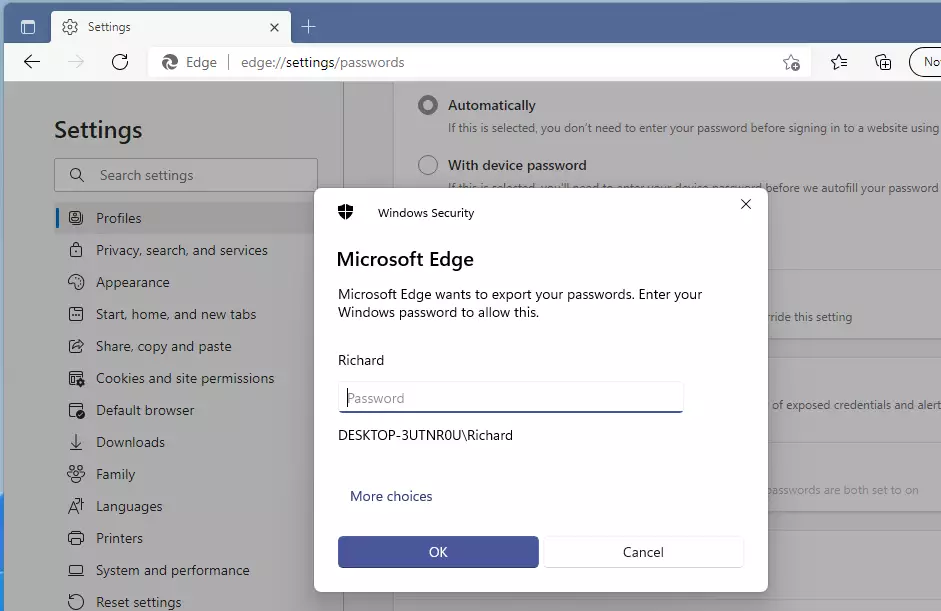
Step 5Enter Your Windows Credentials ⚠️ Admin Privileges Required
To protect your data, Windows will ask you to verify your identity using your Windows Hello PIN, fingerprint, or your local user account password. This ensures that only authorized users can access your credentials.
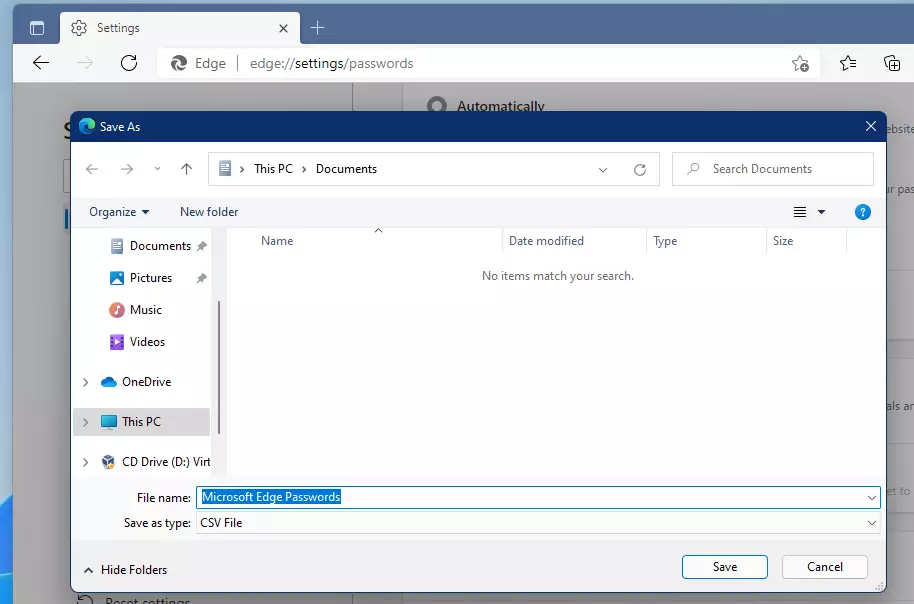
Step 6Save Your Password File
Choose a secure location on your computer, such as a private folder, and click Save. Avoid saving this file to public or cloud-synced folders.
Understanding the Security Risks of CSV Files
A CSV file is not encrypted. This means anyone who opens the file can read your usernames and passwords in plain text. Because of this, you should never leave this file on your desktop or upload it to unencrypted cloud storage. Once you have imported your passwords into a secure password manager, delete the CSV file immediately using a secure shredding tool or by emptying your Recycle Bin.
Sync vs. Export
Microsoft Account sync keeps your passwords updated across all your devices automatically. Exporting is different; it creates a static snapshot of your data. Use sync for daily convenience and export only when you need to migrate to a new service or create a manual backup.
Summary
- Exporting passwords from Microsoft Edge creates a CSV file.
- CSV files are not encrypted; handle them with extreme caution.
- You must use Windows Hello or your system password to authorize the export.
- Mobile versions of Edge do not support this feature.
- Always delete the CSV file after importing your data into a secure password manager.
- For more details, visit the official Microsoft support page.
Is it safe to store passwords in a CSV file?
No, it is not safe. CSV files are plain-text documents that lack encryption. If a malicious actor gains access to your computer, they can easily read all your saved credentials. Only use CSV files for temporary migration between password managers and delete them securely as soon as the process is complete.
Why is the ‘Export passwords’ option greyed out?
This usually happens if you are not signed into a Microsoft account or if your organization has disabled this feature via group policy. Check your sync settings to ensure your profile is active, or contact your IT administrator if you are using a work or school computer.
How do I import passwords into Chrome or Firefox?
In Chrome or Firefox, go to the password manager settings, look for the ‘Import’ option, and select the CSV file you exported from Edge. Ensure you enable the ‘Import’ flag in the browser’s advanced settings if the option is not visible by default in the menu.
Was this guide helpful?

About the Author
Richard
Tech Writer, IT Professional
Richard, a writer for Geek Rewind, is a tech enthusiast who loves breaking down complex IT topics into simple, easy-to-understand ideas. With years of hands-on experience in system administration and enterprise IT operations, he’s developed a knack for offering practical tips and solutions. Richard aims to make technology more accessible and actionable. He's deeply committed to the Geek Rewind community, always ready to answer questions and engage in discussions.




No comments yet — be the first to share your thoughts!