How to Apply Energy Recommendations in Windows 11

You apply energy recommendations in Windows 11 to automatically optimize your PC’s power settings and improve energy efficiency.
These built-in suggestions help you reduce electricity usage and environmental impact by tweaking how your computer uses power.
Windows 11 identifies areas like screen dimming timers, sleep schedules, and background app activity to make these power-saving adjustments.
For example, Windows 11 can suggest dimming your screen after just 30 seconds of inactivity. Applying these recommendations helps lower your energy bills.
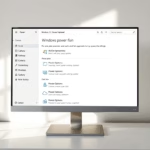
Apply energy recommendations in Windows 11 by going to Settings > System > Power & battery. Click “Energy recommendations” and then click “Apply all” to enable the suggested power-saving settings.
Carbon-Aware Windows Updates
Windows 11 can also update itself with sustainability in mind. This means your PC tries to download and install updates when the electricity grid is using cleaner energy sources, like wind or solar. You can learn more about how this works by checking the Microsoft Power Grid Forecast API documentation.
Cloud-Based Sustainability: Windows 365
Using Windows 365 can help lower your personal carbon footprint by moving your computer work to the cloud.
🪟 Windows 11 Power Modes Comparison
| Mode | Energy Savings | Performance Impact |
|---|---|---|
| Best Power Efficiency | High | Low |
| Balanced | Medium | Medium |
| Best Performance | Low | None |
How to Apply Energy Recommendations
Windows 11 makes it simple to apply energy recommendations right from the Settings app to help lower your computer’s carbon footprint.
- Open the Start menu and select Settings. You can also press the Windows key + I on your keyboard.
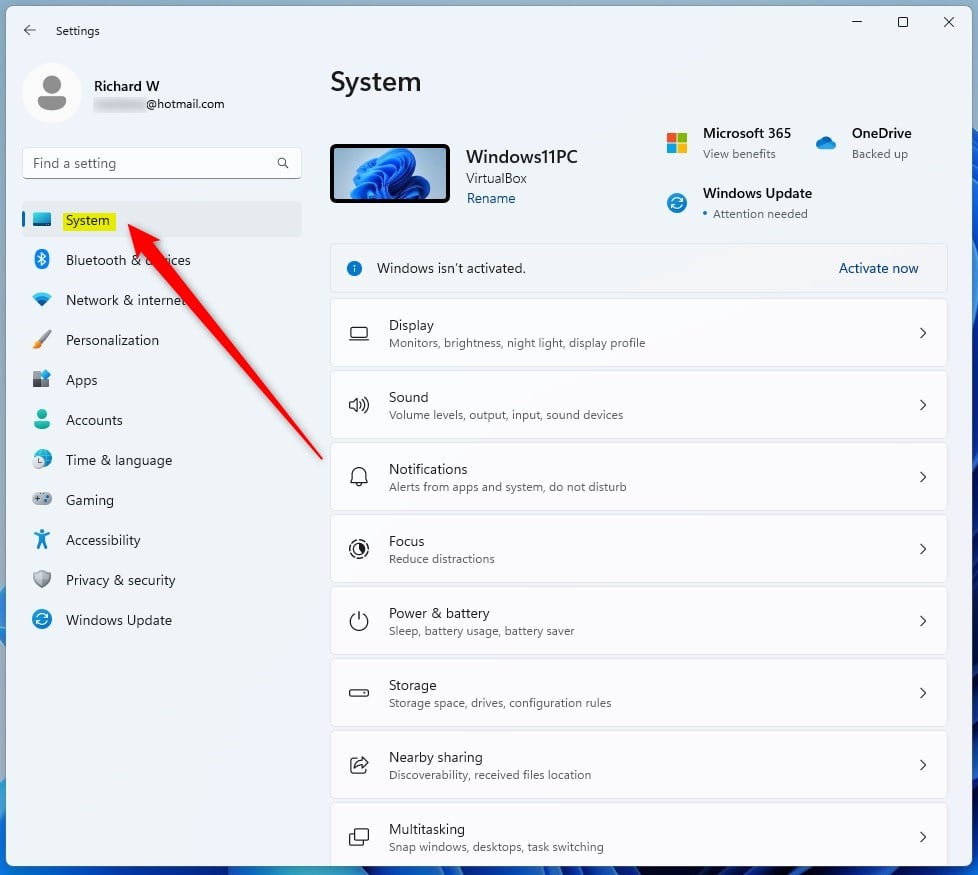
- Click on the System tab on the left side of the window.
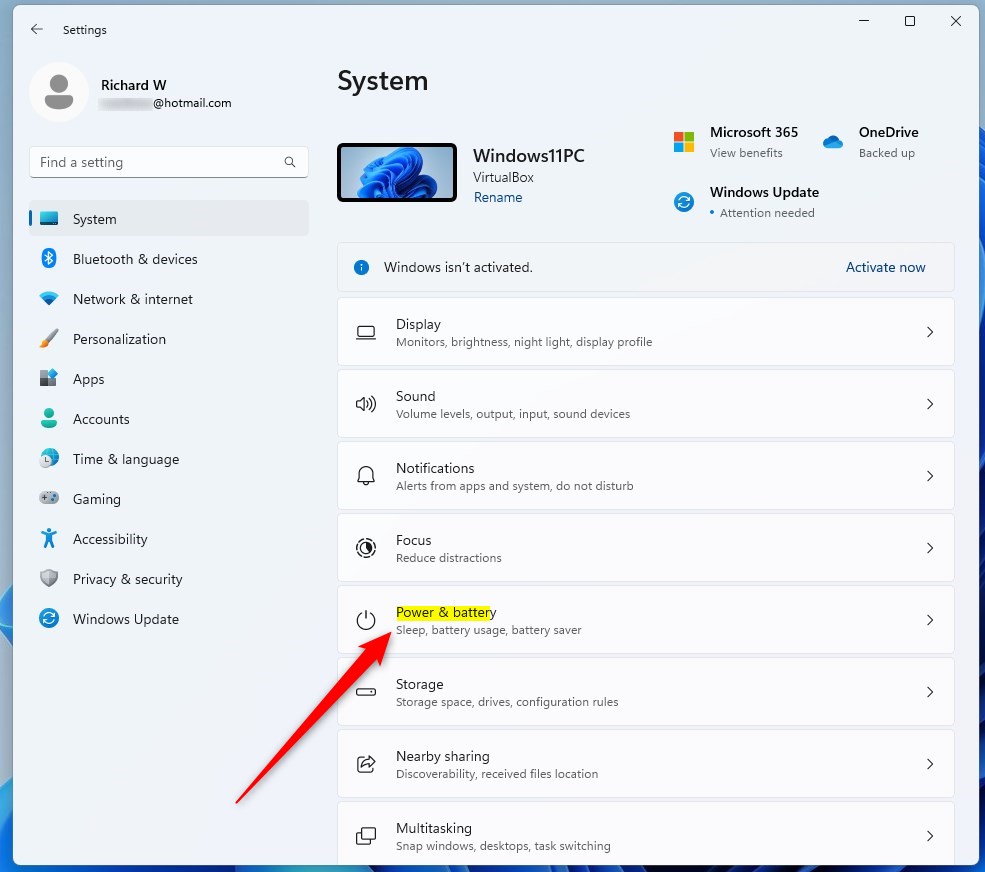
- Select the Power & battery tile on the right.
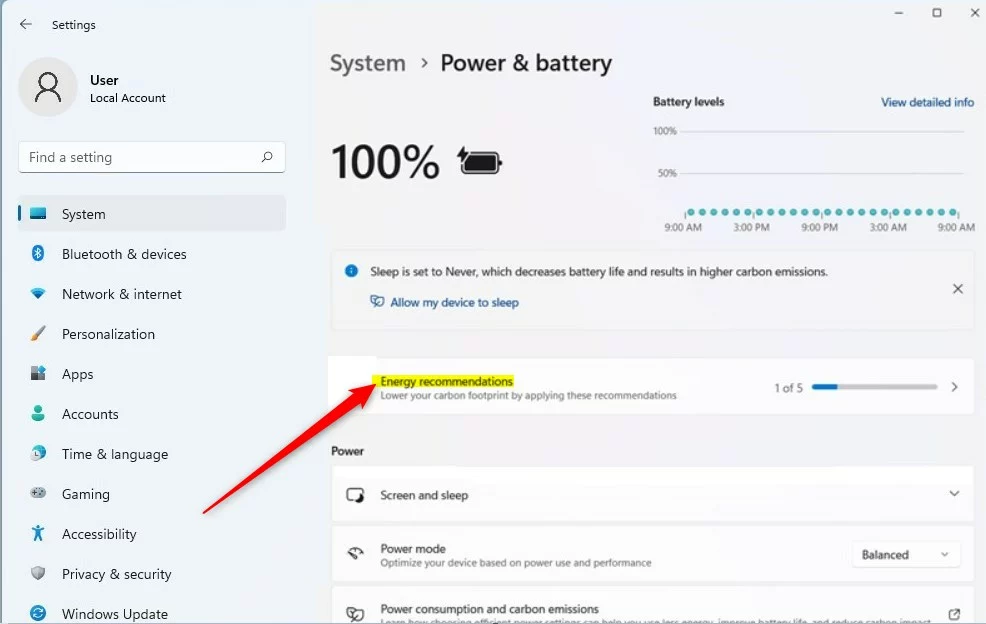
- Click on the Energy recommendations tile to see the options.
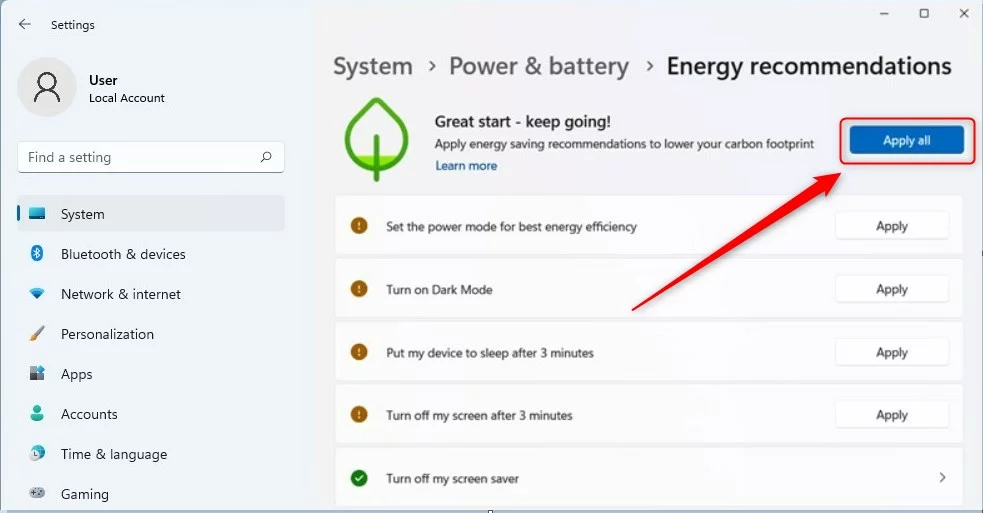
- Click the Apply all button to turn on the recommended settings.
Hardware Lifecycle and Circularity
Sustainable computing isn’t just about software; it’s also about how long you keep your hardware. Choosing Energy Star certified devices and keeping them updated cuts down on the need for new manufacturing. Recycling old components properly also supports a circular economy.
Summary
By using Windows 11 energy recommendations, you make your PC more sustainable. You benefit from lower power bills and a smaller carbon footprint. Whether through local settings or cloud services like Windows 365, every small step helps the environment.
How does 🪟 Windows 11 determine regional carbon intensity?
Windows 11 figures out how clean your local energy is by checking data from your area’s power providers.
What is the difference between Energy Saver mode and standard power plans?
Energy Saver mode aggressively limits background activity and reduces system performance to maximize battery life and lower power draw. Standard power plans, like Balanced, prioritize a mix of performance and efficiency. Energy Saver is best for when you need to conserve power during long work sessions or travel.
Was this guide helpful?

About the Author
Richard
Tech Writer, IT Professional
Richard, a writer for Geek Rewind, is a tech enthusiast who loves breaking down complex IT topics into simple, easy-to-understand ideas. With years of hands-on experience in system administration and enterprise IT operations, he’s developed a knack for offering practical tips and solutions. Richard aims to make technology more accessible and actionable. He's deeply committed to the Geek Rewind community, always ready to answer questions and engage in discussions.


No comments yet — be the first to share your thoughts!