How to Check Active Power Plans in Windows 11

You can check your active power plan in Windows 11 by looking at the Power Options within the Control Panel or Settings app.
A power plan is a set of hardware and system settings designed to manage how your computer uses energy. These plans directly influence your PC’s performance and battery life.
Windows 11 typically offers plans like “Balanced,” “Power saver,” and “High performance.” For example, the “Balanced” plan is the default for most users, aiming for a good mix of performance and energy saving.
Knowing which plan you’re currently using helps you troubleshoot performance issues or optimize battery longevity.
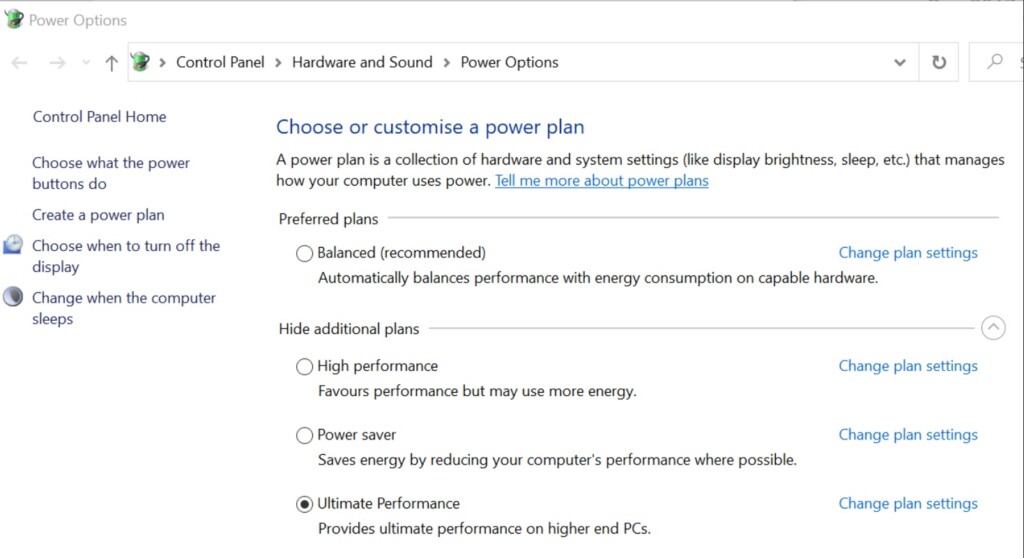
Open Control Panel, go to Hardware and Sound, then Power Options. The active power plan is indicated by a dot or asterisk next to its name. You can also use the command line by typing powercfg -getactivescheme in an administrator terminal.
Understanding Power Modes vs. Power Plans
Windows 11 uses both Power Modes and Power Plans to manage how your computer uses energy, but they work differently.
How to Check Your Power Plan via Control Panel
Checking your active power plan in Windows 11 is simple using the Control Panel, a tool you might already know.
1. Click the Start button and type Control Panel. Select the app from the results.
2. Click Hardware and Sound, then select Power Options. You can also reach this directly by typing control.exe /name Microsoft.PowerOptions in the Run dialog.
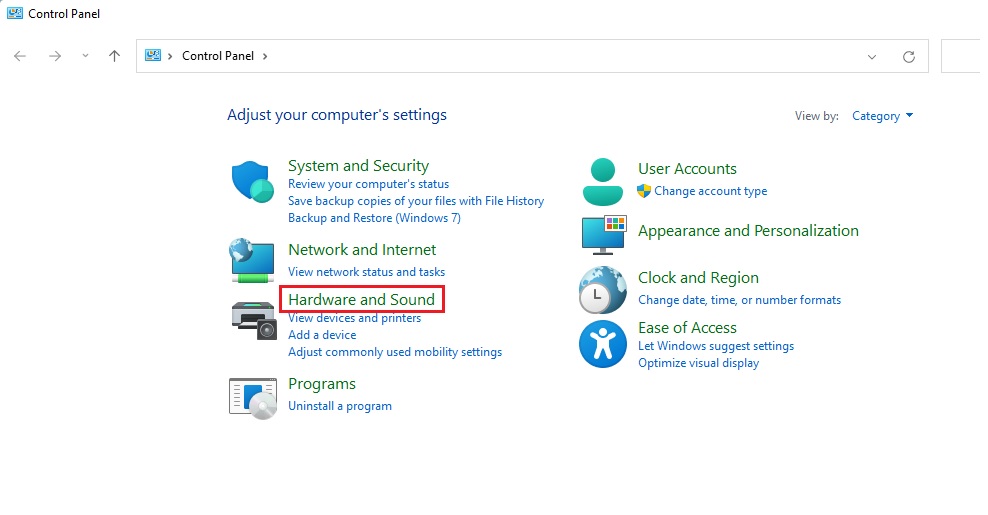
3. The Power Options window will appear. You will see a list of available plans. Look for the plan that has a dot or asterisk next to it. That shows which plan is currently active.
Using the Command Line to Check Power Plans
You can quickly check your active power plan in Windows 11 using the command line, which is handy if you want to see all your options.
- Right-click the Start button and select Terminal (Admin) or Command Prompt (Admin).
- Type the following command and press Enter:
powercfg -getactivescheme
3. The list will show all available power schemes on your system. The one with an asterisk is your active plan.
Summary
Checking your power plan in Windows 11 helps you manage your computer’s energy use for either better performance or longer battery life.
Why does 🪟 Windows 11 only show the Balanced power plan?
Why does 🪟 Windows 11 only show the Balanced power plan?
Many modern Windows 11 computers use Modern Standby (S0). This feature is designed to keep your device connected and ready. Because of this, Microsoft hides legacy power plans like High Performance or Power Saver by default to prevent conflicts with the system’s power management features.
How do I restore missing power plans in 🪟 Windows 11?
If a power plan like ‘High Performance’ is missing in Windows 11, you can easily bring it back using the command prompt.How do I restore missing power plans in 🪟 Windows 11?
If you need a specific plan like High Performance, you can restore it using the command prompt. Run the terminal as an administrator and type: powercfg -duplicatescheme 8c5e7fda-e8bf-4a96-9a85-a6e23a8c635c. This command adds the High Performance plan back to your list of available options in the Control Panel.



No comments yet — be the first to share your thoughts!