How to Change Power Saving Mode of Wireless Adapters in Windows 11

You change the power saving mode of your wireless adapter in Windows 11 by adjusting its Power Management settings within the Device Manager.
Your wireless adapter is the hardware that enables your PC to connect to Wi-Fi networks. Adjusting its power saving mode directly impacts your Wi-Fi speed and battery life.
By default, Windows 11 may set your adapter to “Medium Power Saving” when on battery and “Maximum Performance” when plugged in, aiming for a balance between connectivity and power consumption.
Selecting “Maximum Power Saving” will slow your Wi-Fi connection to conserve battery, while “Maximum Performance” prioritizes speed at the cost of battery drain.
You can adjust your wireless adapter’s power saving mode via Control Panel or Command Prompt. In Control Panel, go to Power Options, change advanced settings, expand Wireless Adapter Settings, and select your preferred mode. Command Prompt requires administrator privileges and specific powercfg commands.
Option 1Using Control Panel
You can change your wireless adapter’s power saving mode using the Control Panel by first opening it and looking for the Power Options icon.
Find your active power plan (such as “Balanced”). Click the link that says Change plan settings.
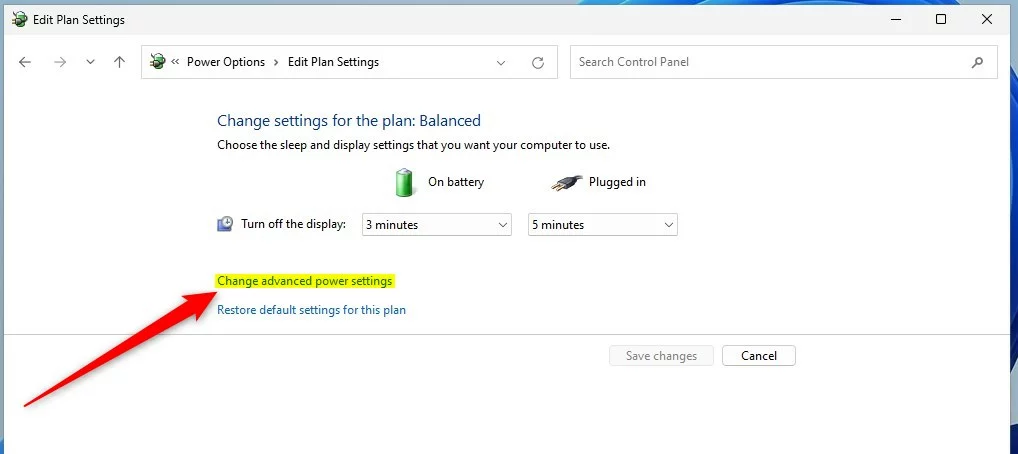
Click the link that says Change advanced power settings.
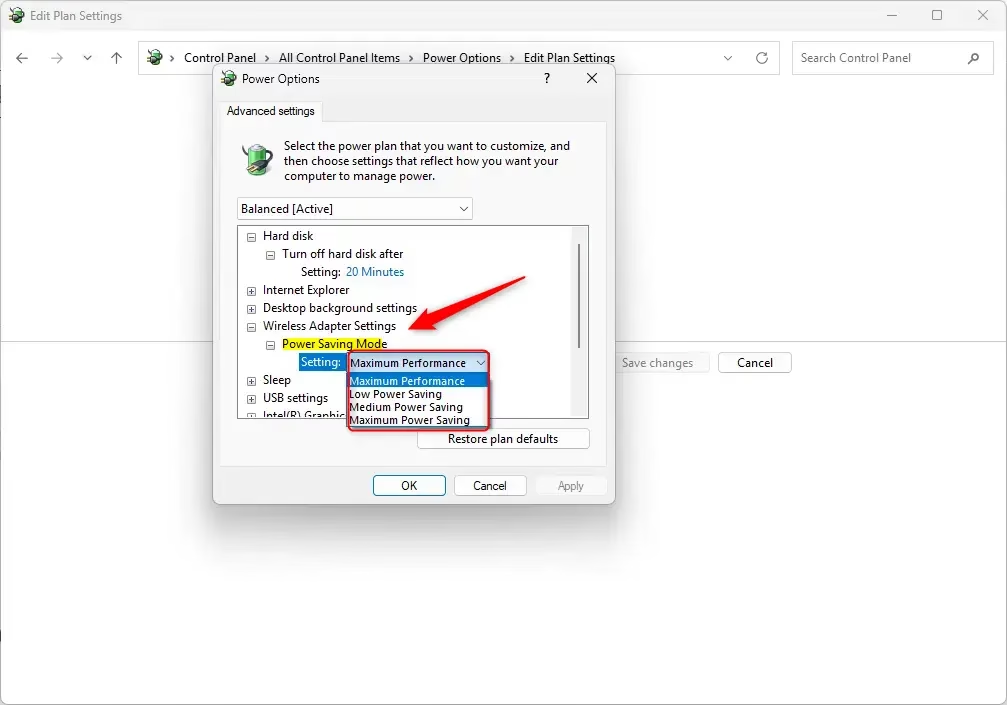
Scroll down to find Wireless Adapter Settings. Click the plus sign to expand it. Then expand Power Saving Mode.Note: If you don’t see Wireless Adapter Settings, you may need to add it first. %📂%SC0%%
You will see two dropdown menus: On battery and Plugged in. Choose which power saving mode you want for each. Your choices are Maximum Performance, Low Power Saving, Medium Power Saving, or Maximum Power Saving. Click OK when done.
Note: Desktop computers only show the “Plugged in” option unless they have a UPS (uninterruptible power supply) connected.
You can close Control Panel now.
Option 2Using Command Prompt
Changing your wireless adapter’s power settings through the Command Prompt is an advanced method that requires administrator privileges.
Right-click on Windows Terminal and select Run as administrator. Then choose Command Prompt or Windows PowerShell.
Copy and paste one of the commands below. Press Enter to run it.
For On Battery Mode:
Maximum Performance:
powercfg /SETDCVALUEINDEX SCHEME_CURRENT 19cbb8fa-5279-450e-9fac-8a3d5fedd0c1 12bbebe6-58d6-4636-95bb-3217ef867c1a 0Low Power Saving:
powercfg /SETDCVALUEINDEX SCHEME_CURRENT 19cbb8fa-5279-450e-9fac-8a3d5fedd0c1 12bbebe6-58d6-4636-95bb-3217ef867c1a 1Medium Power Saving:
powercfg /SETDCVALUEINDEX SCHEME_CURRENT 19cbb8fa-5279-450e-9fac-8a3d5fedd0c1 12bbebe6-58d6-4636-95bb-3217ef867c1a 2Maximum Power Saving:
powercfg /SETDCVALUEINDEX SCHEME_CURRENT 19cbb8fa-5279-450e-9fac-8a3d5fedd0c1 12bbebe6-58d6-4636-95bb-3217ef867c1a 3For Plugged In Mode (Desktop Computers):
Maximum Performance:
powercfg /SETACVALUEINDEX SCHEME_CURRENT 19cbb8fa-5279-450e-9fac-8a3d5fedd0c1 12bbebe6-58d6-4636-95bb-3217ef867c1a 0Low Power Saving:
powercfg /SETACVALUEINDEX SCHEME_CURRENT 19cbb8fa-5279-450e-9fac-8a3d5fedd0c1 12bbebe6-58d6-4636-95bb-3217ef867c1a 1Medium Power Saving:
powercfg /SETACVALUEINDEX SCHEME_CURRENT 19cbb8fa-5279-450e-9fac-8a3d5fedd0c1 12bbebe6-58d6-4636-95bb-3217ef867c1a 2Maximum Power Saving:
powercfg /SETACVALUEINDEX SCHEME_CURRENT 19cbb8fa-5279-450e-9fac-8a3d5fedd0c1 12bbebe6-58d6-4636-95bb-3217ef867c1a 3
Summary
You’ve learned two ways to adjust your wireless adapter’s power saving mode in Windows 11: the simple Control Panel method and the more advanced Command Prompt option.
How to change power saving mode of wireless adapters in 🪟 Windows 11?
Changing your wireless adapter’s power saving mode in Windows 11 involves opening Control Panel, going to Power Options, and adjusting settings within your active power plan’s advanced options.
How do I turn off power saving mode on my Wi-Fi adapter?
To disable power saving mode, go to your active power plan settings in the Control Panel. Under 'Wireless Adapter Settings,' set the 'Power Saving Mode' to 'Maximum Performance.' This ensures your adapter uses full power, providing the fastest possible connection speeds at the expense of increased battery consumption.
Should I turn on Wi-Fi power saving mode?
You should turn on Wi-Fi power saving mode if you are primarily using your laptop on battery power and need to extend its runtime. However, if you require high-speed, stable connectivity for gaming or video conferencing, it is better to disable power saving to ensure maximum network performance.
How to prevent a Network Adapter from going to sleep?
Preventing your network adapter from sleeping is done through Device Manager by accessing its properties and unchecking the option that allows the computer to turn it off to save power.
Was this guide helpful?

About the Author
Richard
Tech Writer, IT Professional
Richard, a writer for Geek Rewind, is a tech enthusiast who loves breaking down complex IT topics into simple, easy-to-understand ideas. With years of hands-on experience in system administration and enterprise IT operations, he’s developed a knack for offering practical tips and solutions. Richard aims to make technology more accessible and actionable. He's deeply committed to the Geek Rewind community, always ready to answer questions and engage in discussions.




No comments yet — be the first to share your thoughts!