How to Set Up OneDrive Personal Vault on Windows 11

You set up OneDrive Personal Vault on Windows 11 to create a secure, protected folder for your most sensitive files.
Personal Vault is a special, locked area within your OneDrive storage that requires an extra verification step beyond your standard login, similar to using a PIN or a code sent to your phone.
This feature adds a crucial layer of security, safeguarding your important documents and photos even if your Windows 11 PC is compromised. You can access Personal Vault on any device, but it automatically locks after a period of inactivity.
To use Personal Vault, you need a Microsoft account and a supported operating system, and it’s available with most OneDrive plans, including the free 5GB tier.
Open the OneDrive app and click Get started on the Personal Vault prompt, or find the Personal Vault link in your OneDrive folder in File Explorer. Follow the on-screen prompts to verify your identity via email code.
Prerequisites
To set up OneDrive Personal Vault, you need a Microsoft account and two-factor authentication (2FA) turned on for extra security.
Enable OneDrive Personal Vault
Turning on OneDrive Personal Vault is simple and protects your most important files with an extra layer of security. You can start the OneDrive Personal Vault setup right from the OneDrive app if you see a ‘Get started’ button, or by opening your OneDrive folder in File Explorer and clicking the Personal Vault link.
If you do not see that message, open your OneDrive folder in File Explorer. Double-click the Personal Vault link. On the window that pops up, click Next.

Click Allow when the setup tool asks for permission. Note: You might need administrator rights to access these logs if your account settings are restricted.

You will need to confirm your email address. Microsoft will send you a code.
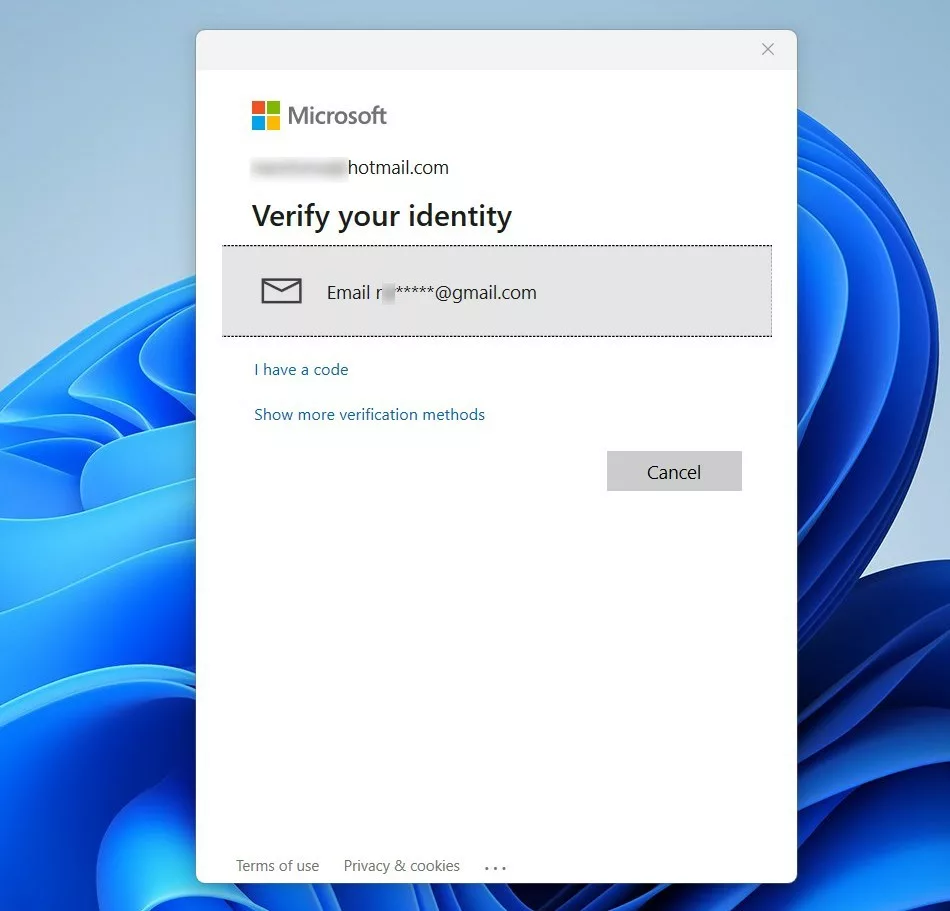
Type the code from your email into the box. Your Vault is now ready to use.
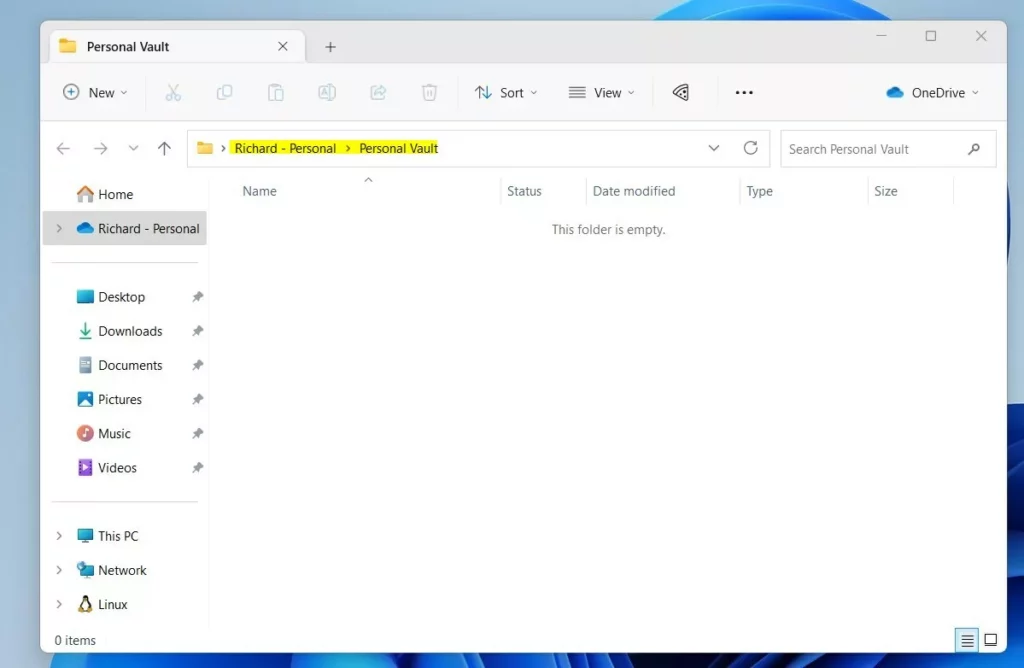
From now on, Windows will ask you to verify your identity using a PIN, face recognition, or fingerprint every time you open the folder.
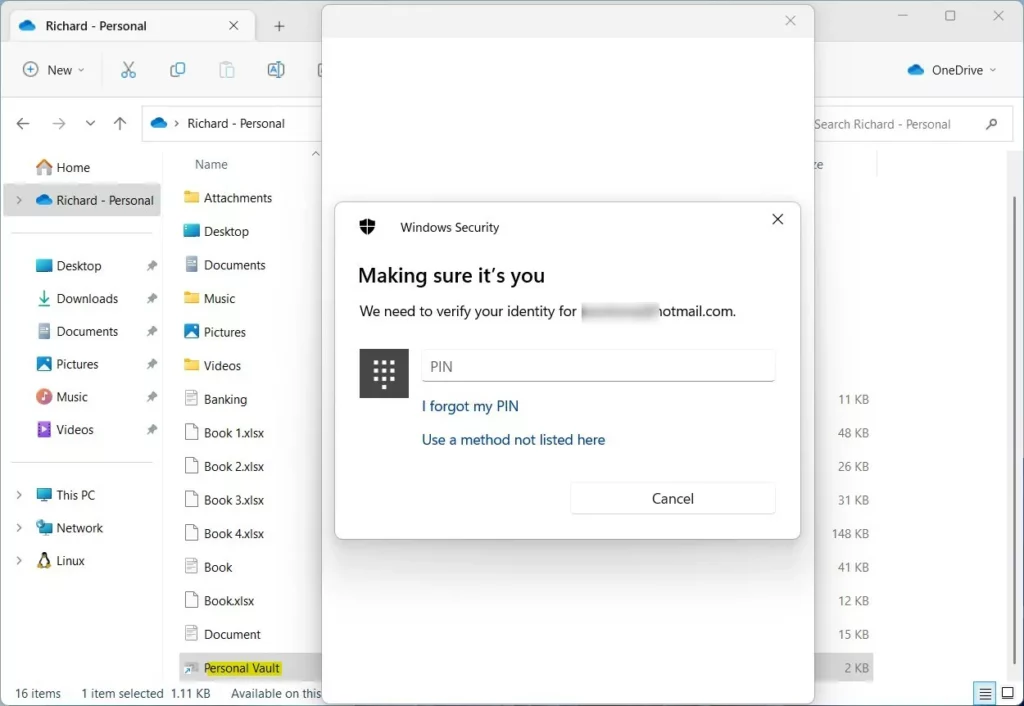
Enable OneDrive Personal Vault online
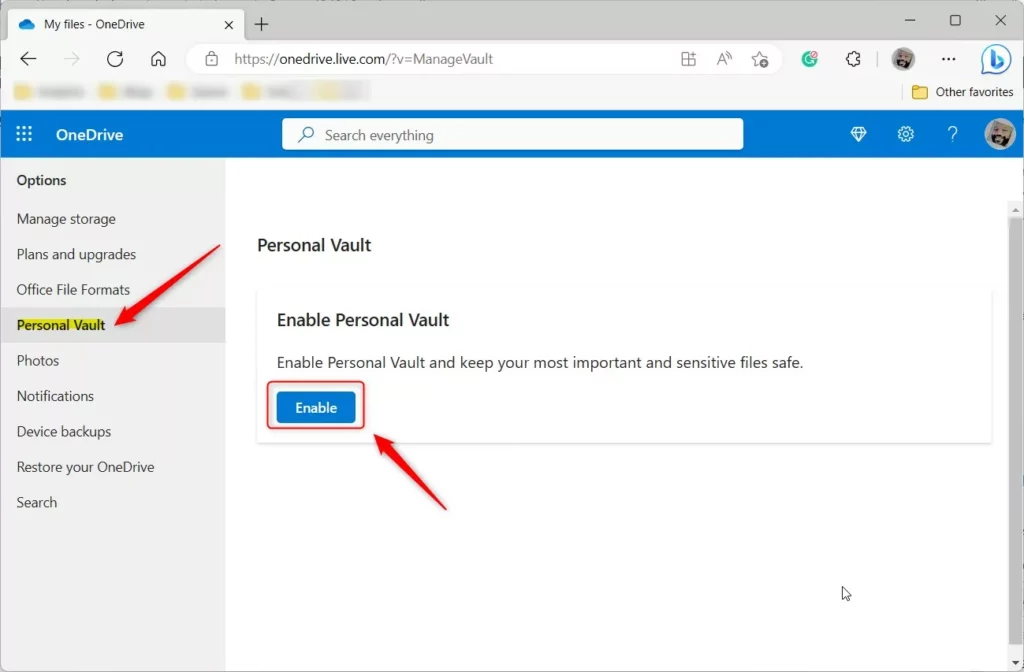
You can also turn this on through your Microsoft account. Go to your OneDrive account page and sign in.
Click the Settings gear icon and choose Options.
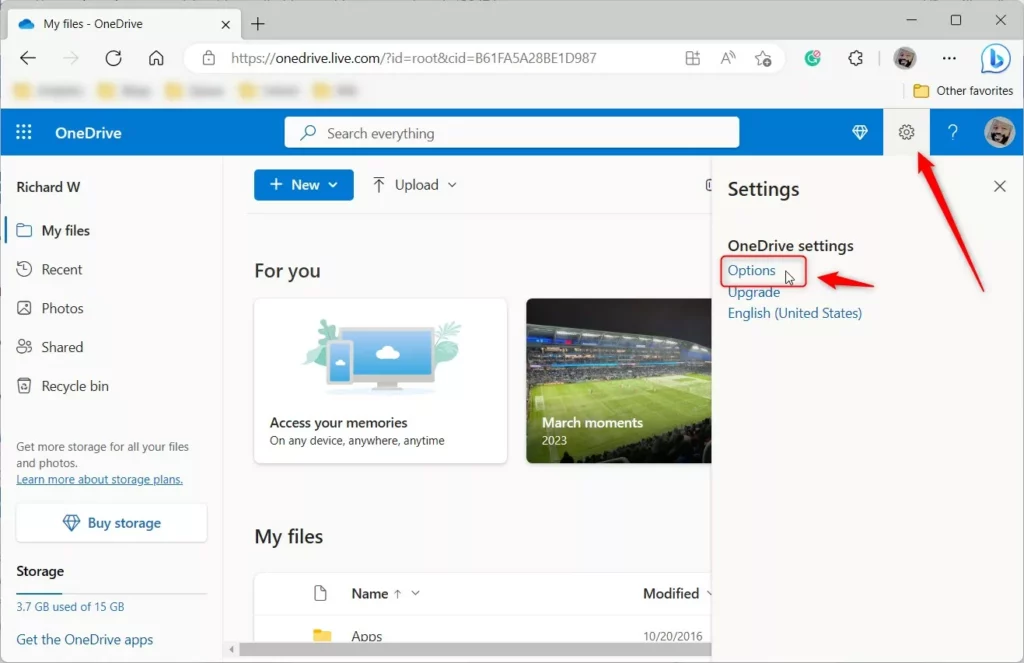
Select Personal Vault on the left side and click Enable.
Troubleshooting and Sync Limitations
If your OneDrive Personal Vault doesn’t appear, check that your OneDrive app is updated and that the Personal Vault folder isn’t excluded from syncing in your settings.
Summary
Setting up OneDrive Personal Vault adds a strong layer of protection for your sensitive files by requiring extra verification like a PIN or fingerprint.
Reference: Microsoft Support
Why does my Personal Vault keep locking automatically?
Your Personal Vault locks automatically after a period of inactivity as a security feature to keep your files safe, and you can adjust this auto-lock time in your OneDrive settings.
Can I share files directly from the Personal Vault?
No, you can’t share files directly from the Personal Vault because the sharing feature is turned off for security reasons.
Why don’t Personal Vault files appear in Windows search?
Personal Vault files don’t appear in Windows search because they’re encrypted and hidden to protect your privacy, requiring you to open the vault first to find them.
What happens to files in the Personal Vault if I delete the folder?
If you delete the Personal Vault folder, the files inside are moved to your OneDrive Recycle Bin. You can recover them from the Recycle Bin for a limited time, usually 30 days. After that, they are permanently removed from the cloud. Always back up important data before deleting any folders.
Was this guide helpful?

About the Author
Richard
Tech Writer, IT Professional
Richard, a writer for Geek Rewind, is a tech enthusiast who loves breaking down complex IT topics into simple, easy-to-understand ideas. With years of hands-on experience in system administration and enterprise IT operations, he’s developed a knack for offering practical tips and solutions. Richard aims to make technology more accessible and actionable. He's deeply committed to the Geek Rewind community, always ready to answer questions and engage in discussions.




[…] default, your OneDrive Personal Vault will automatically lock after a period of inactivity in Windows. That inactivity lockout […]
[…] post explains how to turn off or disable the OneDrive Personal Vault […]
[…] article explains how to enable or disable OneDrive file sync in battery saver mode in Windows […]
[…] service includes a feature called Personal Vault. This is a private area in your OneDrive. You can only open it with extra security steps. These […]