How to Access Windows Tools in Windows 11

You access Windows Tools in Windows 11 by opening the dedicated Windows Tools folder, which acts as a central hub for essential administrative utilities.
This folder consolidates powerful system management applications, offering you quick access to functionalities like Disk Management, Event Viewer, and Computer Management.
Instead of navigating deep into system directories, you can find these crucial tools organized for immediate use, streamlining tasks like system monitoring and advanced configuration.
For instance, you can use these tools to manage your hard drives, troubleshoot system issues, or optimize your PC’s performance, giving you greater control over your Windows 11 experience.
Access Windows Tools in Windows 11 by clicking the Start button, selecting All apps, and then clicking Windows Tools. Alternatively, open File Explorer and paste 📂%ProgramData%\Microsoft\Windows\Start Menu\Programs\Windows Tools into the address bar.
Functional Breakdown of Essential Tools
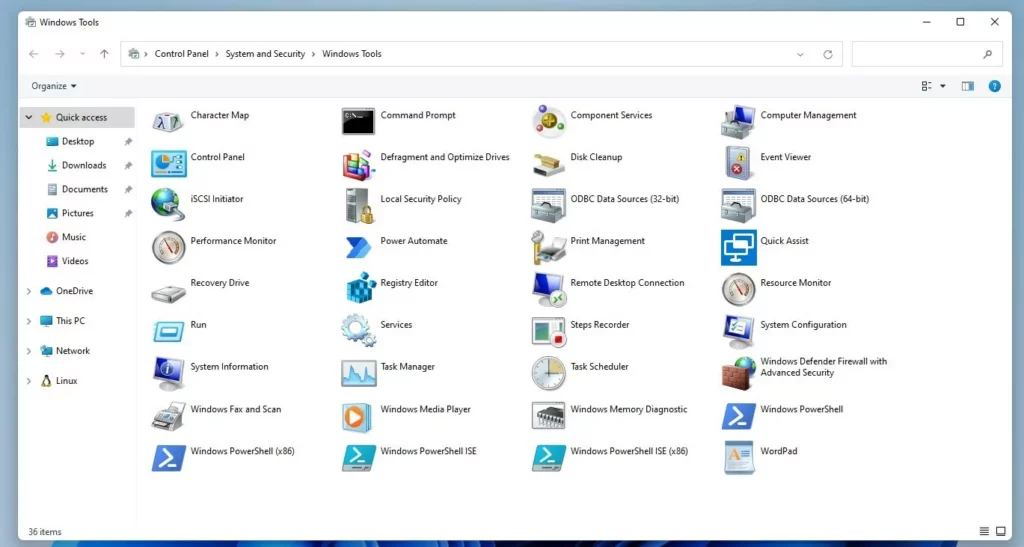
Windows Tools in Windows 11 gives you quick access to important utilities that help you manage your computer.
- Computer Management: A one-stop shop for managing disks, services, and local users.
- Disk Management: Use this to format drives, create partitions, or change drive letters.
- Event Viewer: A log of everything your computer does, perfect for finding the cause of crashes.
- Resource Monitor: Shows real-time data on how your CPU, memory, and disk are being used.
- System Configuration: Helps you manage startup programs and boot settings.
- Component Services: Used by developers and admins to manage COM components.
- Registry Editor: A powerful database for system settings. Warning: Be careful here, as changing the wrong key in 🗝️HKEY_LOCAL_MACHINE\SOFTWARE can break your system.
Accessing Windows Tools
You can reach these tools using several methods in Windows 11.
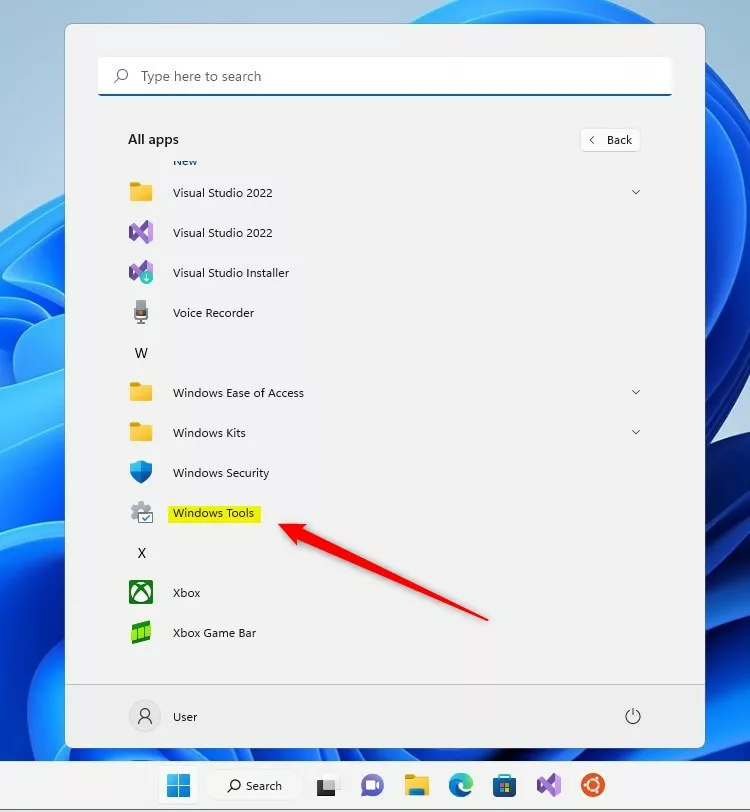
Open Windows Tools from the Start Menu
- Click the Start button.
- Select All apps.
- Scroll down and click on Windows Tools.
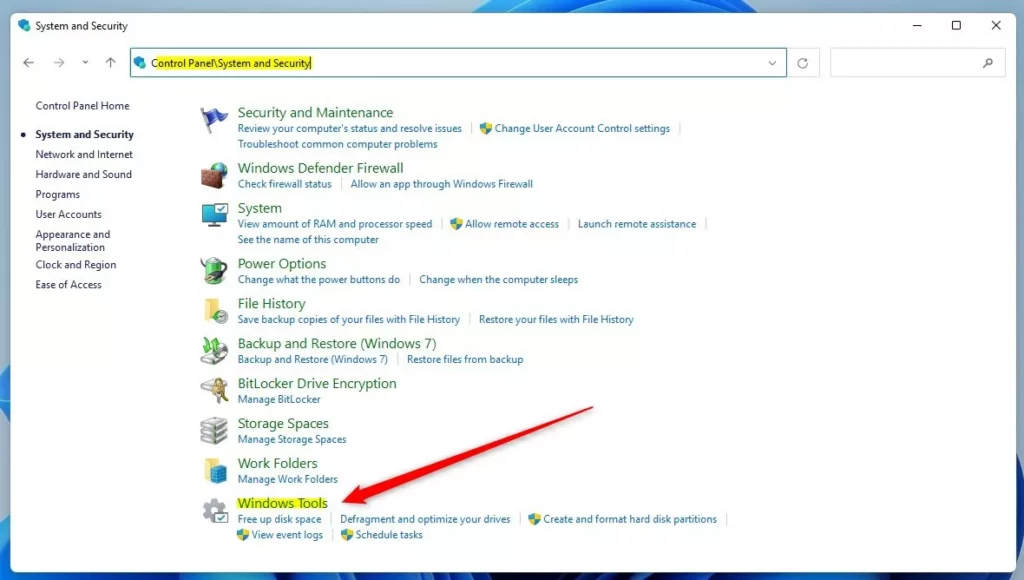
Open Windows Tools via the Control Panel
- Open the Control Panel.
- Click on System and Security.
- Look for Windows Tools in the list and click it.
Locate Windows Tools via File Explorer
- Open File Explorer.
- Copy and paste this path into the address bar:
%ProgramData%\Microsoft\Windows\Start Menu\Programs\Windows Tools - Press Enter.
Troubleshooting Access Issues
If you can’t find the Windows Tools folder, it’s likely because your account isn’t an administrator.
Summary
Windows Tools in Windows 11 is your central hub for important system management and diagnostic utilities.
Related Articles
Do I need administrator privileges to open Windows Tools?
Yes, most tools within the Windows Tools folder require administrator privileges to function. When you attempt to open utilities like Computer Management or the Registry Editor, a User Account Control (UAC) prompt will appear. You must click ‘Yes’ to grant the necessary permissions to make changes to your system.
Can I pin Windows Tools to the Taskbar?
Yes, you can easily pin it. Open the Start menu, search for ‘Windows Tools’, right-click the result, and select ‘Pin to taskbar’. This gives you one-click access to your management tools, saving you time if you often run system diagnostics or adjust advanced settings.
Was this guide helpful?

About the Author
Richard
Tech Writer, IT Professional
Richard, a writer for Geek Rewind, is a tech enthusiast who loves breaking down complex IT topics into simple, easy-to-understand ideas. With years of hands-on experience in system administration and enterprise IT operations, he’s developed a knack for offering practical tips and solutions. Richard aims to make technology more accessible and actionable. He's deeply committed to the Geek Rewind community, always ready to answer questions and engage in discussions.




[…] can also find it inside the Windows Tools […]