How to Open Resource Monitor in Windows 11

You open Resource Monitor in Windows 11 to see how your CPU, memory, disk, and network are being used in real-time.
Resource Monitor is a built-in Windows utility that displays detailed performance information about your system’s hardware resources.
It’s essential when your PC acts sluggish, allowing you to pinpoint exactly which applications or processes consume the most resources, like one program hogging over 80% of your CPU.
Learning to open Resource Monitor in Windows 11 is a simple but powerful step to diagnose and improve your PC’s performance.
Open Resource Monitor by typing “resmon” into the Windows search bar and clicking the result. Alternatively, press Windows Key + R, type “resmon,” and press Enter. You can also access it from the Performance tab in Task Manager.
Open via Start Menu
The fastest way to open this tool is through the search bar.
- Click the Start button.
- Type
resmoninto the search box. - Click the app in the results to open it.
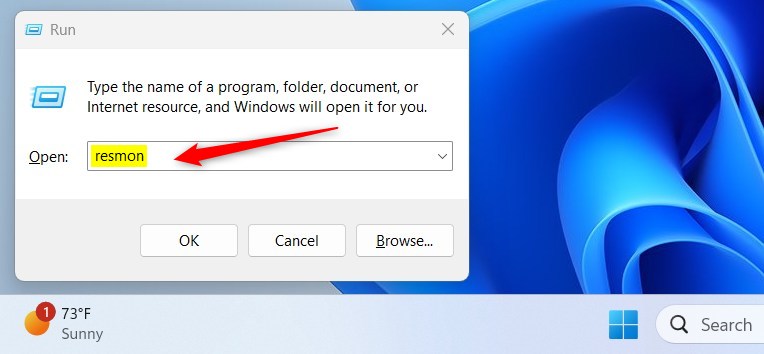
Open via Run Box
You can also use a quick keyboard shortcut.
- Press the Windows Key + R on your keyboard.
- Type
resmoninto the box. - Press Enter.
Open via Task Manager
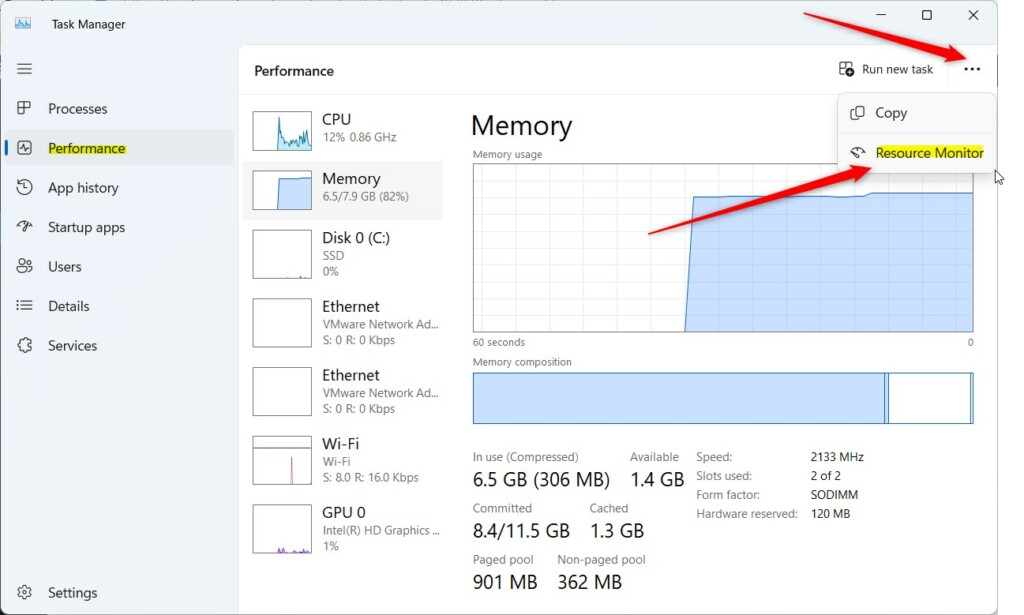
If you already have Task Manager open, you can launch the tool from there. First, open the Task Manager.
- Click the Performance tab on the left.
- Click the three dots at the top right.
- Select Resource Monitor from the list.
Open via Command Line
Advanced users can use the Windows Terminal, Command Prompt, or Windows PowerShell.
Type the following command and press Enter:
resmon.exe
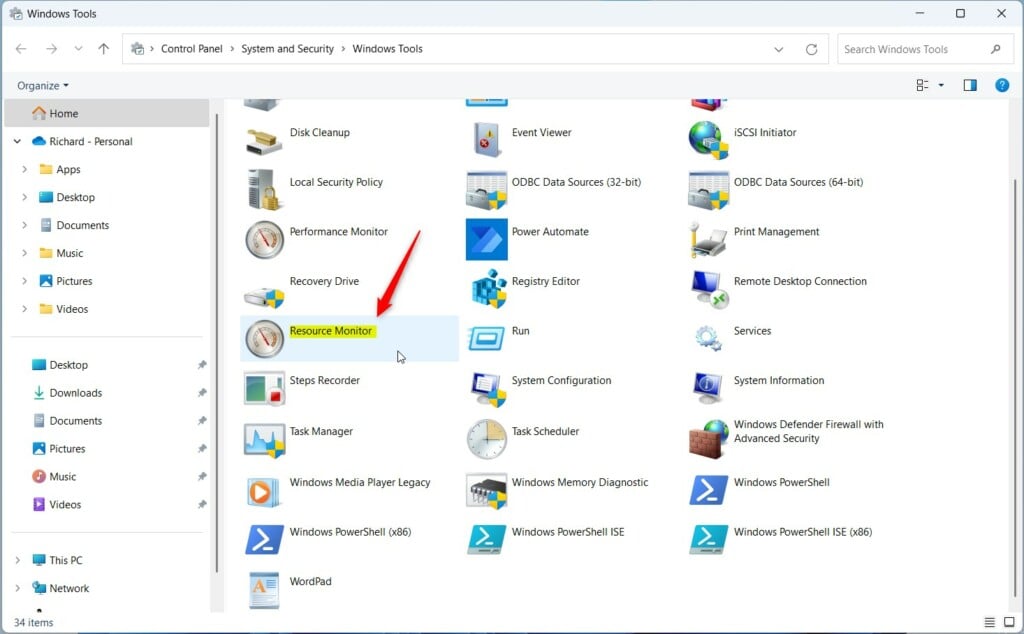
Open via Windows Tools
You can also find it inside the Windows Tools folder.
Task Manager vs. Resource Monitor
| Feature | Task Manager | Resource Monitor |
|---|---|---|
| Usage | Quick overview | Deep analysis |
| Detail Level | Basic | Advanced |
| Real-time | Yes | Yes (More granular) |
Interpreting the Data
Resource Monitor shows you what’s happening with your computer’s main parts: CPU (the brain), Memory (short-term storage), Disk (long-term storage), and Network (internet connection).
Summary
Resource Monitor is a powerful utility for monitoring your hardware performance in Windows 11. Whether you use the Start menu, resmon.exe, or Task Manager, you can access real-time data to troubleshoot your PC. By identifying high disk activity and network latency, you can optimize your system for better speed.
Is Resource Monitor better than Task Manager?
Task Manager is better for quick tasks like closing frozen apps. Resource Monitor is superior for deep troubleshooting because it provides detailed, real-time data on disk I/O, specific network connections, and memory usage per process. Use Task Manager for speed and Resource Monitor for in-depth system diagnostics.
Does Resource Monitor affect system performance?
No, Resource Monitor has a negligible impact on your system performance. It is a lightweight, built-in utility designed to run in the background without consuming significant CPU or memory. You can safely keep it open while you monitor your system for slowdowns or high resource usage.
Was this guide helpful?

About the Author
Richard
Tech Writer, IT Professional
Richard, a writer for Geek Rewind, is a tech enthusiast who loves breaking down complex IT topics into simple, easy-to-understand ideas. With years of hands-on experience in system administration and enterprise IT operations, he’s developed a knack for offering practical tips and solutions. Richard aims to make technology more accessible and actionable. He's deeply committed to the Geek Rewind community, always ready to answer questions and engage in discussions.




No comments yet — be the first to share your thoughts!