Task Manager on Windows 11 is your go-to tool for monitoring and managing running applications and system processes.
This powerful utility gives you a real-time overview of your PC’s performance, showing CPU, memory, disk, and network usage for each running task.
You can use Task Manager to quickly close unresponsive applications, view startup programs that slow down your boot time, and even monitor resource-heavy background processes.
For instance, on Windows 11, you can right-click the taskbar and select “Task Manager” or press Ctrl+Shift+Esc to access it instantly.
⚡ Quick Answer
Press Ctrl+Shift+Esc or right-click the taskbar and select Task Manager to open it. This tool lets you close frozen applications, manage startup programs, and monitor your PC’s performance.
Why use Task Manager?
You use Task Manager when your computer feels slow, an app freezes, or you want to see if a program is using too much memory. It helps you take control of your system resources.
What happens when you use it?
When you use Task Manager, you can stop unresponsive programs, speed up your startup time, and monitor your hardware health. It gives you a live look at your computer’s “vital signs.”
How to open Task Manager
Opening the Task Manager on Windows 11 is easy, and you can quickly get to it using your keyboard or by searching for it.
Click the Start button, type “📊 Task Manager,” and press Enter.
search task manager on windows 11
You can also open it using the command line. Press Windows Key + R, type the following command, and press Enter:
💻Code
taskmgr

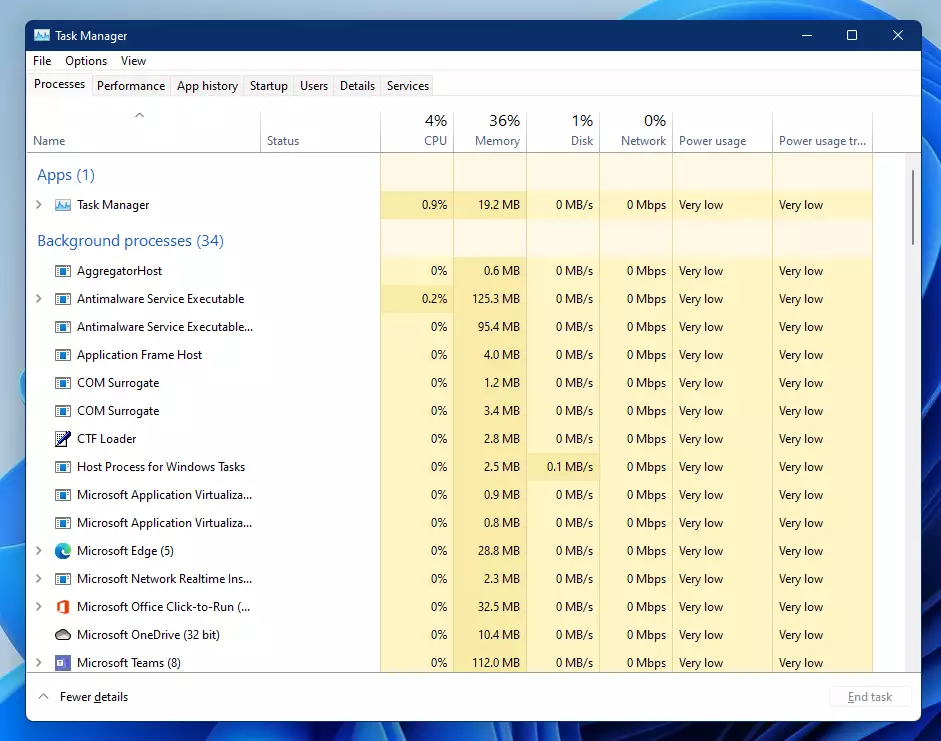
task manager in windows 11
Understanding the tabs
When you open Task Manager in Windows 11, you’ll find several tabs at the top that show you what your computer is doing.
Processes: Shows all apps and background tasks currently running.
Performance: Displays live charts for your CPU, Memory, Disk, and Network usage.
App history: Shows how much data and time your Windows apps have used.
Startup: Lists apps that open automatically when you turn on your PC. You can disable items here to make your computer boot faster.
Users: Shows who is logged into the computer. (Admin Note: You need admin privileges to sign out other users).
Details: Provides advanced technical information about every process.
Services: Lists background services. (Admin Note: Changing these requires admin privileges to stop or start specific services).
Summary
Task Manager is an essential tool for every Windows 11 user. It allows you to monitor performance, manage startup programs, and close frozen applications. By learning how to navigate these tabs, you can keep your computer running smoothly and fix common issues without needing professional help.
Richard, a writer for Geek Rewind, is a tech enthusiast who loves breaking down complex IT topics into simple, easy-to-understand ideas. With years of hands-on experience in system administration and enterprise IT operations, he’s developed a knack for offering practical tips and solutions.
Richard aims to make technology more accessible and actionable. He's deeply committed to the Geek Rewind community, always ready to answer questions and engage in discussions.






No comments yet — be the first to share your thoughts!