How to Open Resource Monitor in Windows 11

Resource Monitor is a powerful, built-in tool that shows you exactly how your computer uses its power. It tracks your CPU, memory, disk, and network usage in real time. It is the best way to see which apps are slowing down your PC. By using resmon.exe, you can perform deep system performance optimization and troubleshoot Windows 11 slowdowns with ease.
Why use Resource Monitor?
You should use this tool when your computer feels sluggish. It helps you identify which specific program is using too much memory or disk space. It provides a granular view of process monitoring that standard tools often miss.
What happens when you are done?
Once you finish, you will have a clear view of your system’s health. You can then close unnecessary programs or identify faulty drivers to make your computer run faster. For official details, visit the Microsoft official documentation.
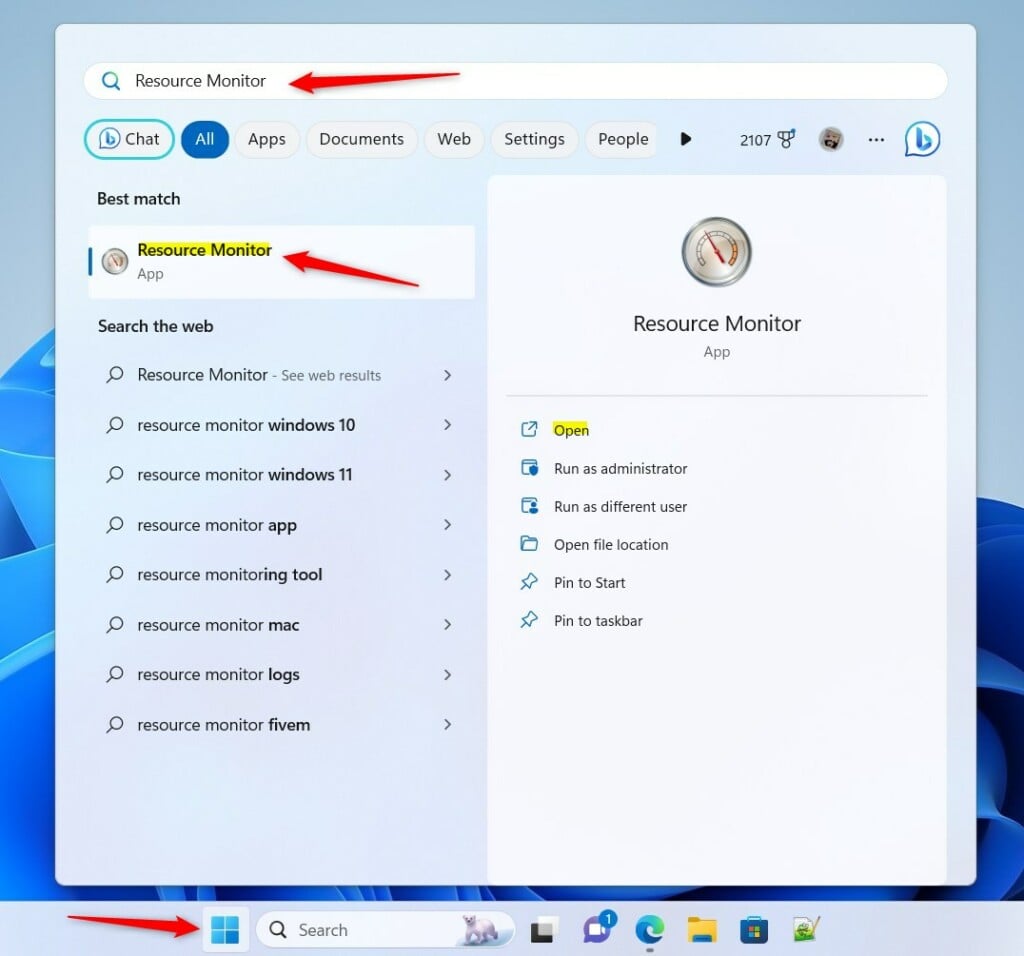
Open via Start Menu
The fastest way to open this tool is through the search bar.
- Click the Start button.
- Type
resmoninto the search box. - Click the app in the results to open it.
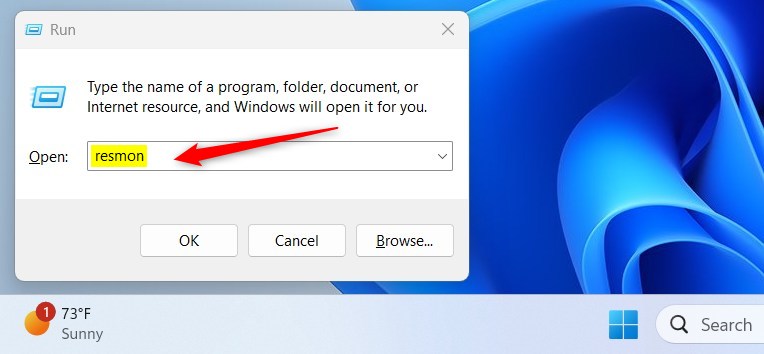
Open via Run Box
You can also use a quick keyboard shortcut.
- Press the Windows Key + R on your keyboard.
- Type
resmoninto the box. - Press Enter.
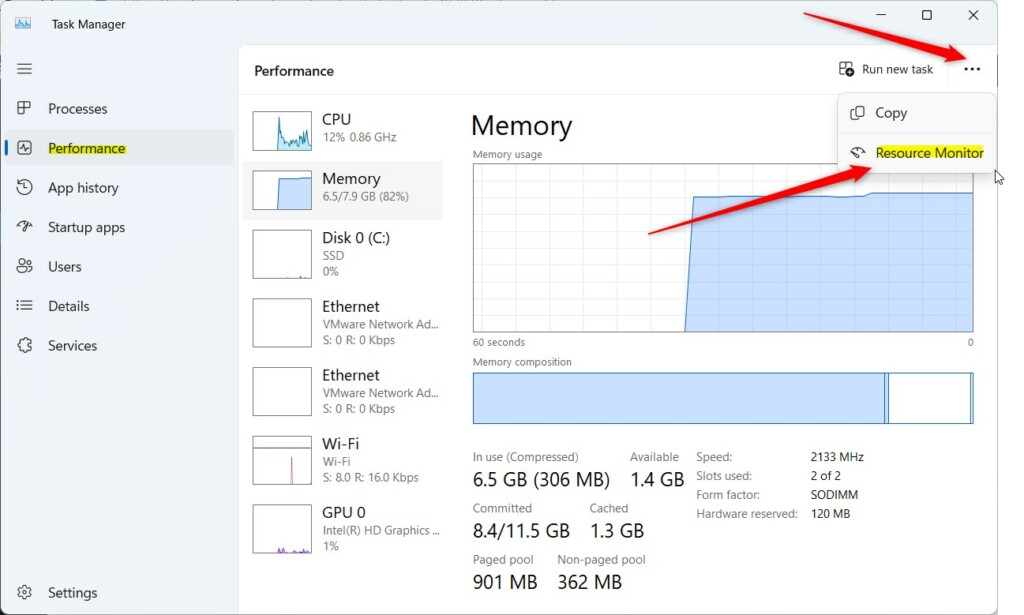
Open via Task Manager
If you already have Task Manager open, you can launch the tool from there. First, open the Task Manager.
- Click the Performance tab on the left.
- Click the three dots at the top right.
- Select Resource Monitor from the list.
Open via Command Line
Advanced users can use the Windows Terminal, Command Prompt, or Windows PowerShell.
Type the following command and press Enter:
resmon.exe
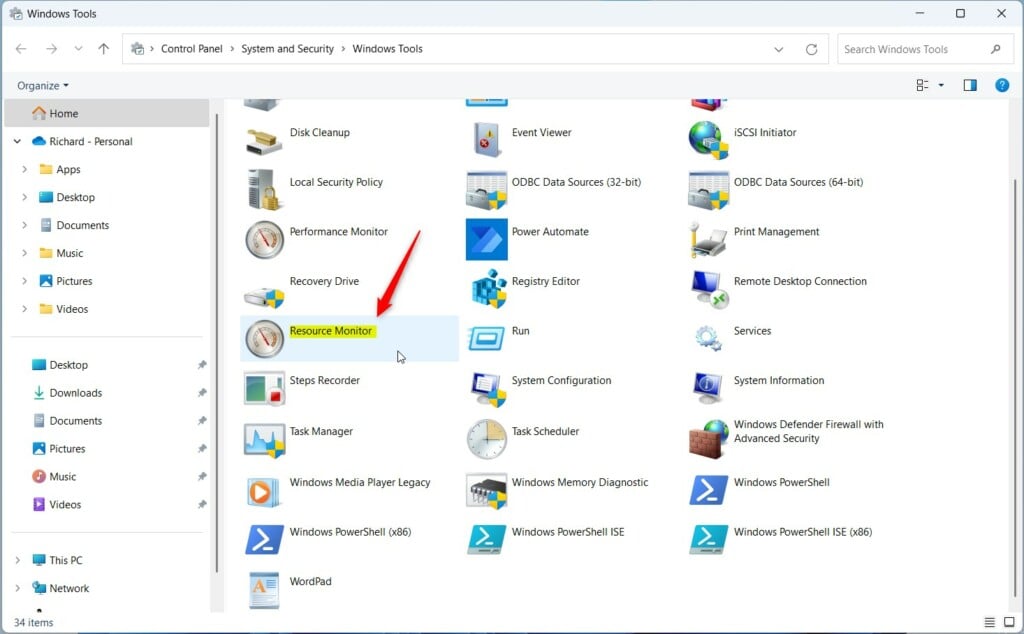
Open via Windows Tools
You can also find it inside the Windows Tools folder.
Task Manager vs. Resource Monitor
| Feature | Task Manager | Resource Monitor |
|---|---|---|
| Usage | Quick overview | Deep analysis |
| Detail Level | Basic | Advanced |
| Real-time | Yes | Yes (More granular) |
Interpreting the Data
When you open the tool, you will see tabs for CPU, Memory, Disk, and Network. The Disk activity section is vital for finding apps that cause high disk I/O activity. The Network latency section helps you see if a program is hogging your internet connection. If you need to stop a process, right-click it and select End Process. Note: This action may require admin privileges.
Summary
Resource Monitor is a powerful utility for monitoring your hardware performance in Windows 11. Whether you use the Start menu, resmon.exe, or Task Manager, you can access real-time data to troubleshoot your PC. By identifying high disk activity and network latency, you can optimize your system for better speed.
Is Resource Monitor better than Task Manager?
Task Manager is better for quick tasks like closing frozen apps. Resource Monitor is superior for deep troubleshooting because it provides detailed, real-time data on disk I/O, specific network connections, and memory usage per process. Use Task Manager for speed and Resource Monitor for in-depth system diagnostics.
Does Resource Monitor affect system performance?
No, Resource Monitor has a negligible impact on your system performance. It is a lightweight, built-in utility designed to run in the background without consuming significant CPU or memory. You can safely keep it open while you monitor your system for slowdowns or high resource usage.
Was this guide helpful?





Leave a Reply Cancel reply