How to Change Task Manager Theme in Windows 11

You change the Task Manager theme in Windows 11 by setting your system’s app mode to either light or dark. Windows 11 Task Manager, rebuilt with WinUI 3, dynamically adapts its appearance to match your chosen system theme. This means Task Manager will automatically switch between light and dark modes based on your personal preference.
This feature allows you to tailor Task Manager’s look for better readability, reducing eye strain during long sessions. It also helps you create a unified aesthetic across your desktop by aligning Task Manager with your overall Windows theme. Simply changing your system’s app mode, for instance from the default light mode to dark mode, immediately updates Task Manager’s visual style.
Open Task Manager, click the Settings gear, and choose Light, Dark, or Use system settings. Task Manager automatically adopts the selected app theme, instantly updating its appearance.
How to Change Task Manager Theme in 🪟 Windows 11
Changing the Task Manager theme in Windows 11 is simple and lets you pick a look that suits you best. You can make the Task Manager appear light, dark, or simply match whatever theme your main Windows system is using.
- Open the Task Manager by pressing Ctrl+Shift+Esc.
- Click the Settings gear icon located at the bottom left corner of the sidebar.
Note: This action does not require admin privileges.
- Look for the App theme section.
- Select Light, Dark, or Use system settings to match your Windows preferences.
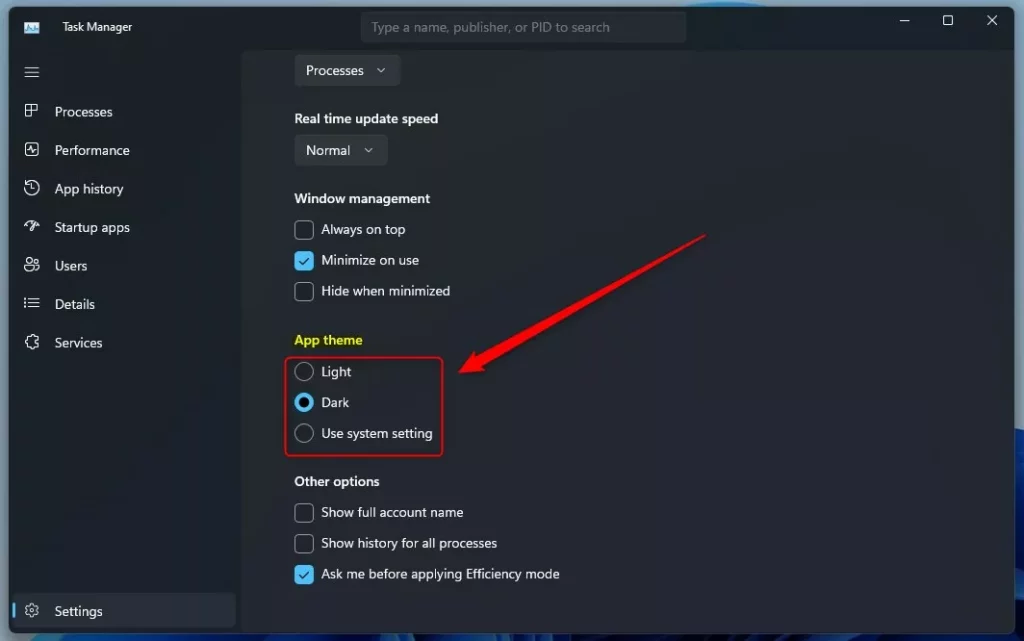
The change happens instantly without needing a restart.
Global vs. Individual Settings
Your Task Manager theme in Windows 11 can either follow your main system settings or be set individually. By default, it matches your Windows theme, but you can choose a specific light or dark theme just for the Task Manager if you prefer.
Comparison: Old vs. New Task Manager
| Feature | Old Task Manager | Windows 11 Task Manager |
|---|---|---|
| Design Language | Classic Win32 | Fluent Design / WinUI 3 |
| Theme Support | System Default Only | Light, Dark, or System |
| Visual Effects | None | Mica Material |
Troubleshooting UI Glitches
If your Task Manager theme isn’t showing up correctly in Windows 11, there are a few things you can try to fix it. First, make sure your Windows is up to date, then try closing and reopening the Task Manager, as this often resolves minor display problems.
Summary
You can customize the Task Manager in Windows 11 to suit your visual preferences. By navigating to the settings menu, you can toggle between Light and Dark modes. This way, your system monitoring tools are comfortable to look at and fit the modern Windows style.
Can I set Task Manager to Dark Mode while keeping Windows in Light Mode?
Yes. By opening the Task Manager settings and selecting the Dark option, you can force the app to stay in dark mode regardless of your global Windows settings. This allows you to maintain a light system theme while keeping your monitoring tools in a high-contrast dark view.
Was this guide helpful?

About the Author
Richard
Tech Writer, IT Professional
Richard, a writer for Geek Rewind, is a tech enthusiast who loves breaking down complex IT topics into simple, easy-to-understand ideas. With years of hands-on experience in system administration and enterprise IT operations, he’s developed a knack for offering practical tips and solutions. Richard aims to make technology more accessible and actionable. He's deeply committed to the Geek Rewind community, always ready to answer questions and engage in discussions.


[…] the design of Task Manager to match the new Windows 11 design principles, including bringing a dark theme and automatically matching the system-wide […]
[…] the design of Task Manager to match the new Windows 11 design principles, including bringing a dark theme and automatically matching the system-wide […]
[…] new Task Manager has been redesigned to match the new Windows 11 design principles. It also comes with a new feature called Efficiency […]