How to Enable Efficiency Mode in Windows 11

Windows 11 Efficiency Mode helps you boost PC performance by controlling background app resource usage.
This built-in Windows 11 feature uses EcoQoS technology to lower the priority of non-essential tasks, freeing up your CPU for the programs you actively use.
Enabling Efficiency Mode can lead to a more responsive system, particularly when running demanding software or on systems with limited hardware resources.
Open Task Manager, select the desired process on the Processes tab, and click the Efficiency mode button or right-click and choose Efficiency mode. This limits background app resource consumption for better performance.
Why use Efficiency Mode?
Windows 11 efficiency mode helps your PC run faster and saves battery by limiting apps that use too much power.
What happens when you are done?
Once you enable this mode, the chosen app will run with lower priority. This means your computer has more resources available for other tasks, leading to better overall responsiveness. Effectively, the app is moved to a lower process priority, ensuring your foreground tasks get the CPU’s attention.
How to enable or disable Efficiency Mode
Windows 11 efficiency mode lets you limit how much power an app uses, helping your computer run better. You can turn this helpful feature on or off for individual apps directly from the Task Manager.
- Open the Task Manager. You can do this by pressing Ctrl+Shift+Esc on your keyboard.
- Click on the Processes tab on the left side of the window.
There are two ways to turn this feature on or off:
- Method 1: Select the app or process from the list. Click the Efficiency mode button located in the top command bar.
- Method 2: Right-click on the specific app or process and select Efficiency mode from the menu that appears.
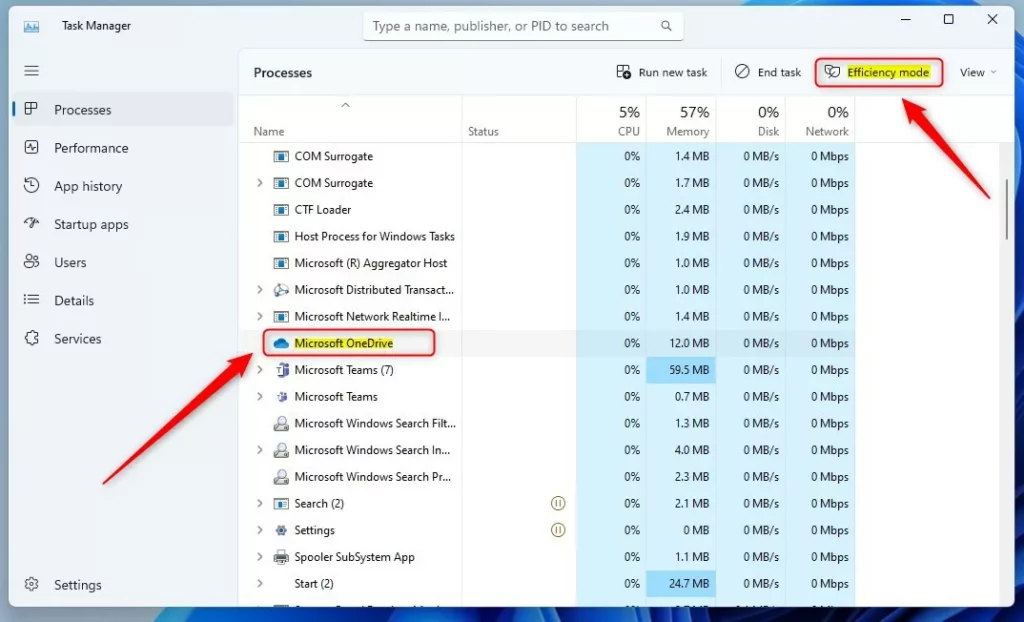
Note: If you see that the Efficiency mode option is greyed out, it is likely a core Windows process. It is best not to touch these, as limiting them could cause your computer to become unstable.
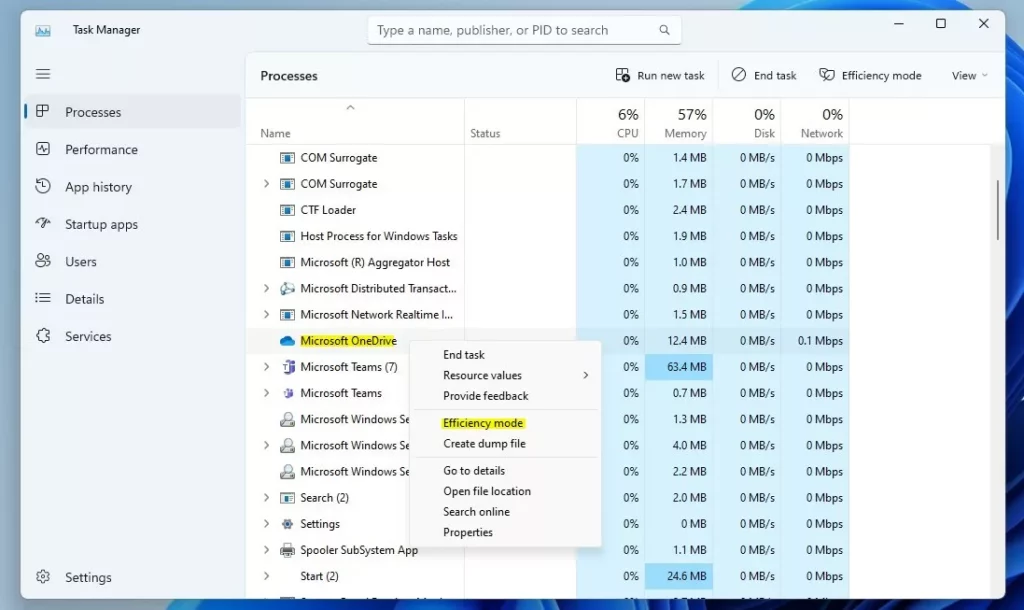
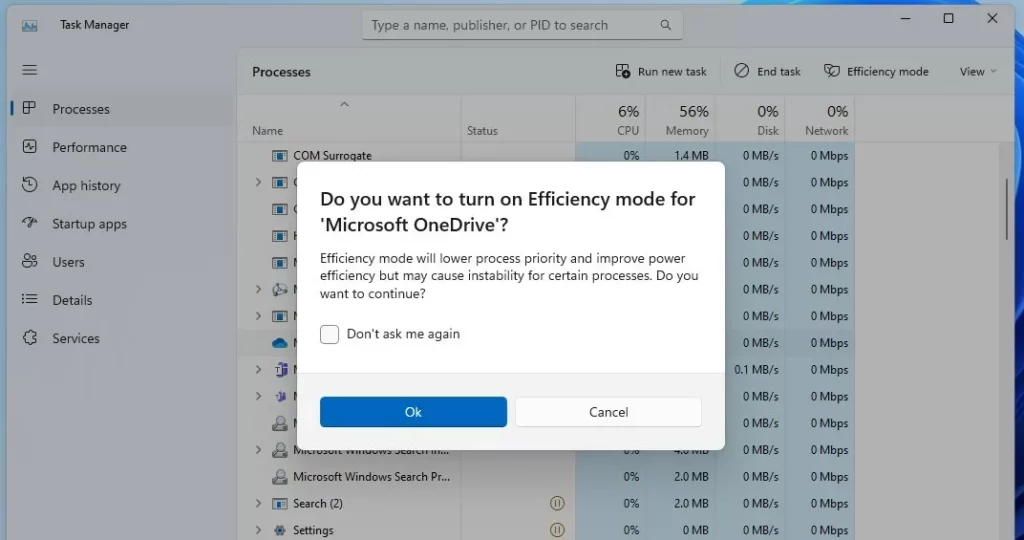
If you choose to turn it on, a confirmation window will appear. Click Turn on Efficiency mode to confirm your choice.
Note: You’ll need administrator privileges for this, depending on your user account settings.
Technical Deep Dive: EcoQoS and CPU Throttling
Windows 11 efficiency mode uses a system called EcoQoS to tell your computer which apps aren’t urgent, slowing them down a bit to help others.
Comparison: Efficiency Mode vs. Power Saver
| Feature | Efficiency Mode | Power Saver Mode |
|---|---|---|
| Scope | Per-process | System-wide |
| Goal | Improve responsiveness | Extend battery life |
| Mechanism | EcoQoS / Priority | Voltage / Frequency scaling |
Advanced: Registry Editor Modifications
If Windows 11 efficiency mode is causing problems, you might be able to change how apps run using the Registry Editor, but be very careful.
To check process settings, navigate to: 🗝️HKEY_LOCAL_MACHINE\SOFTWARE\Microsoft\Windows NT\CurrentVersion\Image File Execution Options. You’ll need administrator privileges for this.
Summary
Windows 11 efficiency mode is a handy feature that limits demanding apps to make your PC faster and save battery life.
Why does 🪟 Windows 11 force Efficiency Mode on my apps?
Windows 11 automatically triggers this mode for apps that consume excessive CPU resources in the background. The system identifies these as non-essential tasks and applies EcoQoS to ensure your active programs remain responsive. This is an automated performance tuning feature designed to prevent system lag during heavy multitasking.
Does Efficiency Mode affect gaming performance?
Yes, Windows 11 efficiency mode can hurt gaming performance by limiting the CPU power your game needs, leading to lower frame rates and stuttering.
Was this guide helpful?

About the Author
Richard
Tech Writer, IT Professional
Richard, a writer for Geek Rewind, is a tech enthusiast who loves breaking down complex IT topics into simple, easy-to-understand ideas. With years of hands-on experience in system administration and enterprise IT operations, he’s developed a knack for offering practical tips and solutions. Richard aims to make technology more accessible and actionable. He's deeply committed to the Geek Rewind community, always ready to answer questions and engage in discussions.




No it does not ! Doesn’t even work properly ! If i were in charge at MS development i fire all the “moorons” who invented this crap of feature immediately ! It throttles app to background even if not active so settings do not work at all on working foreground app ! No guidance that i found on net is working to user benefit ! Throatless Excel to to the point to choke and freeze, so basically MS throttles its own flagship Office App on performance power hardware ! Completely useless and robing my nerves sky high ! Its a MS cluster fuck to all the users out there coz cant be disabled neither removed from the system completely ! U re better of with Win10 or go-to Linux. I have newer heard Linux to throttle app.
[…] How to Enable Efficiency Mode in Windows 11 […]