How to View Running Processes in Windows 11

You can view running processes in Windows 11 using Task Manager.
Task Manager is your go-to utility for seeing exactly what’s active on your PC, from the apps you’ve opened to the essential background services keeping Windows running.
This built-in tool gives you a clear picture of your system’s resource usage, like CPU, RAM, and disk activity. Understanding these details helps you pinpoint problematic applications.
For example, if your computer suddenly becomes slow, Task Manager can instantly show you if a single program is hogging over 90% of your CPU power, allowing you to take action.
You view running processes in Windows 11 by opening the Task Manager. Press Ctrl+Shift+Esc, or right-click the Start button and select Task Manager. The Processes tab shows active applications and background tasks.
Using Task Manager for Granular Control
Task Manager gives you a close look at what’s running on your PC, especially in the Details tab where you can see specific info like the Process Identifier (PID) for each program.
To stop a task, select it and click End Task. Note: Some system tasks require admin privileges to close. If you lack permission, the system will block the action to prevent instability.
Resource Monitor vs. Task Manager
Task Manager offers a quick snapshot of your system, but Resource Monitor provides a deep dive into resource utilization. It shows you precisely which files and DLLs (Dynamic Link Libraries) a process is using. This is vital for troubleshooting locked files or disks stuck at 100% usage.
What is the difference between Task Manager and Resource Monitor?
Task Manager is great for quickly stopping apps that aren’t responding, while Resource Monitor is a more detailed tool that shows you exactly how your computer’s CPU, memory, disk, and network are being used in real-time.
Advanced Analysis with Sysinternals Process Explorer
For power users, Microsoft offers Process Explorer. It is a more powerful version of Task Manager. It shows the process tree, allowing you to see which parent process started a specific task. This is the best way to identify malicious processes that try to hide by mimicking system names.
Using Command-Line Tools
You can view running processes using command-line tools like the tasklist command or PowerShell’s Get-Process, which are handy for scripting or saving lists of what’s running.

To list all tasks, use this command:
tasklistTo export your process list to a text file, use:
get-processFor a detailed view including the Process ID (PID), use:
wmic process get ProcessId,Description,ParentProcessId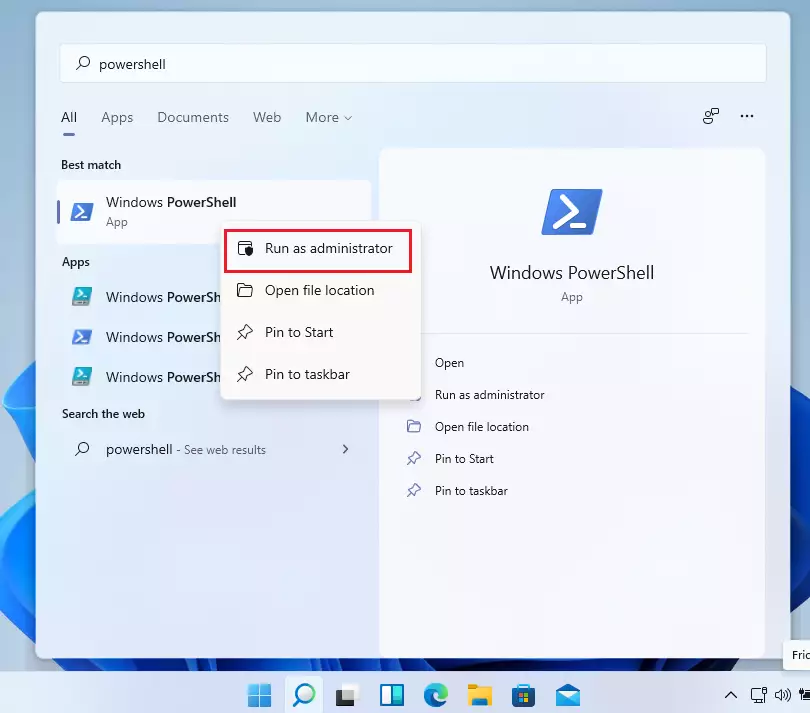
Summary
Keeping an eye on your system processes helps keep your PC running fast, and you can use Task Manager for quick fixes, Resource Monitor for deep dives, and command-line tools for automation to manage everything.
Why are there so many ‘svchost.exe’ processes running?
Svchost.exe is a generic host process name for services that run from dynamic-link libraries (DLLs). Windows groups these services together to save memory. Seeing many instances is normal, as each one manages a different set of background services required for your operating system to function correctly.
How do I identify a malicious process in 🪟 Windows 11?
To spot a malicious process in Windows 11, look for odd names, unusually high resource use, or programs running from strange folders, and check their digital signatures using tools like Process Explorer.
Was this guide helpful?

About the Author
Richard
Tech Writer, IT Professional
Richard, a writer for Geek Rewind, is a tech enthusiast who loves breaking down complex IT topics into simple, easy-to-understand ideas. With years of hands-on experience in system administration and enterprise IT operations, he’s developed a knack for offering practical tips and solutions. Richard aims to make technology more accessible and actionable. He's deeply committed to the Geek Rewind community, always ready to answer questions and engage in discussions.



No comments yet — be the first to share your thoughts!