How to Enable Dark Mode in Notepad on Windows 11

You can enable dark mode in Notepad on Windows 11 by updating to version 11.2307.20.0 or later and changing your system’s app theme.
Dark mode offers a more comfortable viewing experience, especially in low-light conditions, and is a popular feature across many Windows applications.
This change primarily affects the app’s background and text colors, making it easier on your eyes while you’re typing.
Open Notepad, click the gear icon for Settings, then select your preferred theme from the App theme dropdown menu. You can choose Light, Dark, or System default to match your Windows settings. Your changes apply immediately.
Why change your theme?
Changing your theme helps reduce eye strain, especially when you’re working in a dark room. It also lets you make your workspace look the way you prefer. Using Notepad’s dark mode in Windows 11 can also help save battery life on devices with OLED screens and boost your focus during late-night work.
How to change the Notepad theme
You can change the font family, size, and the app’s look by following these steps. You do not need special permissions for this.
1. Open the Notepad app from your Start menu.
2. Click the Settings (gear icon) button at the top right of the window.
3. On the Settings screen, click the App theme section to open it.
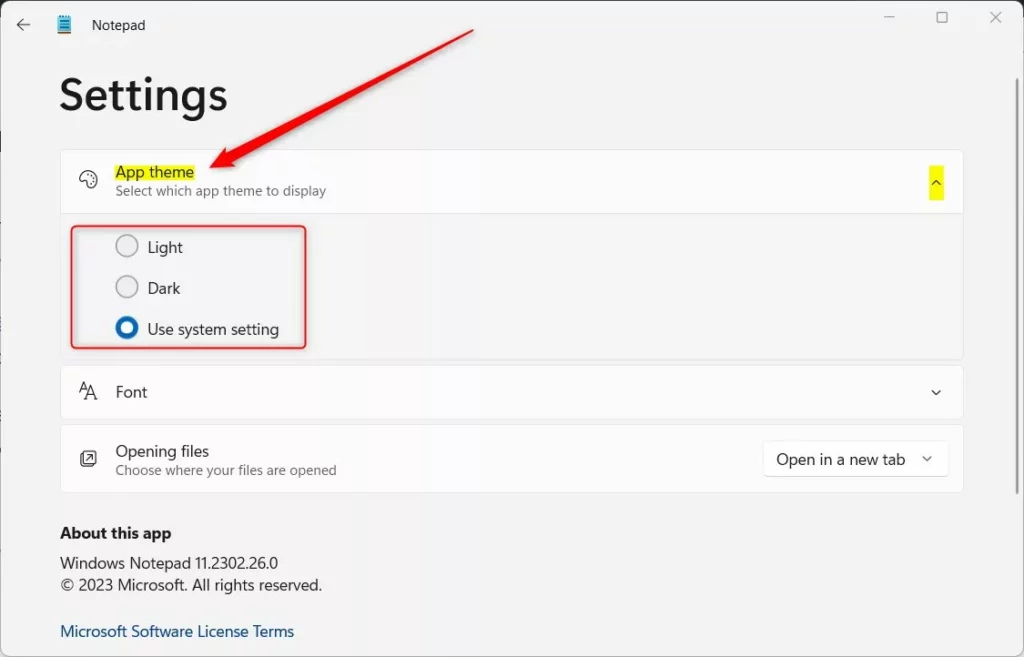
4. Pick your preferred look from the dropdown menu. You can choose Light, Dark, or System default.
5. Close the Settings pane when you are finished. Your changes take effect immediately.
System-wide vs. App-specific settings
Windows 11 lets you control its colors in two main ways. You can set the entire Windows 11 interface to a specific mode by going to Settings > Personalization > Colors. If you select System default in Notepad, it will mirror your global Windows setting. You can also override this. Just choose Light or Dark directly within the Notepad app’s settings. This is useful if you want a light system theme but a dark Notepad for writing.
Troubleshooting Notepad updates
If you do not see the App theme option, your app may be outdated. Open the Microsoft Store app and go to ‘Library’. Then, click ‘Get updates’ to make sure you have the latest Notepad. If the app still fails to update, you may need to reset the app via Settings > Apps > Installed apps > Notepad > Advanced options > Reset. Note: This action does not require admin privileges but will clear your local app preferences.
Summary
Notepad in Windows 11 gives you the option to switch between light and dark themes. By following these steps, you can customize the app to match your personal style or reduce glare while you type. It’s a small change that makes using your computer more comfortable. What happens when done? Your Notepad window will instantly switch to your chosen color scheme, making it easier on your eyes.
Does 🪟 Windows 11 Notepad support dark mode natively?
Yes, the modern version of Notepad for Windows 11 includes native support for dark mode. You can easily toggle between light, dark, and system default themes directly within the app settings menu without needing to modify any system files or registry keys.
Can I have a light system theme but a dark Notepad?
Yes, you can. Select the Dark theme in the Notepad settings menu. This setting overrides the Windows system default, allowing you to keep your main computer interface in light mode while keeping your text editor in a comfortable dark mode.
Was this guide helpful?

About the Author
Richard
Tech Writer, IT Professional
Richard, a writer for Geek Rewind, is a tech enthusiast who loves breaking down complex IT topics into simple, easy-to-understand ideas. With years of hands-on experience in system administration and enterprise IT operations, he’s developed a knack for offering practical tips and solutions. Richard aims to make technology more accessible and actionable. He's deeply committed to the Geek Rewind community, always ready to answer questions and engage in discussions.



[…] you use Notepad on Windows, you can personalize it to open files in new tabs, turn on dark mode, change the font, open Notepad from previous sessions, enable spell check, and […]
[…] you use Notepad on Windows, you can personalize it to open files in new tabs, turn on dark mode, change the font, open Notepad from previous sessions, enable spell check, turn rewrite on or off, […]