How to Change Copilot Theme in Windows 11

You can change the Copilot theme in Windows 11 to personalize its appearance.
Copilot is Windows 11’s integrated AI assistant, designed to help you find information and manage system settings using natural language. Microsoft recently enhanced Copilot, allowing it to function more like a dedicated application on your desktop.
This update means you can now move Copilot freely and customize its look, including its color theme. This theming capability became more prominent following the Windows 11 23H2 update, offering you a more tailored experience.
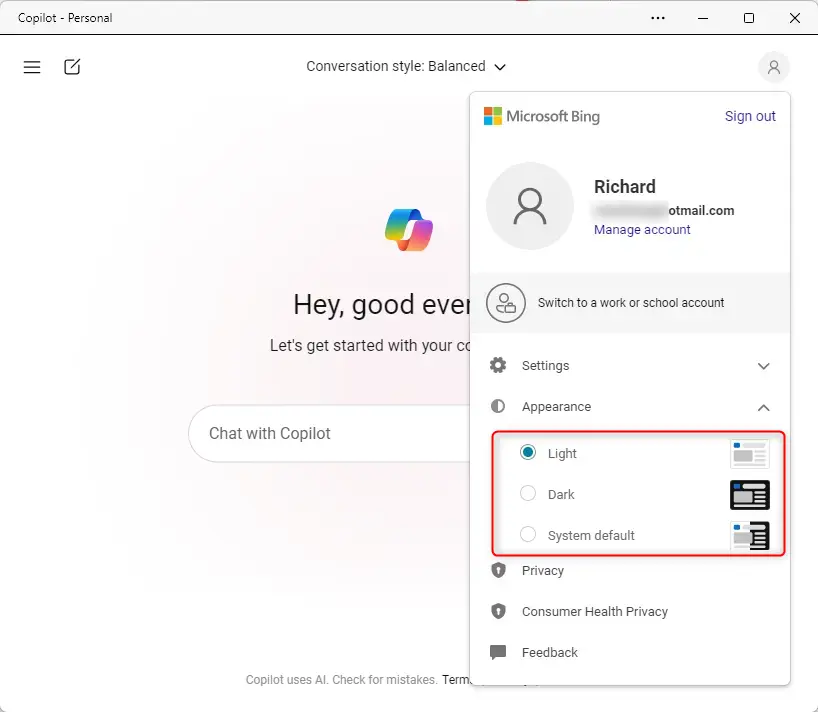
Click your profile picture or the menu icon in the Copilot app’s top right corner, then select Appearance. Choose your preferred theme from Light, Dark, or System default to instantly update Copilot’s colors and background.
Why change the theme?
Changing the theme helps reduce eye strain. A dark theme is better for low-light rooms, while a light theme is often easier to read in bright daylight. You can also match it to your computer’s general look.
What happens when you change the theme?
Once you select a new theme, the Copilot window will instantly update its colors and background to match your choice. This makes the interface more comfortable for your eyes.
How to change the Copilot theme
Changing the Copilot theme in Windows 11 is simple and lets you pick between light mode, dark mode, or having it follow your computer’s settings.
- Open the Copilot app open the Copilot app.
- Click on your profile picture or the menu icon in the top right corner.
- Select Appearance from the menu.
- Choose your preferred theme: Light, Dark, or System default.
If you choose System default, the app will automatically switch between light and dark based on your Windows Windows system theme settings.
Summary
It’s simple to change how your Copilot app looks in Windows 11. By navigating to the Appearance menu within the app, you can switch between Light, Dark, or System default modes. This small change helps make your digital workspace more comfortable and easier to use.
How do I change the Copilot theme?
Navigate to General Settings. To apply a Copilot theme, click a default theme thumbnail under the Themes by Copilot section. Alternatively, select the custom theme tile to create a personalized theme. Choose your theme's topic, style, and refresh cadence.
How to get 🪟 Windows 11 Copilot wallpaper?
And if we head to our downloads location we can apply that to and as our wallpaper. On Windows 11 or any device really if you want to use the Windows co-pilot. Um background and wallpaper.
Should I install Copilot on 🪟 Windows 11?
If you do not require the specific functionalities provided by the Microsoft 365 Copilot app, you may not need to install it. However, if you want to leverage the enhanced capabilities of Copilot, it would be beneficial to have it installed alongside the Microsoft 365 app. AI-generated content may be incorrect.
Was this guide helpful?

About the Author
Richard
Tech Writer, IT Professional
Richard, a writer for Geek Rewind, is a tech enthusiast who loves breaking down complex IT topics into simple, easy-to-understand ideas. With years of hands-on experience in system administration and enterprise IT operations, he’s developed a knack for offering practical tips and solutions. Richard aims to make technology more accessible and actionable. He's deeply committed to the Geek Rewind community, always ready to answer questions and engage in discussions.



No comments yet — be the first to share your thoughts!