How to Restrict Desktop Themes in Windows 11

You restrict desktop themes in Windows 11 using the Group Policy Editor to prevent users from changing their PC’s appearance.
This feature locks the current theme, including backgrounds, colors, and sounds, ensuring a consistent look across multiple computers or maintaining a professional aesthetic on shared workstations.
For example, you might use this policy to enforce a corporate branding theme on all company laptops.
Once applied, users will see theme customization options greyed out in Windows 11 Personalization settings.
Restrict desktop themes in Windows 11 by opening the Local Group Policy Editor and navigating to User Configuration > Administrative Templates > Control Panel > Personalization. Double-click “Prevent changing theme,” select “Enabled,” and click “OK.” Alternatively, use the Registry Editor to create a DWORD value named NoThemesTab in 🗝️HKEY_CURRENT_USER\Software\Microsoft\Windows\CurrentVersion\Policies\Explorer and set its data to 1.
Method 1Using the Local Group Policy Editor
You can restrict desktop themes in Windows 11 by using the Local Group Policy Editor, a tool that helps manage your computer’s settings.
You can use the Local Group Policy Editor to manage these settings. This is the preferred way to enforce a Windows 11 personalization policy.
- Click the Start menu and type “Edit group policy.” Select the result to open it.
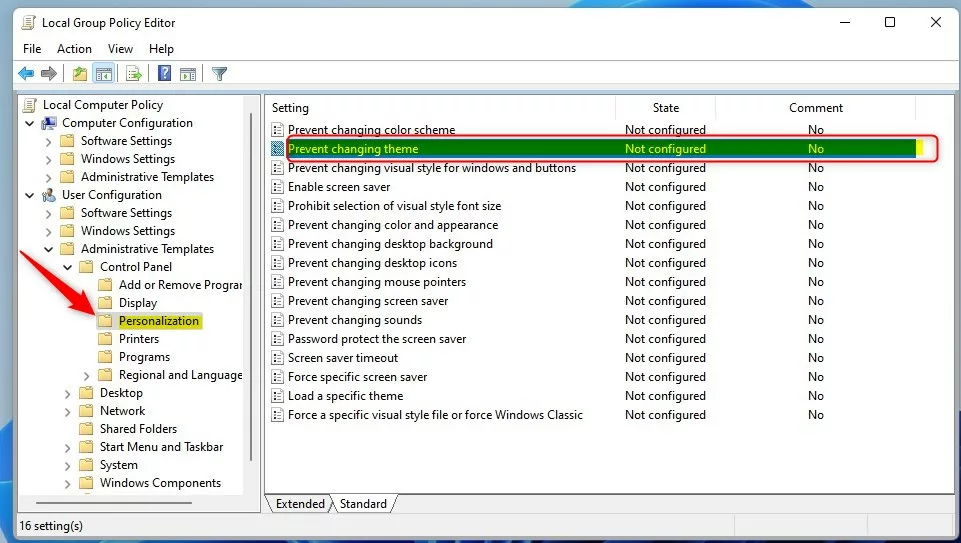
- In the left sidebar, go to: User Configuration > Administrative Templates > Control Panel > Personalization.
- In the right window, double-click “Prevent changing theme.”
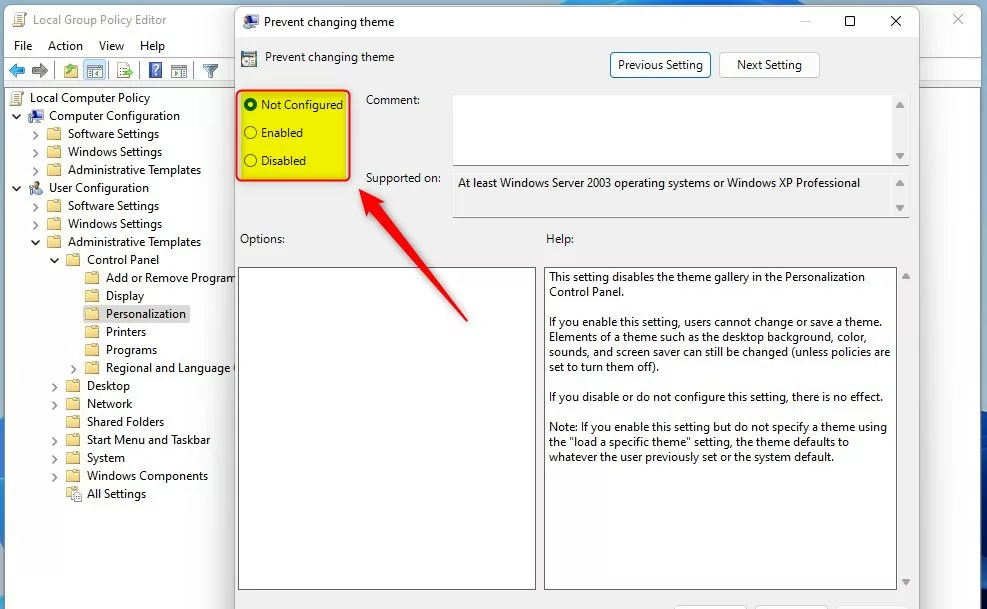
- Select “Enabled” to stop users from changing themes.
- Click “OK,” close the window, and restart your computer.
Method 2Using the Windows Registry
If the Group Policy Editor isn’t an option, you can restrict desktop themes in Windows 11 by making changes in the Windows Registry.
If you cannot use the policy editor, you can use the Windows Registry.
- Press ⊞ Win+R, type “regedit,” and hit Enter.
- Go to this path: 🗝️HKEY_CURRENT_USER\Software\Microsoft\Windows\CurrentVersion\Policies\Explorer
- If you do not see the “Explorer” folder, right-click on “Policies,” select New, and create a Key named “Explorer.”

- Right-click inside the empty space on the right side. Select New > DWORD (32-bit) Value.
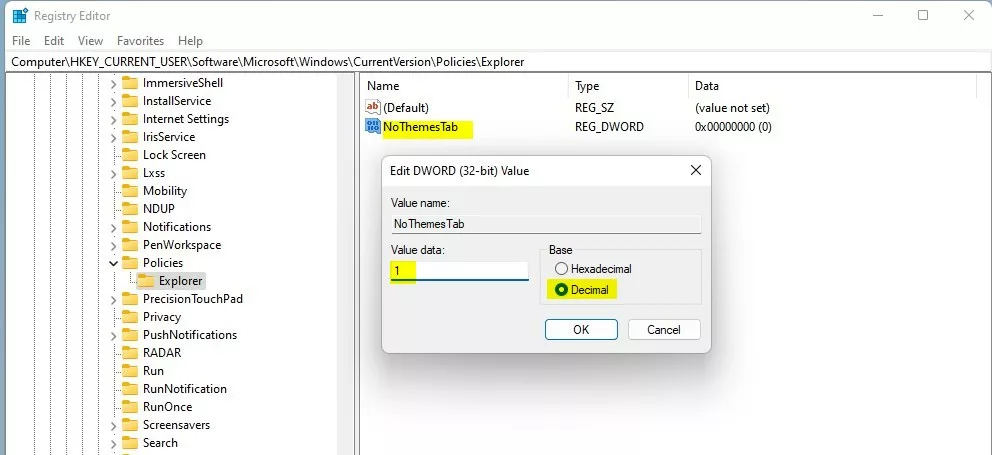
- Name this new value
NoThemesTab. - Double-click
NoThemesTaband change the “Value data” to1. - Click “OK” and restart your computer.
Automation for IT Admins
For IT Admins managing many computers, a PowerShell script can automate setting the registry key. This keeps desktop customization consistent across your entire network.
New-ItemProperty -Path "HKCU:\Software\Microsoft\Windows\CurrentVersion\Policies\Explorer" -Name "NoThemesTab" -Value 1 -PropertyType DWORD -Force
Note: Ensure your PowerShell execution policy allows scripts to run.
Troubleshooting Multi-Monitor and Virtual Desktops
Users often ask: Why does my wallpaper change when I switch virtual desktops? This happens because Windows 11 sees each virtual desktop as its own space. When you restrict themes, you stop Windows from putting different wallpapers on these spaces, keeping everything the same across them.
Kiosk Mode and Assigned Access
In Kiosk mode, you can configure a locked-down environment. By using the Windows 11 kiosk mode configuration, you can force a specific theme for all users on a shared PC, ensuring the interface remains static for public-facing terminals.
Summary
You can restrict desktop themes in Windows 11 using either the Local Group Policy Editor or the Windows Registry. Both methods help you keep the desktop appearance the same for all users by locking theme settings.
Does restricting themes affect dark/light mode settings?
Yes, restricting themes often locks the ability to toggle between dark and light modes. Because these modes are part of the Windows personalization framework, disabling theme changes prevents the system from applying new color schemes, effectively freezing the current light or dark mode state until the restriction is lifted.
How do I revert theme restrictions if I lose access?
To revert theme restrictions in Windows 11 if you lose access, you need to log in with an administrator account. Then, go back to the Group Policy Editor or Registry Editor and remove the restriction to restore full personalization.
Was this guide helpful?

About the Author
Richard
Tech Writer, IT Professional
Richard, a writer for Geek Rewind, is a tech enthusiast who loves breaking down complex IT topics into simple, easy-to-understand ideas. With years of hands-on experience in system administration and enterprise IT operations, he’s developed a knack for offering practical tips and solutions. Richard aims to make technology more accessible and actionable. He's deeply committed to the Geek Rewind community, always ready to answer questions and engage in discussions.




No comments yet — be the first to share your thoughts!