How to View and Stop Sharing OneDrive Files

You can view and stop sharing OneDrive files directly through the OneDrive web interface.
OneDrive is Microsoft’s cloud storage service that synchronizes files across your devices, with deep integration in Windows 11 via File Explorer.
Sharing files and folders is a powerful collaboration tool, but it’s crucial to manage who has access to your data. Regularly reviewing shared links and permissions prevents unintended access to sensitive information.
This process ensures your privacy and security by letting you revoke access for anyone you no longer want to share with, even after you’ve initially granted it.
Access the OneDrive web portal, click “Shared” in the left menu, and then select “Shared by you” to view files. To stop sharing, select the file, click “Manage Access,” and then remove specific people or delete sharing links.
How to See Your Shared Files
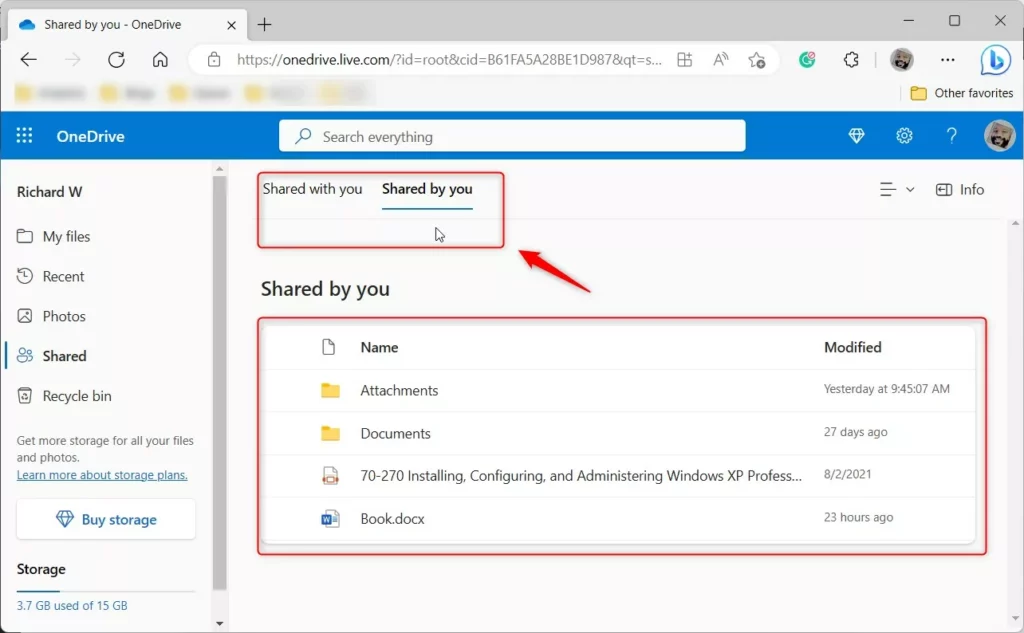
You can see all the files you’ve shared from OneDrive by going to the online portal and clicking ‘Shared’, then ‘Shared by you’. This list shows exactly which files you’ve given others permission to view.
- Go to your Microsoft OneDrive portal online and sign in.
- Click the Shared link in the menu on the left side of your screen.
- Click the Shared by you link at the top of the page. This shows only the files you have given others permission to see.
How to Stop Sharing Files
Stopping sharing for a OneDrive file is simple and you can do it right from the web portal. After finding the file in your ‘Shared by you’ list, select it and choose ‘Manage Access’ to control who can still see it.
- Navigate to your Microsoft OneDrive portal and select Shared, then Shared by you.
- Find the file or folder you want to stop sharing.
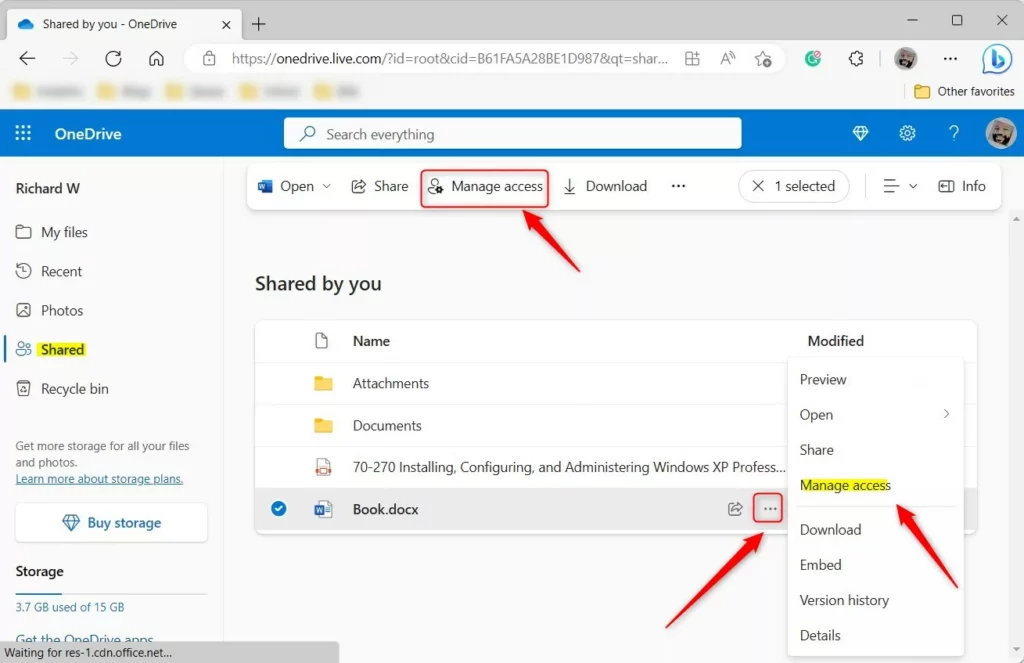
- Select the item and click Manage Access in the top menu, or click the three dots and choose Manage access.
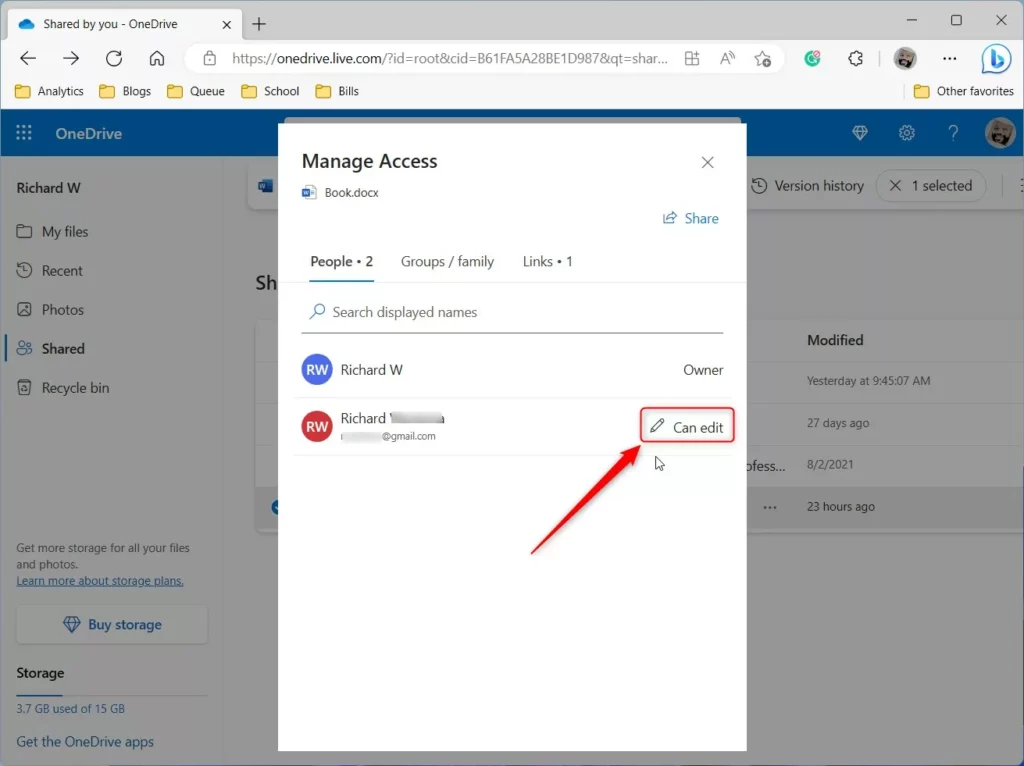
- In the window that pops up, click the People link. Click the Pencil icon to see who has access.
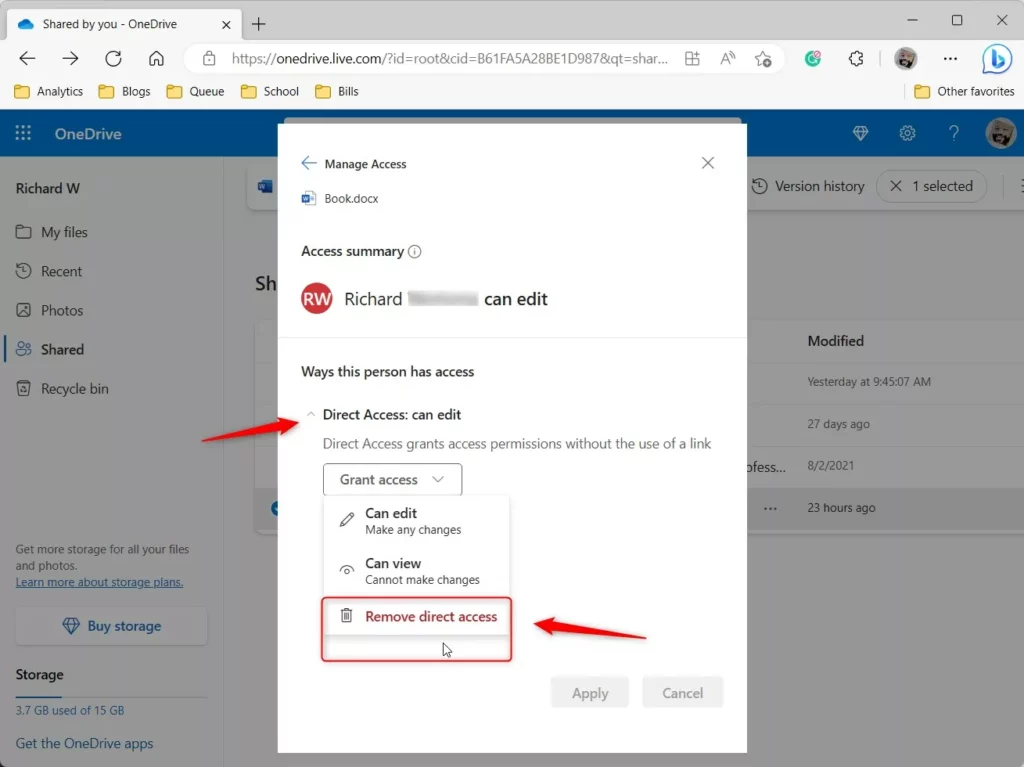
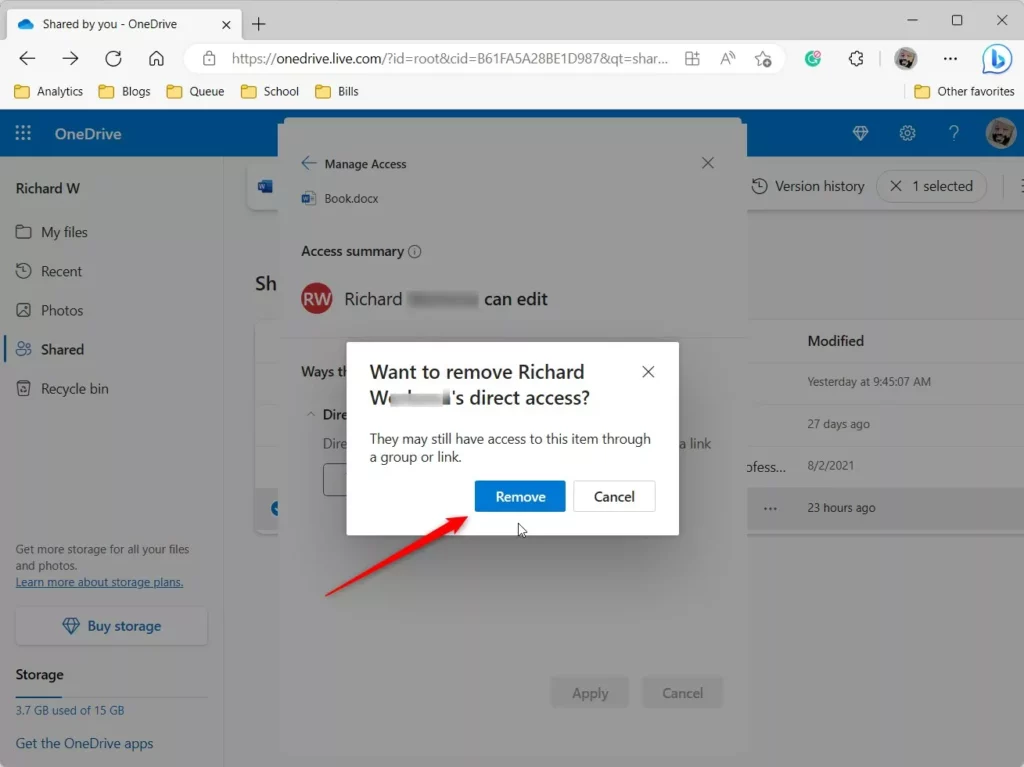
- Click Direct Access to see the list of people. Select Remove direct access for anyone you want to block.
- Click Remove to confirm your choice.
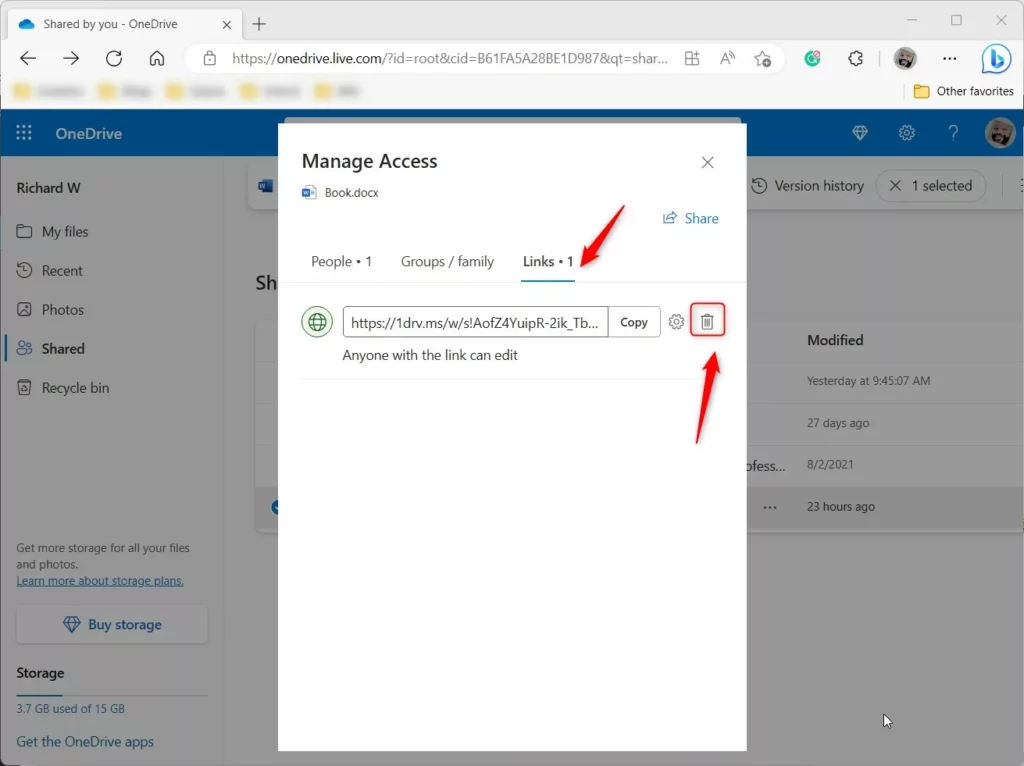
- Finally, click the Links tab in that same window and click the Delete button to kill the sharing link entirely.
Understanding Permission Inheritance and Subfolders
When you share a folder in OneDrive, all the files and folders inside it are shared too, which is called permission inheritance. This means any new items added to that folder are also shared automatically unless you specifically change the settings for that sub-item.
Managing Access on Mobile Devices
You can also stop sharing files using the OneDrive mobile app. Open the app, tap the Shared tab, find the file, tap the three dots, and select Manage Access. From there, you can remove links or specific people just like you do on a computer.
Summary
Managing your shared OneDrive files is key to keeping your data private. You can review what you’ve shared by checking the ‘Shared by you’ list in the OneDrive portal and use the ‘Manage Access’ option to remove specific people or links, ensuring only intended viewers have access.
Related Topics
Can I stop sharing all files at once?
OneDrive does not currently offer a single button to stop sharing every file at once. You must review and revoke access on a per-file or per-folder basis to ensure you do not accidentally remove access to files you still need to collaborate on with your team.
What happens to the recipient when I stop sharing?
When you stop sharing, the recipient will no longer see the file in their “Shared” view. If they try to open a direct link to the file, they will receive an error message stating that the item no longer exists or they no longer have permission to view it.
Was this guide helpful?

About the Author
Richard
Tech Writer, IT Professional
Richard, a writer for Geek Rewind, is a tech enthusiast who loves breaking down complex IT topics into simple, easy-to-understand ideas. With years of hands-on experience in system administration and enterprise IT operations, he’s developed a knack for offering practical tips and solutions. Richard aims to make technology more accessible and actionable. He's deeply committed to the Geek Rewind community, always ready to answer questions and engage in discussions.


[…] files, and folders with people using Windows File Explorer. Once a resource is shared, you can manage access and remove or stop files and folder sharing, even […]