How to Make Your Network Public or Private in Windows 11

You set your network to public or private in Windows 11 to control how your PC appears and what it can do on that network.
A ‘Private’ network profile lets your PC be seen and share files or printers with other devices on your home or office network. A ‘Public’ network profile, which Windows 11 often uses by default for Wi-Fi, makes your PC less visible for better security on networks you don’t fully trust, like those at coffee shops or airports.
Understanding these settings matters. For example, if you connect to your home Wi-Fi and can’t see other devices, you might need to switch your network profile from Public to Private.
Change your network profile in Windows 11 Settings under Network & internet. Select Wi-Fi or Ethernet, click your current network, and choose Public or Private under Network profile type. This setting controls your PC’s visibility and sharing capabilities on the network.
Why Does Network Type Matter?
Think of your network type like a privacy setting for your computer on that specific network. Windows uses this setting to control how visible your computer appears to other devices on the same network.
Public Network: The “Keep to Myself” Option
Choosing a public network in Windows 11 makes your computer less visible to other devices, which is great for security when you’re on unfamiliar Wi-Fi.
What happens when done: You can’t easily share files or printers with other devices on that public network. It’s good for security but not for sharing things on a local network.
When to use it:
- When you connect to Wi-Fi in public places (like cafes, libraries, airports, hotels).
- On any network where you don’t know or trust all the devices.
- When your main goal is to keep your computer private and safe from other devices on the network.
Private Network: The “Open House” Option
Setting your Windows 11 network to private lets your computer share files and printers with other devices on the same network, like at home.
What happens when done: Your computer is more visible. This is why you should only use this setting on networks you completely trust. Using this setting on a public network is a big security risk.
When to use it:
- Your home network.
- A small office network where you know and trust everyone.
- Any network where you need to share things like printers or files with other devices.
How to Change Your Network’s Profile Type
Changing this setting is simple once you know where to look. Switching between public and private profiles in Windows 11 is quick.
Step-by-Step Guide
To change your Windows 11 network to private, first open the Settings app by clicking the Start button and then the gear icon, or by pressing Windows key + I.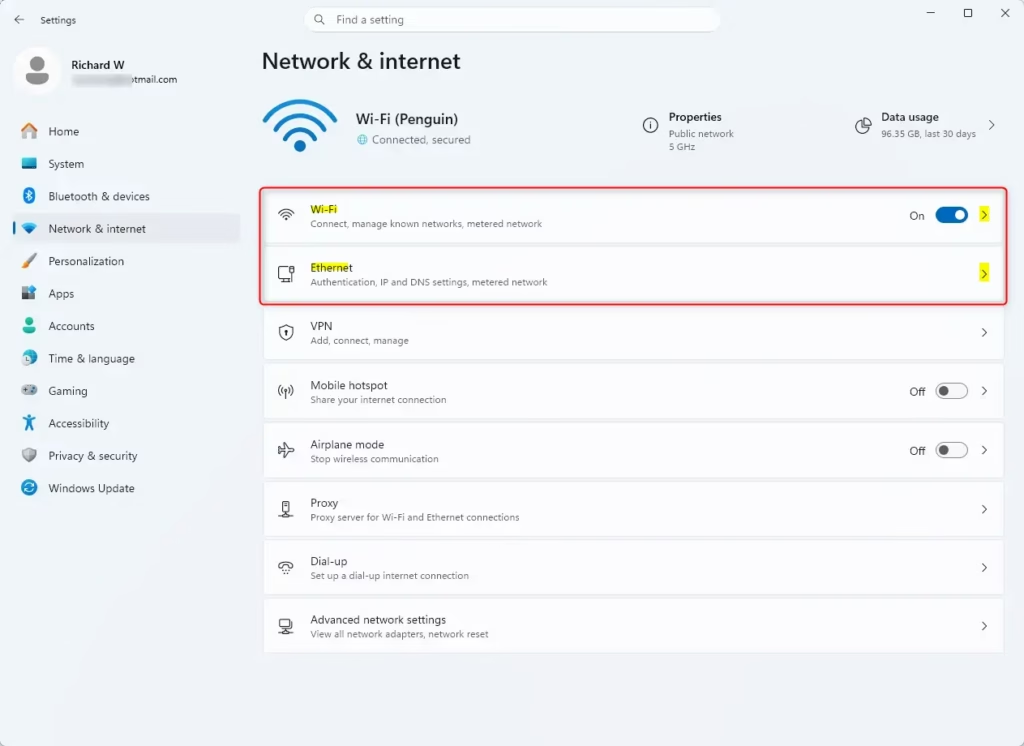
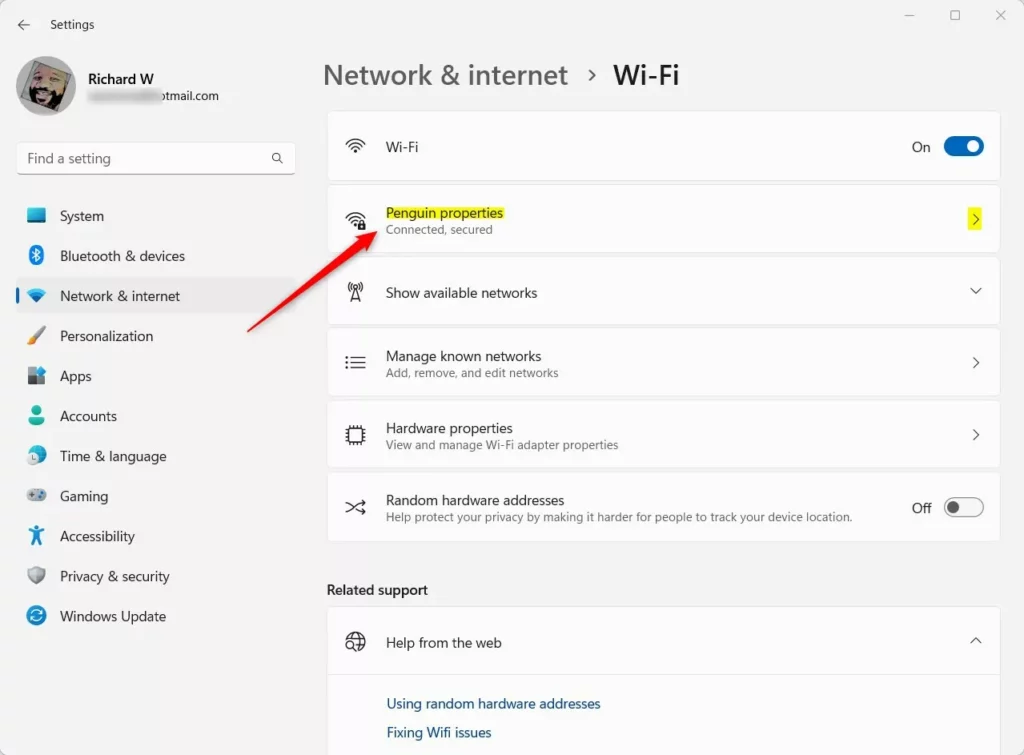
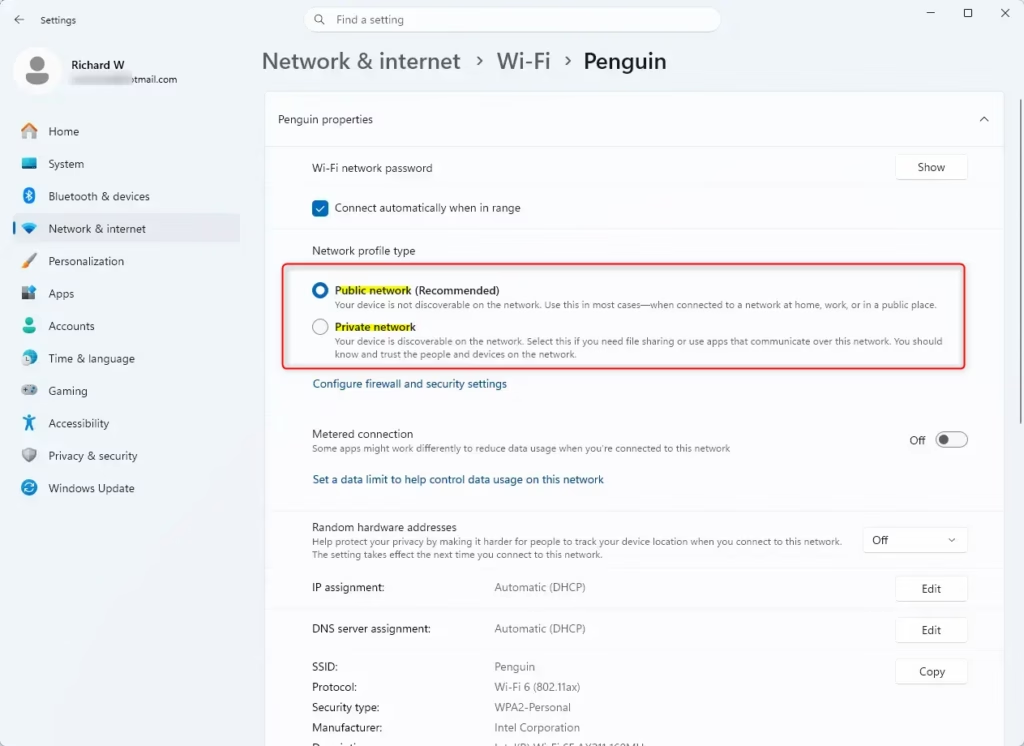
Summary
In Windows 11, choosing between a public and private network setting is simple and affects how visible your computer is to others.
How do I set my network to private in 🪟 Windows 11?
To set your network to private in Windows 11, go to Settings > Network & internet > Wi-Fi (or Ethernet). Click on the network you are connected to, then under 'Network profile type,' select 'Private.' This allows your PC to be discoverable and share files.
Should I be on a public or private network on my PC?
Use a ‘Private’ network profile for trusted networks like your home or office, allowing file sharing and device discovery. Opt for a ‘Public’ network profile on unfamiliar, unsecured networks (e.g., coffee shops, airports) to enhance security by limiting your PC’s visibility.
What is the difference between public and private networks in 🪟 Windows 11?
A ‘Private’ network profile in Windows 11 makes your PC discoverable for file and printer sharing on trusted networks. A ‘Public’ network profile restricts your PC’s visibility to other devices, enhancing security on unfamiliar networks like public Wi-Fi.
Why can't I change my network to private?
You might be unable to change your network to private if your PC is managed by an organization, or if certain network policies are enforced. Additionally, ensure you are connected to the network you intend to change. Sometimes, a simple restart can resolve temporary glitches.
Was this guide helpful?

About the Author
Richard
Tech Writer, IT Professional
Richard, a writer for Geek Rewind, is a tech enthusiast who loves breaking down complex IT topics into simple, easy-to-understand ideas. With years of hands-on experience in system administration and enterprise IT operations, he’s developed a knack for offering practical tips and solutions. Richard aims to make technology more accessible and actionable. He's deeply committed to the Geek Rewind community, always ready to answer questions and engage in discussions.


No comments yet — be the first to share your thoughts!