Enable Printer Sharing in Windows Sandbox

You enable printer sharing in Windows Sandbox to use your host PC’s printers from within the isolated environment.
Windows Sandbox is a temporary, isolated desktop where you can safely run untrusted software without affecting your main system. Because it resets every time you close it, it doesn’t automatically access your host’s hardware, including your printers.
To print files you’ve created or tested in Windows Sandbox (available since version 1903), you must manually share your host’s printers. This step lets the Sandbox environment see and use your connected printers.
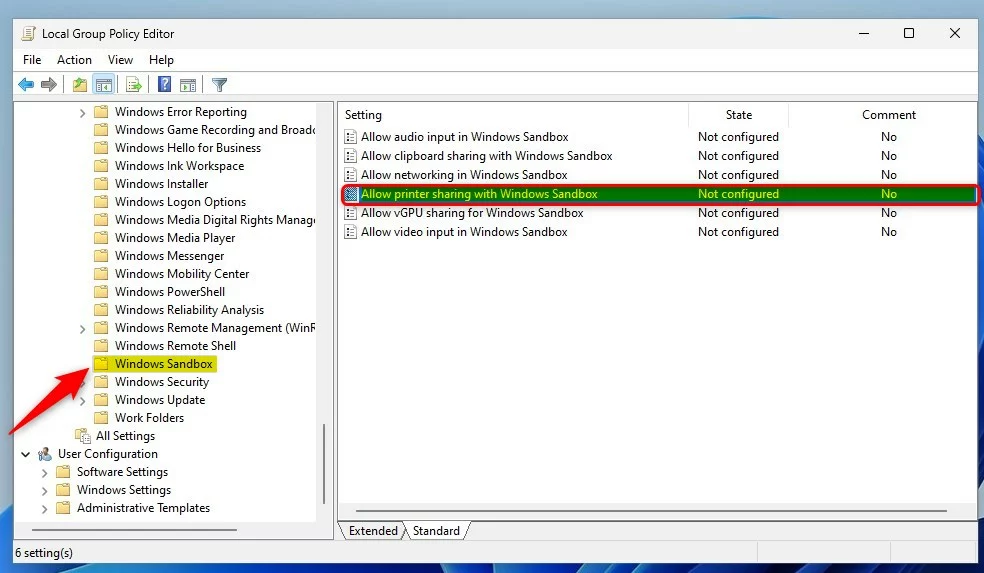
Enable printer sharing in Windows Sandbox by opening Local Group Policy Editor and navigating to Computer Configuration > Administrative Templates > Windows Components > Windows Sandbox. Double-click “Allow printer sharing with Windows Sandbox” and set it to Enabled.
How to turn on or off printer sharing with Sandbox in 🪟 Windows 11
Printer sharing lets you print documents from the isolated Windows Sandbox environment to your main computer’s printers.
Below, the Sandbox is isolated; you can’t print from it. If you want to print, you must enable printer sharing between the host and sandboxed environment.
Here’s how to do that.
First, open Local Group Policy Editor by clicking the Start Menu and searching for Edit group policy, as highlighted below.
Under Best match, select Edit group policy to launch Local Group Policy Editor.
In the left pane of Local Group Policy Editor, expand the tree:
Computer Configuration > Administrative Templates > Windows Components > Windows Sandbox
Then, in the Windows Sandbox details pane on the right, find and double-click the “Allow printer sharing with Windows Sandbox” setting.
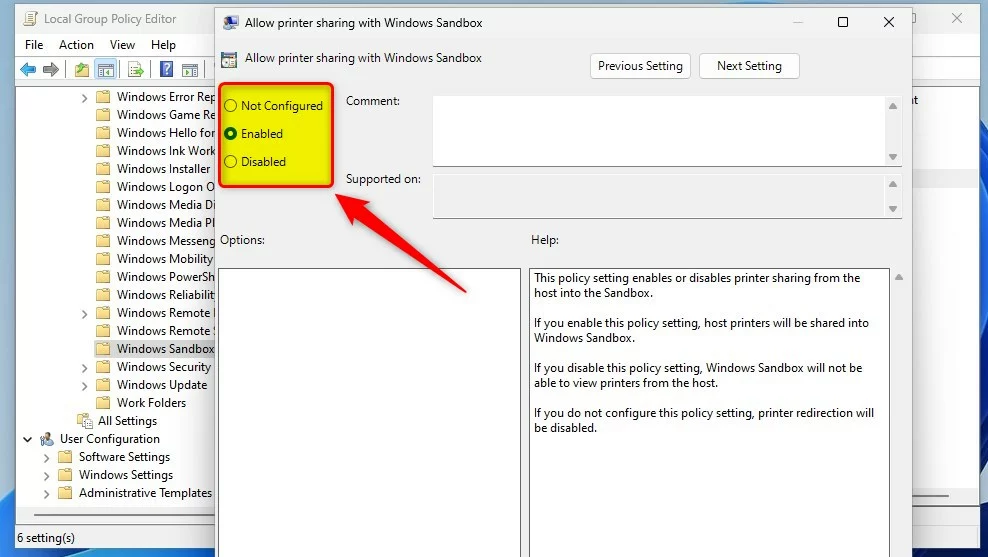
In the Allow printer sharing with Windows Sandbox window, choose either Not Configured, Enabled, or Disabled.
- Not Configured (default)
- Enabled – host printers will be shared into Windows Sandbox.
- Disabled – Sandbox will not view printers from the host.
Enable or disable printer sharing with Sandbox via Windows Registry
If you can’t use the Group Policy Editor, you can still set up printer sharing for Windows Sandbox using the Windows Registry.
Open the Windows Registry and navigate to the folder path (like a file folder) shown below.
HKEY_LOCAL_MACHINESOFTWAREPoliciesMicrosoftWindowsSandbox
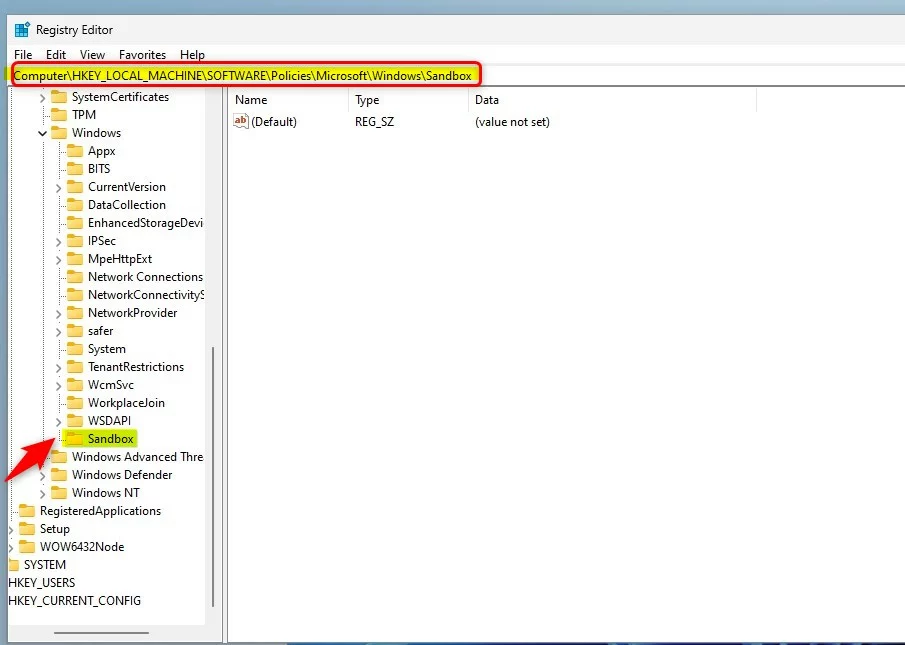
If you don’t see a Sandbox folder key, right-click on the Windows key and create a new subfolder named Sandbox.
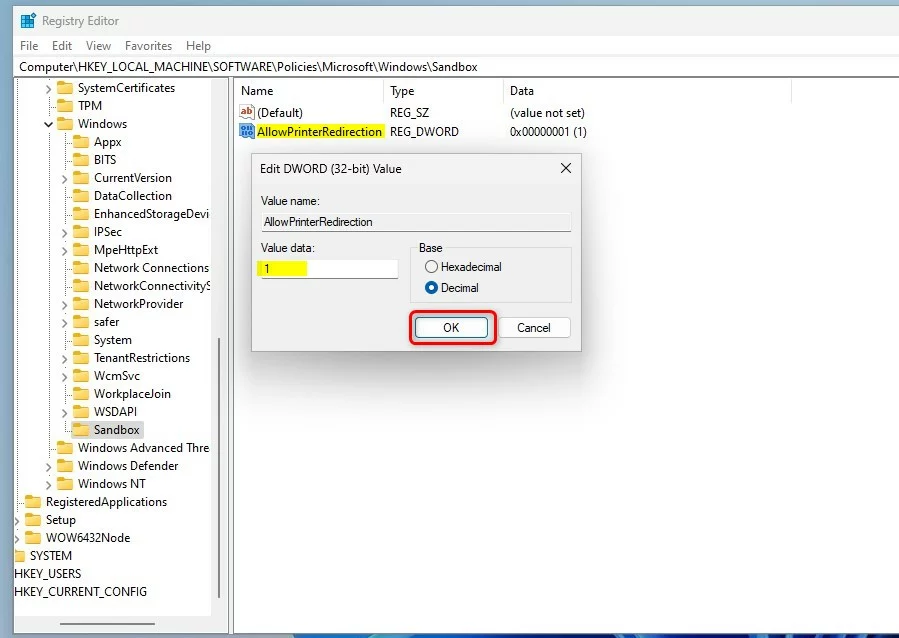
In the right pane of the Sandbox folder, right-click and choose New > DWORD (32-bit) Value. Name this new key AllowPrinterRedirection.
Double-click it and set the Value data to 1 to turn on sharing.
To disable it, set the Value data to 0 or delete the key.
That should do it!
Reference:
Conclusion:
- Enabling printer sharing between the host and sandbox environment in Windows 11 provides the ability to print from the isolated sandbox environment.
- The process involves accessing the Local Group Policy Editor or the Windows Registry to configure the printer-sharing settings accordingly.
- These steps ensure seamless communication between the host machine and the Sandbox, allowing for a more versatile and productive workflow.
Should printer sharing be on or off?
A much better security practice is to remove File and Print Sharing.
Was this guide helpful?

About the Author
Richard
Tech Writer, IT Professional
Richard, a writer for Geek Rewind, is a tech enthusiast who loves breaking down complex IT topics into simple, easy-to-understand ideas. With years of hands-on experience in system administration and enterprise IT operations, he’s developed a knack for offering practical tips and solutions. Richard aims to make technology more accessible and actionable. He's deeply committed to the Geek Rewind community, always ready to answer questions and engage in discussions.


No comments yet — be the first to share your thoughts!