How to Enable or Disable OneDrive Deletion Notifications in Windows 11

You can enable or disable OneDrive deletion notifications in Windows 11 to control whether you receive a warning before files are permanently removed from your PC and cloud storage.
These notifications act as a safety feature, alerting you *before* OneDrive syncs deletions across your devices. This is especially useful if you accidentally delete a large number of files, giving you a chance to stop the process.
Many users find that Windows 11 disables these helpful alerts by default. This guide will show you exactly where to find this specific setting within Windows 11 to toggle it on or off, ensuring you’re protected from unintended mass file deletions.
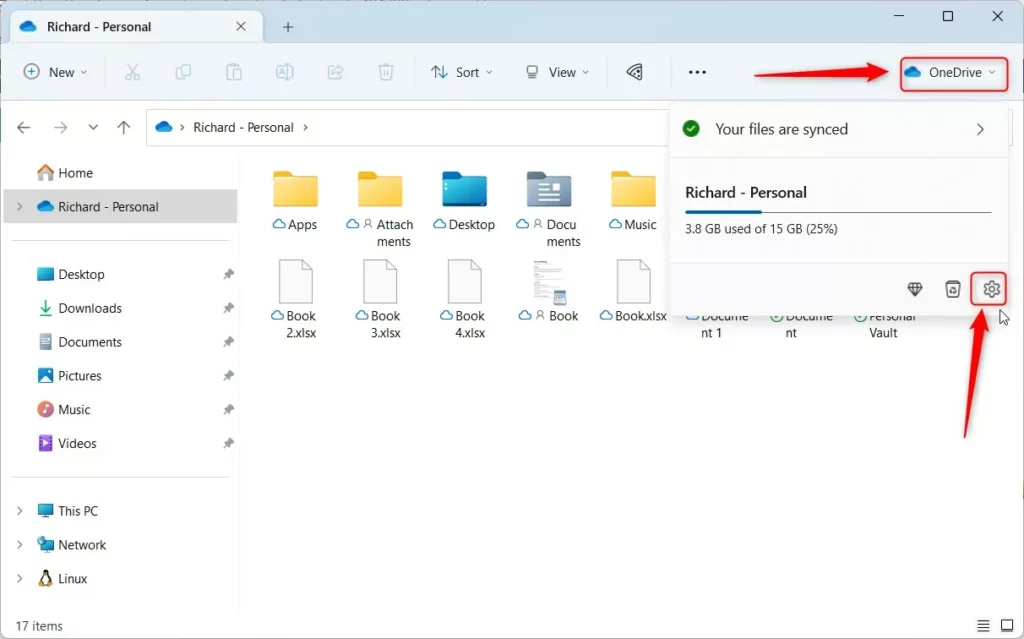
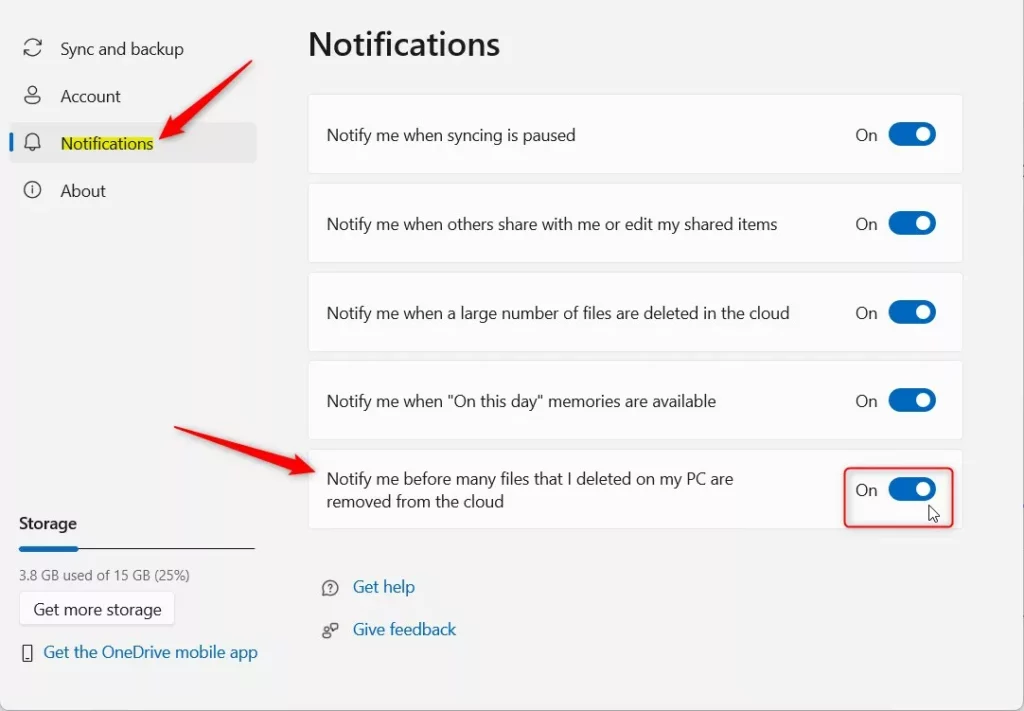
You enable or disable OneDrive deletion notifications by clicking the OneDrive cloud icon on your taskbar, then the gear icon, selecting Settings, and toggling the “Notify me before many files…” option on the Notifications page. This controls whether you get a warning before many deleted files are removed from the cloud.
How to Change OneDrive Deletion Notifications
You can turn OneDrive deletion notifications on or off directly from the OneDrive settings on your Windows 11 PC.
- Click the OneDrive cloud icon on your Taskbar.
- Click the gear icon and select Settings.
- Click Notifications in the left menu.
- Toggle the switch for Notify me before many files that I deleted on my PC are removed from the cloud.
Advanced Settings for Business Users
For OneDrive for Business users, your company’s IT team might manage these deletion notification settings using Group Policy, or you can adjust them directly in the Windows Registry.
Registry Path, a specific location in Windows’ system settings (Requires Admin Privileges): 🗝️HKEY_CURRENT_USER\Software\Microsoft\OneDrive
Look for the NotifyOnDelete key. Set its value to 1 to enable, or 0 to disable.
Troubleshooting Missing Notifications
If you are not receiving alerts, check these items:
- Ensure Focus Assist or Do Not Disturb mode is off.
- Check if OneDrive is running in the background.
- Verify that your account is not a shared folder, as deletion notifications often do not trigger for shared items.
How to Recover Deleted Files
If you accidentally deleted files, do not panic. Follow these steps:
- Go to the OneDrive website and sign in.
- Click on the Recycle Bin in the left sidebar.
- Select the files you want to keep and click Restore.
Are Deletion Notifications a Sign of Phishing?
No. Legitimate OneDrive notifications come from the app itself. If you receive an email claiming files were deleted, check the sender address. If it is not from Microsoft, it may be a phishing attempt. Never click links in suspicious emails.
Summary
OneDrive deletion notifications are important for keeping your files safe in the cloud, helping you avoid accidental data loss.
Is it safe to disable bulk deletion notifications?
It is generally safe to disable them if you are an advanced user who manages files carefully. However, for most users, keeping them enabled is recommended to prevent accidental data loss. Disabling them removes your last line of defense against mass file deletion errors.
Was this guide helpful?

About the Author
Richard
Tech Writer, IT Professional
Richard, a writer for Geek Rewind, is a tech enthusiast who loves breaking down complex IT topics into simple, easy-to-understand ideas. With years of hands-on experience in system administration and enterprise IT operations, he’s developed a knack for offering practical tips and solutions. Richard aims to make technology more accessible and actionable. He's deeply committed to the Geek Rewind community, always ready to answer questions and engage in discussions.



No comments yet — be the first to share your thoughts!