How to Drag and Drop Files Between Phone and Windows 11

Moving files between your phone and your Windows 11 computer is easier than ever. You can use the Phone Link app to link your devices for quick data transfers.
Why use this? It removes the need for cables or emailing files to yourself. It saves time when you need a photo or document on your PC right away.
What happens when done? You will have a direct bridge between your devices, allowing you to move files by simply clicking and dragging them.
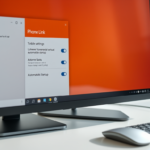
The Phone Link app lets you use your phone apps on your PC. You can use a Wi-Fi connection or Bluetooth connection to browse, chat, and move files. You can move up to 100 files at once, as long as they are not folders and are under 512 MB in size.
Copy files from your PC to your phone
First, open your phone screen using the Phone Link app. Open File Explorer on your computer. By default, files sent to your phone are saved in the Downloads folder.
- Open File Explorer on your computer.
- Find the file you want to move.
- Click and hold the file.
- Drag the file over to your phone screen window and let go.
The file will save to the Files -> Download folder on your phone.
Copy files from your phone to your PC
To move a file the other way, find the file inside your phone’s Gallery or Download folder on your screen. Click and drag the file from the phone window and drop it onto your computer desktop.
Troubleshooting Drag and Drop in Windows 11
Sometimes, drag and drop features stop working due to Windows 11 UI limitations or shell extension conflicts. If you experience drag and drop not working in Windows 11, try restarting the Windows Explorer process via the Task Manager.
Registry Tweak for Drag and Drop Issues
Warning: Editing the registry can cause system instability. Always back up your registry before proceeding.
If drag and drop is broken, you may need to check your registry settings. Requires Admin Privileges.
HKEY_CURRENT_USER\Control Panel\Desktop
Look for the value named DragHeight and DragWidth. Ensure these are set to a small number like 4. If they are too high, your computer will not register the drag movement.
Summary
- The Phone Link app connects your phone to Windows for easy file sharing.
- You can drag and drop individual files, but not folders.
- There is a 512 MB size limit per transfer.
- If drag and drop fails, check your registry settings or restart File Explorer.
- OneDrive is a great backup alternative if you need to move folders or larger amounts of data.
Why can’t I drag and drop files into the Windows 11 address bar?
The Windows 11 address bar is designed for navigation, not as a drop target. Unlike previous versions, Microsoft has restricted this area to prevent accidental file moves. Use the main folder area or the navigation pane to move your files instead.
Does Windows 11 support drag and drop to the taskbar?
Yes, recent Windows 11 builds have restored support for dragging files onto taskbar icons. If it is not working, ensure your Windows 11 build version is updated to the latest release via Windows Update. You can check your version by typing ‘winver’ in the search bar.
Was this guide helpful?




Leave a Reply Cancel reply