How to Enable or Disable Sync Provider Notifications in File Explorer in Windows 11

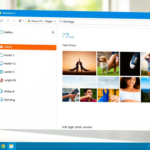
You can enable or disable sync provider notifications in File Explorer in Windows 11 to control the tips and suggestions that appear.
Sync provider notifications are those subtle prompts you might see in File Explorer, often near the address bar. They offer guidance on new Windows 11 features or ways to make the most of your cloud storage. For example, these could be tips related to OneDrive integration.
If these prompts distract you, you can turn them off. Disabling them stops these specific suggestions from appearing in File Explorer without affecting your file syncing or cloud storage functionality.
To enable or disable sync provider notifications in File Explorer, open File Explorer, click the three dots, select Options, go to the View tab, and then check or uncheck “Show sync provider notifications.” This setting controls helpful tips and suggestions without affecting file syncing.
Prerequisites
Before you begin, note that some methods require administrative privileges. If you are using a work computer, your IT department may have locked these settings.
Comparison of Methods
| Method | Difficulty | Best For |
|---|---|---|
| Folder Options | Easy | Average users |
| Registry Editor | Advanced | Power users |
| PowerShell | Advanced | Automation |
Option 1Using Folder Options (GUI)
This is the safest way to change your settings.
- Open File Explorer.
- Click the three dots (…) in the top menu bar.
- Select Options.
- Click the View tab.
- Find Show sync provider notifications in the list.
- Check the box to enable or uncheck to disable.
- Click OK.
Option 2Using Registry Editor
You can turn off sync provider notifications in Windows 11 using the Registry Editor if you’re comfortable making changes to your system’s settings.
- Press ⊞ Win+R, type regedit, and hit Enter. (Requires Admin Privileges)
- Navigate to:
HKEY_CURRENT_USER\SOFTWARE\Microsoft\Windows\CurrentVersion\Explorer\Advanced - Right-click in the right pane and select New > DWORD (32-bit) Value.
- Name it ShowSyncProviderNotifications.
- Double-click it and set the value to 1 to enable or 0 to disable.
Option 3Using PowerShell
PowerShell offers a quick way to manage sync provider notifications in Windows 11, letting you easily turn these prompts on or off with simple commands.
- Right-click the Start button and select Terminal (Admin). (Requires Admin Privileges)
- To disable, copy and paste this command:
Set-ItemProperty -Path 'HKCU:\Software\Microsoft\Windows\CurrentVersion\Explorer\Advanced' -Name 'ShowSyncProviderNotifications' -Value 0 - To enable, use the same command but change -Value 0 to -Value 1.
Summary
Sync provider notifications in Windows 11 are helpful prompts for features like cloud storage, but you can turn them off if you want a cleaner look. You can manage these settings through Folder Options, or use advanced tools like the Registry Editor and PowerShell.
Does hiding sync provider notifications affect file syncing?
No, hiding these notifications has no impact on your file syncing. Your files will continue to upload and download to services like OneDrive normally. This setting only controls the visibility of promotional tips and feature suggestions within the File Explorer interface, not the actual background sync process.
Can these notifications be disabled for all users via Group Policy?
Yes, administrators can disable these notifications for all users on a machine using the Group Policy Editor. By navigating to Computer Configuration > Administrative Templates > Windows Components > File Explorer, you can manage notification settings system-wide, ensuring a consistent experience across all user accounts on the device.
Was this guide helpful?

About the Author
Richard
Tech Writer, IT Professional
Richard, a writer for Geek Rewind, is a tech enthusiast who loves breaking down complex IT topics into simple, easy-to-understand ideas. With years of hands-on experience in system administration and enterprise IT operations, he’s developed a knack for offering practical tips and solutions. Richard aims to make technology more accessible and actionable. He's deeply committed to the Geek Rewind community, always ready to answer questions and engage in discussions.



No comments yet — be the first to share your thoughts!