How to Enable or Disable Android App Notifications in Windows 11

You enable or disable Android app notifications in Windows 11 to control which alerts appear on your PC, syncing them through the Phone Link app.
This integration lets you view and manage notifications from your Android device directly on your Windows 11 desktop, ensuring you don’t miss important updates.
For instance, you can choose to receive alerts only from essential apps like WhatsApp, while silencing less critical ones, boosting your productivity.
This capability is part of the Phone Link app, which requires a compatible Android phone running Android 7.0 (Nougat) or later and your PC to be on the same network.
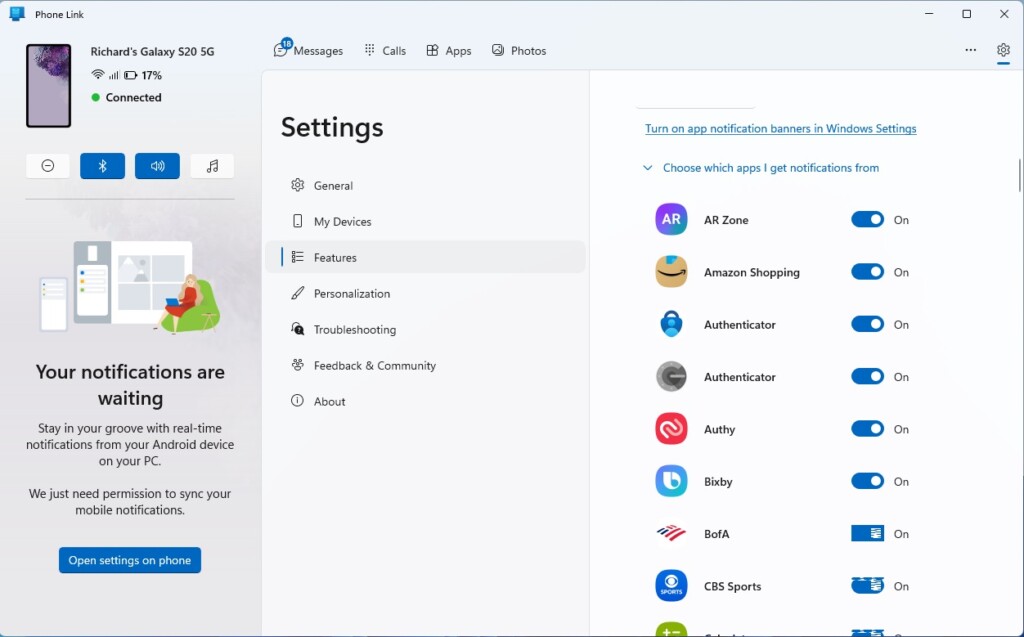
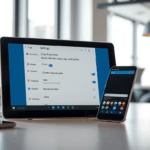
Open the Phone Link app, click the Settings gear, select Features, and find the Notifications section. Click “Choose which apps I get notifications from” and toggle notifications On or Off for individual apps.
Prerequisites and System Requirements
Getting Android notifications on Windows 11 requires a few things to be in place.
How to Enable or Disable Android App Notifications in 🪟 Windows 11
You can easily control which Android apps show notifications on your Windows 11 computer using the Phone Link app.
- Open the Phone Link app on your PC.
- Click the Settings gear icon located in the top right corner.
- Select the Features tab.
- Find the Notifications section.
- Click the link that says Choose which apps I get notifications from to see your full list of apps.
- Toggle the switch to On or Off for each app to allow or block its notifications.
Managing Specific App Permissions
Sometimes, you may want to block noisy apps while keeping important ones active. Within the Notifications menu in the Phone Link app, you can toggle individual app permissions. This ensures that only high-priority alerts reach your desktop, keeping your workflow focused.
Troubleshooting Phone Link Connectivity
If you run into trouble, start by restarting both your phone and PC. Then, check that the Link to Windows app has all the permissions it needs on your phone. Advanced steps might need administrator rights on your PC to reset network settings or update drivers.
Summary
Using the Phone Link app connects your phone and PC, making your experience feel seamless. You can manage distractions by choosing which apps are allowed to ping your computer. This setup provides a cleaner, more organized desktop experience while keeping you connected to your most important mobile alerts.
Related Posts
If you’re looking to manage your Android notifications on Windows 11, you might also find these related guides helpful.Why are my Android notifications not showing up on 🪟 Windows 11?
Check if your phone and PC are on the same Wi-Fi network. Ensure Bluetooth is active on both devices. Verify that Focus Assist or Do Not Disturb mode is disabled on your PC, as these settings block incoming notifications from appearing on your screen.
Can I reply to messages directly from the 🪟 Windows 11 notification center?
Yes, for most messaging apps, you can reply directly from the notification banner on your Windows 11 desktop. Click the reply button within the notification pop-up, type your message, and hit send without ever needing to pick up your physical Android phone.
What happened to running Android apps on 🪟 Windows 11?
The built-in Windows 11 feature was a failure, and Microsoft is moving on from it. But you still have options. Though Microsoft removed Android app support from Windows 11, there are still ways to run Android apps on your PC if you want. Here are the best ways to do so, whether you're using Windows 10 or Windows 11.
Was this guide helpful?

About the Author
Richard
Tech Writer, IT Professional
Richard, a writer for Geek Rewind, is a tech enthusiast who loves breaking down complex IT topics into simple, easy-to-understand ideas. With years of hands-on experience in system administration and enterprise IT operations, he’s developed a knack for offering practical tips and solutions. Richard aims to make technology more accessible and actionable. He's deeply committed to the Geek Rewind community, always ready to answer questions and engage in discussions.
No comments yet — be the first to share your thoughts!