Get Your Phone Set Up with Microsoft Authenticator

Microsoft Authenticator is an app that replaces your passwords with phone-based logins.
It boosts your online security by letting you approve sign-ins with a tap on your phone, so you won’t need to remember or type complex passwords anymore.
You can set up Microsoft Authenticator on both iOS and Android devices. It’s an essential step for securing your Microsoft accounts and many other services that support it.
This guide will show you how to download and set up the app on your phone, so you can start enjoying password-free logins.
Download and install the Microsoft Authenticator app from your device’s app store. Open the app, tap “Continue,” and grant necessary permissions like camera access. Then, follow the prompts to add your accounts, typically by scanning a QR code.
Why Use Microsoft Authenticator?
Think of it like having a personal security guard for your online accounts. It checks that it’s really you trying to log in. This makes it much harder for bad people to get into your accounts. Plus, you won’t forget your passwords or have to click “reset password” anymore!
Important Note: Microsoft Authenticator is only for smartphones. There is no version for your Windows PC or Mac. This is for security. Smartphones are generally safer for important sign-in information.
Step 1Find the Microsoft Authenticator App
Your first step is to find the real Microsoft Authenticator app in your phone’s app store. This makes sure you get the official app and not a fake one.
For iOS (iPhone and iPad) Users:
Open the App Store on your iPhone or iPad. Look for the blue icon with a white ‘A’. Tap the ‘Search’ tab at the bottom right. In the search bar at the top, type “Microsoft Authenticator” and tap search.
The official app has a blue icon with an ‘A’ and a shield and is made by Microsoft Corporation. Always double-check you’re downloading the right one!
Tip: Check the reviews and download count; the real app will have plenty of positive feedback and users.
To make this even simpler, you can often find a direct link to download the app from your device’s app store. Here are the shortcuts:
For iOS (Apple App Store): Download Microsoft Authenticator on the App Store
For Android Users:
Go to the Google Play Store on your Android phone or tablet. Find the app icon – it looks like a colorful triangle. Tap the search bar at the top and type “Microsoft Authenticator.” Then, tap the search button.
The official Microsoft Authenticator app will show up. It also has the blue icon with the ‘A’ and shield. Again, check that it says “Microsoft Corporation” to avoid mistakes.
Warning: Always download apps from official stores like the App Store or Google Play Store. Downloading from other websites can put malware on your device.
To make this even simpler, you can often find a direct link to download the app from your device’s app store. Here are the shortcuts:
For Android (Google Play Store): Get Microsoft Authenticator on Google Play
Step 2Launch the App and Get Started
Now that the app is installed, open it and start the setup. This is where you get it ready to protect your accounts.
Opening on iOS:
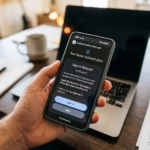
Find the Microsoft Authenticator icon on your device and tap it. The first time you open it, you’ll likely see a welcome screen. Tap “Continue” or a similar button.
You might be asked to allow certain things, like access to your camera (needed for scanning codes later) or notifications. It’s good to allow these for the best experience.
Opening on Android:
Find the Microsoft Authenticator icon on your Android device and tap it. You’ll see a welcome screen. Tap “Continue” or the button that means the same thing.
Like on iOS, your Android phone will likely ask for permissions. Allow camera access if you plan to use QR codes, and enable notifications so you get sign-in alerts right away.
Warning: If you don’t allow needed permissions, some app features might not work. For example, if you don’t allow camera access, you can’t scan QR codes to add accounts easily.
Step 3Add Your Accounts (The Fun Part!)
This is the main part: connecting your Microsoft accounts to the Authenticator app. There are a few ways to do this, but using a QR code is the most common.
Adding Accounts Manually:
If you can’t use a QR code, you can add accounts manually. In the Authenticator app, after tapping the “+” icon, choose the account type and then select the option to enter the code manually. You’ll need to type in a secret key that the service you’re securing gives you.
Practical Tip: Keep your recovery codes in a safe place. If you ever lose your phone or the Authenticator app, these codes are your only way to get back into your accounts.
Step 4Configure Two-Step Verification
Adding the account to the Authenticator app is only part of it. You need to tell the online service to *use* the Authenticator app for verification.
Go back to the security settings of the Microsoft account or service you are protecting. You need to turn on ‘two-step verification,’ also known as multi-factor authentication (MFA), which adds an extra layer of security. During this process, you’ll choose “Authenticator app” as how you want to verify.
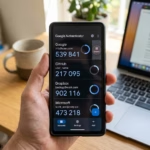
You might get a test notification on your phone through the Authenticator app. It will ask you to approve a sign-in attempt. This shows that everything is connected correctly.
Warning: Do not turn off two-step verification unless you really have to. It is one of the best ways to keep your accounts safe from people who shouldn’t have access.
Summary
This guide showed you how to set up Microsoft Authenticator on your smartphone. You learned how to find and install the app from your device’s official app store (App Store for iOS, Google Play Store for Android). You also learned how to add your accounts, most commonly by scanning a QR code, and how to enable two-step verification for increased security. The app helps you log in without passwords by using your phone to approve sign-ins, making your online life more convenient and secure.
Can you have the Microsoft Authenticator app on two phones?
Yes, you can install Microsoft Authenticator on multiple devices. To set it up on a new phone, you'll need to go through the account recovery process. This typically involves signing into your Microsoft account and verifying your identity to link the new device to your existing authenticator setup.
Which Authenticator app to use for fidelity?
Microsoft Authenticator is a versatile app that can be used for securing various online accounts, including those that might integrate with services like Fidelity. While Fidelity may have its own specific recommendations, Microsoft Authenticator is a strong, secure option for general multi-factor authentication needs.
How do I get the QR code for Microsoft Authenticator on my new phone?
To get the QR code for Microsoft Authenticator on a new phone, you typically initiate the setup process for your Microsoft account on the new device. During the sign-in or account setup, you'll be prompted to scan a QR code displayed on the screen or provided via a web interface.
Why is Microsoft Authenticator not working on Android?
If Microsoft Authenticator isn't working on Android, try clearing the app's cache and data, or uninstalling and reinstalling it. Ensure your phone's operating system and the Authenticator app are updated. Check your phone's network connection and ensure background app activity is enabled for Authenticator.
Was this guide helpful?

About the Author
Richard
Tech Writer, IT Professional
Richard, a writer for Geek Rewind, is a tech enthusiast who loves breaking down complex IT topics into simple, easy-to-understand ideas. With years of hands-on experience in system administration and enterprise IT operations, he’s developed a knack for offering practical tips and solutions. Richard aims to make technology more accessible and actionable. He's deeply committed to the Geek Rewind community, always ready to answer questions and engage in discussions.

No comments yet — be the first to share your thoughts!