How to remove an Account from Microsoft Authenticator

You remove an account from Microsoft Authenticator by going into the app settings and selecting the account you wish to delete.
Microsoft Authenticator is a two-factor authentication (2FA) app. It protects your online accounts by requiring a second verification step. Removing an account usually takes less than a minute.
This is useful if you’ve changed jobs, deactivated a service, or are tidying up your digital security. The app requires confirmation to prevent you from accidentally removing important accounts.
Open the Microsoft Authenticator app, tap the account you want to remove, select “Remove account,” and then confirm the action. The account will be disconnected from the app.
Removing a Single Account
Let’s start by removing just one account. This is helpful if you have many accounts linked and only want to disconnect one. It’s like unsubscribing from one email instead of deleting your whole inbox.
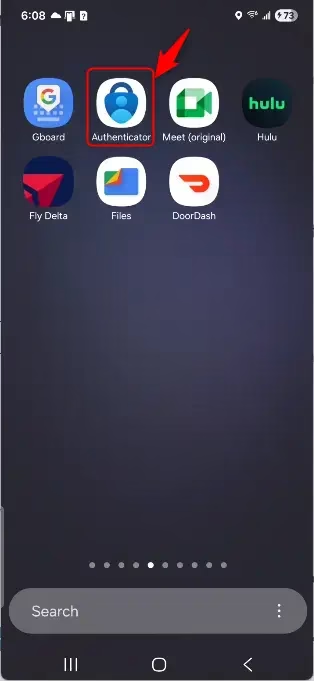
Step 1Open the Authenticator App
First, find and open the Microsoft Authenticator app on your phone or tablet. This is the app that shows you codes or approves your sign-ins.
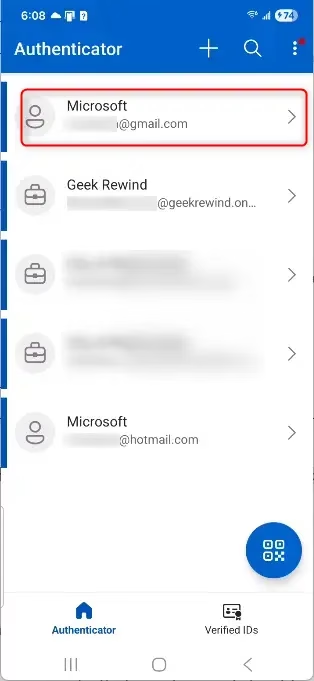
Step 2Find the Account to Remove
Once the app is open, you’ll see a list of your accounts. Scroll until you find the account you want to remove. It might be an email address or a service name.
Tip: If you have many accounts, be very sure you pick the right one. Removing the wrong account could cause problems.
Step 3Access the Account’s Settings
After finding the account, tap on it. This opens its settings or details page. Look for a way to manage that account’s connection to Authenticator.
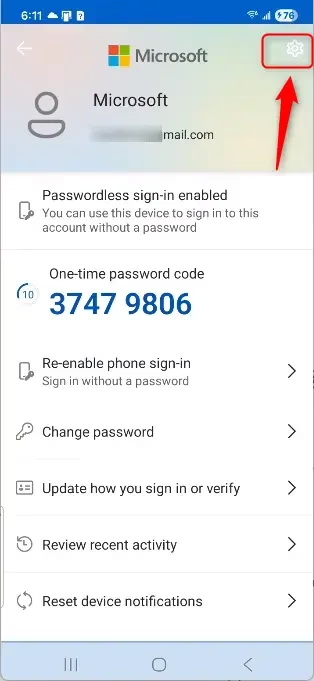
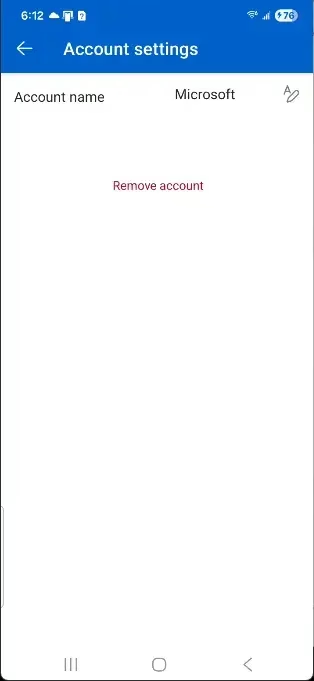
Step 4Find the “Remove Account” Option
On the account’s detail screen, look for an option to remove it. It might say “Remove account” or “Delete account.” You might need to tap a settings icon (⚙️) to find it.
Step 5Confirm the Removal
Microsoft wants to be sure you really want to do this. You’ll probably see a message asking if you’re sure. Read it carefully.
Warning: Once you confirm, the account disappears from your Authenticator app. This means you can’t use the app to approve sign-ins for that account anymore. You’ll need a different verification method, but you can always add the account back later if you change your mind.
Tap “Remove” or “OK” to finish.
What Happens When You Remove an Account?
When you remove an account, it’s disconnected from Microsoft Authenticator. You won’t get sign-in approvals for it in the app anymore. The app also stops generating its time-based one-time password (TOTP) codes.
- You will no longer receive sign-in approval requests for that account in the app.
- The account’s time-based one-time password (TOTP) codes will stop generating.
- You will need to use another method to sign in to that account, like a password, a security key, or a different authenticator app.
- If you need to use Microsoft Authenticator for that account again, you’ll have to add it back manually.
Why Remove an Account?
There are several good reasons to remove an account from Microsoft Authenticator:
- Changed Jobs: If you leave a company, you’ll lose access to their services and should remove their associated accounts.
- Closed Service: If a service you used is no longer available or you no longer subscribe to it.
- Security Cleanup: If you suspect an account might be compromised or you simply want to reduce your digital footprint.
- App Organization: To keep the app tidy and only show accounts you actively use.
- Switching Devices: When moving to a new phone, you might want to remove accounts from the old device before setting up the new one.
Summary
Removing an account from Microsoft Authenticator helps keep your digital life organized and secure. By following the steps to locate the account, access its settings, and confirm the removal, you can easily disconnect services you no longer use. Remember that once an account is removed, you’ll need an alternative method for signing in, and you can always add the account back later if needed.
How do I delete an account off Microsoft Authenticator?
To delete an account from Microsoft Authenticator, open the app, locate the account you wish to remove from the list, and tap on it. Then, select the ‘Remove account’ option and confirm your choice. This process is quick and ensures your digital security is managed effectively.
How do I remove an unused account from the Authenticator app?
Removing an unused account from the Authenticator app is quick. Open the app, find the specific account in your list, and tap on it. You’ll then see an option to ‘Remove account.’ Confirm this action to successfully disconnect the unused account and keep your authenticator organized.
How do I remove GREY account from Microsoft Authenticator?
If an account appears greyed out in Microsoft Authenticator, it often means it’s no longer active or has been deleted from the associated service. To remove it, open the app, tap the greyed-out account, and select the ‘Remove account’ option. Confirm the deletion to clear it from your list.
Which Authenticator app to use for fidelity?
For Fidelity accounts, Microsoft Authenticator is a suitable choice for two-factor authentication. It provides a secure and convenient way to verify your identity when logging in. Simply add your Fidelity account within the Microsoft Authenticator app following the standard account setup procedures.
Was this guide helpful?

About the Author
Richard
Tech Writer, IT Professional
Richard, a writer for Geek Rewind, is a tech enthusiast who loves breaking down complex IT topics into simple, easy-to-understand ideas. With years of hands-on experience in system administration and enterprise IT operations, he’s developed a knack for offering practical tips and solutions. Richard aims to make technology more accessible and actionable. He's deeply committed to the Geek Rewind community, always ready to answer questions and engage in discussions.




No comments yet — be the first to share your thoughts!