How to Change Notification Display in Windows 11 Phone Link App

You change Windows 11 Phone Link app notification display to choose which app alerts show on your PC and the level of detail they reveal.
Phone Link is the Windows 11 feature that links your Android phone to your PC, showing texts and app alerts directly on your desktop.
Customizing these notifications helps you manage privacy and focus. For example, you can choose to hide the content of incoming texts entirely or just display the sender’s name.
This allows you to keep sensitive information private, especially in shared workspaces, and reduces distractions from less important alerts, improving your PC productivity.
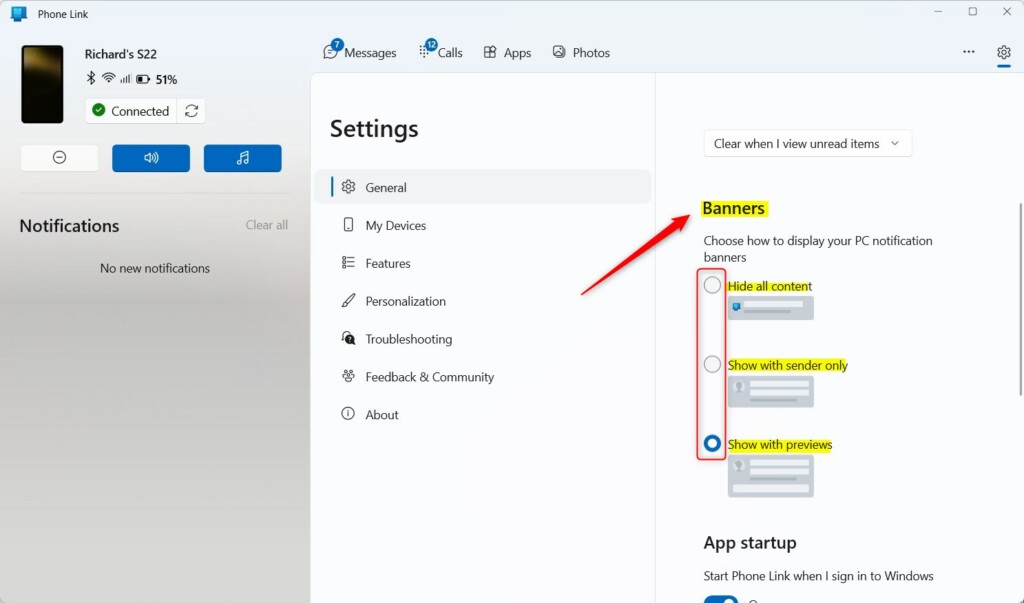
Change notification display in Phone Link by opening the app, clicking the Settings gear, selecting Features, and choosing your preferred style: Hide all content, Show sender only, or Show with preview. You can also stop specific apps from sending alerts through the same menu.
How to Configure Notification Display
You can change how your Phone Link app notifications show up on your Windows 11 PC right in the app’s settings. Just open the Phone Link app, click the gear icon for Settings, go to Features, and then find the Notifications section to pick how you want them to appear.
- Open the Phone Link app on your PC.
- Click the Settings gear icon in the top right.
- Select Features from the menu.
- Find the Notifications section.
- Choose your preferred display style: Hide all content, Show sender only, or Show with preview.
Your changes save automatically. This keeps your notification mirroring private.
Troubleshooting Phone Link Sync Issues
If your Phone Link app notifications aren’t showing on your PC, the usual fixes involve checking the Link to Windows service on your phone. Make sure it’s on and that your phone’s battery settings aren’t stopping the app from working correctly.
- Check Link to Windows: Ensure the Link to Windows service is active on your Android phone.
- Battery Optimization: Go to your Android settings, find the Link to Windows app, and set battery usage to Unrestricted.
- Focus Assist: Ensure Do Not Disturb or Focus Assist is not blocking notifications on your PC.
- Official Help: Visit the Microsoft Support troubleshooting page for deep technical fixes.
Managing App-Specific Notifications
You can stop specific apps from sending alerts to your PC. In the Phone Link Features menu, look for the Choose which apps I get notifications from link. Toggle off any apps that distract you. This keeps your notification center clean and relevant.
Checking Android Permissions
Often, missing Android permissions cause problems. [Requires Android device access]:
- Open Settings on your Android phone.
- Search for Apps or Special App Access.
- Find Link to Windows.
- Ensure Notification Access is toggled ON.
Summary
Managing your Phone Link app notifications is key for privacy and productivity. You can create a seamless experience by adjusting display settings, checking Android permissions, and filtering specific apps. If sync issues pop up, always verify battery settings and ensure the Link to Windows service is running correctly.
Why are my Phone Link notifications not showing up?
Your Phone Link notifications might not be showing up because of permission problems on your Android phone or if Focus Assist is turned on on your Windows PC.
How do I stop specific apps from sending notifications to my PC?
Open the Phone Link app, go to Settings, and select Features. Click on the link labeled Choose which apps I get notifications from. You will see a list of all apps currently sending alerts. Toggle the switch to Off for any specific app you want to silence.
Are Phone Link notifications secure?
Yes, Phone Link uses end-to-end encryption for data transmission between your phone and PC. However, the display of these notifications on your screen is a privacy concern. You should use the Hide all content or Show sender only settings if you work in public spaces to protect your data.
Was this guide helpful?

About the Author
Richard
Tech Writer, IT Professional
Richard, a writer for Geek Rewind, is a tech enthusiast who loves breaking down complex IT topics into simple, easy-to-understand ideas. With years of hands-on experience in system administration and enterprise IT operations, he’s developed a knack for offering practical tips and solutions. Richard aims to make technology more accessible and actionable. He's deeply committed to the Geek Rewind community, always ready to answer questions and engage in discussions.

[…] your phone connected to your PC, you can choose how to display notifications, choose to hear audio from the PC or phone, turn allow the phone link app to sync over […]
[…] your phone is linked to your computer, you can choose how to display notifications, choose to hear audio from the PC or phone, turn allow the phone link app to sync over mobile […]