How to Change Notification Display in Windows 11 Phone Link App

The Phone Link app connects your Android phone to your Windows 11 PC. It lets you see texts, photos, and app alerts on your big screen. This guide helps you master Phone Link app notifications for better privacy and focus.
Why manage these settings?
You should manage these settings to keep your private life private. If you work in an office or a coffee shop, you do not want personal messages popping up for everyone to read. Managing these alerts also helps you stay focused by silencing apps you do not need to see on your PC.
What happens when you change these settings?
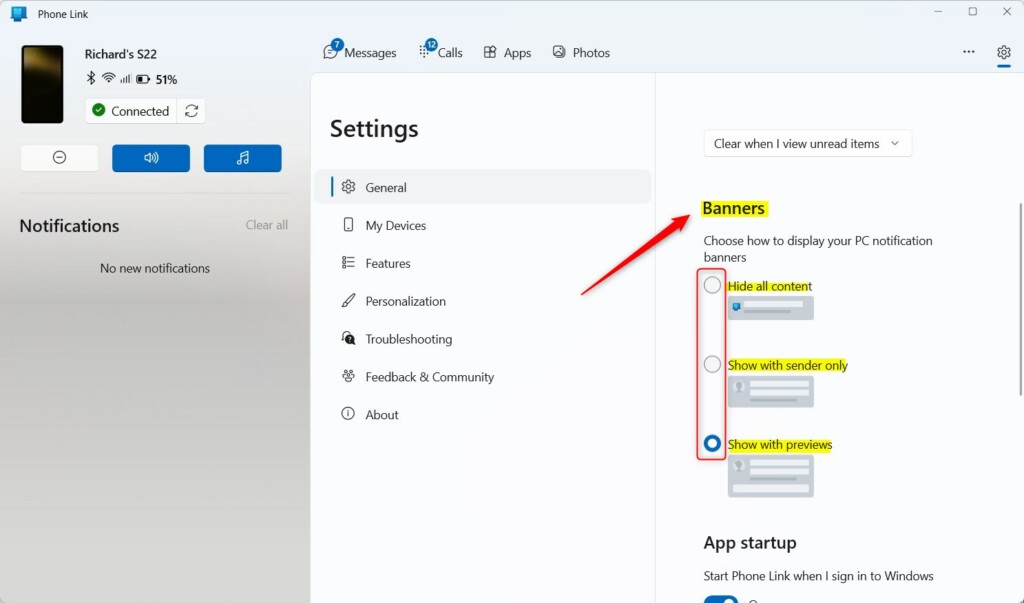
When you change these settings, you control how much information appears in your Windows Notification Center. You can hide message text, show only the sender’s name, or block specific apps entirely. Your changes take effect immediately across all linked devices.
How to Configure Notification Display
You do not need admin privileges to change these user-level settings. Follow these steps to adjust your display preferences:
- Open the Phone Link app on your PC.
- Click the Settings gear icon in the top right.
- Select Features from the menu.
- Find the Notifications section.
- Choose your preferred display style: Hide all content, Show sender only, or Show with preview.
Your changes are saved automatically. This ensures your notification mirroring stays private.
Troubleshooting Phone Link Sync Issues
If your Phone Link app notifications are not showing up, check these common fixes:
- Check Link to Windows: Ensure the Link to Windows service is active on your Android phone.
- Battery Optimization: Go to your Android settings, find the Link to Windows app, and set battery usage to Unrestricted.
- Focus Assist: Ensure Do Not Disturb or Focus Assist is not blocking notifications on your PC.
- Official Help: Visit the Microsoft Support troubleshooting page for deep technical fixes.
Managing App-Specific Notifications
You can stop specific apps from sending alerts to your PC. In the Phone Link Features menu, look for the Choose which apps I get notifications from link. Toggle off any apps that distract you. This keeps your notification center clean and relevant.
Checking Android Permissions
The most common failure point is missing Android permissions. [Requires Android device access]:
- Open Settings on your Android phone.
- Search for Apps or Special App Access.
- Find Link to Windows.
- Ensure Notification Access is toggled ON.
Summary
Managing your Phone Link app notifications is essential for both privacy and productivity. By adjusting your display settings, checking Android permissions, and filtering specific apps, you can create a seamless experience. If you face sync issues, always verify your battery settings and ensure the Link to Windows service is running correctly.
Why are my Phone Link notifications not showing up?
This is usually due to permission issues on your Android phone or Focus Assist being active on Windows. Ensure the Link to Windows service has notification access enabled in your Android settings and that your PC is not in Do Not Disturb mode. Restarting both devices often fixes sync errors.
How do I stop specific apps from sending notifications to my PC?
Open the Phone Link app, go to Settings, and select Features. Click on the link labeled Choose which apps I get notifications from. You will see a list of all apps currently sending alerts. Simply toggle the switch to Off for any specific app you want to silence.
Are Phone Link notifications secure?
Yes, Phone Link uses end-to-end encryption for data transmission between your phone and PC. However, the display of these notifications on your screen is a privacy concern. You should use the Hide all content or Show sender only settings if you work in public spaces to protect your data.
Was this guide helpful?

About the Author
Richard
Tech Writer, IT Professional
Richard, a writer for Geek Rewind, is a tech enthusiast who loves breaking down complex IT topics into simple, easy-to-understand ideas. With years of hands-on experience in system administration and enterprise IT operations, he’s developed a knack for offering practical tips and solutions. Richard aims to make technology more accessible and actionable. He's deeply committed to the Geek Rewind community, always ready to answer questions and engage in discussions.


[…] your phone connected to your PC, you can choose how to display notifications, choose to hear audio from the PC or phone, turn allow the phone link app to sync over […]
[…] your phone is linked to your computer, you can choose how to display notifications, choose to hear audio from the PC or phone, turn allow the phone link app to sync over mobile […]