How to Change Touchpad Zoom Speed in Windows 11

You can change your touchpad zoom speed in Windows 11 by adjusting settings within your touchpad’s specific driver software, as Windows 11’s built-in settings only control how fast your cursor moves, not how sensitive the pinch-to-zoom gesture is.
Some touchpads, especially older ones, don’t show a direct zoom speed slider in Windows 11’s Accessibility or Mouse settings.
If you find the default pinch-to-zoom gesture too quick or too slow and don’t see an obvious slider, the solution typically involves accessing a control panel provided by your touchpad manufacturer, such as Synaptics or Elan.
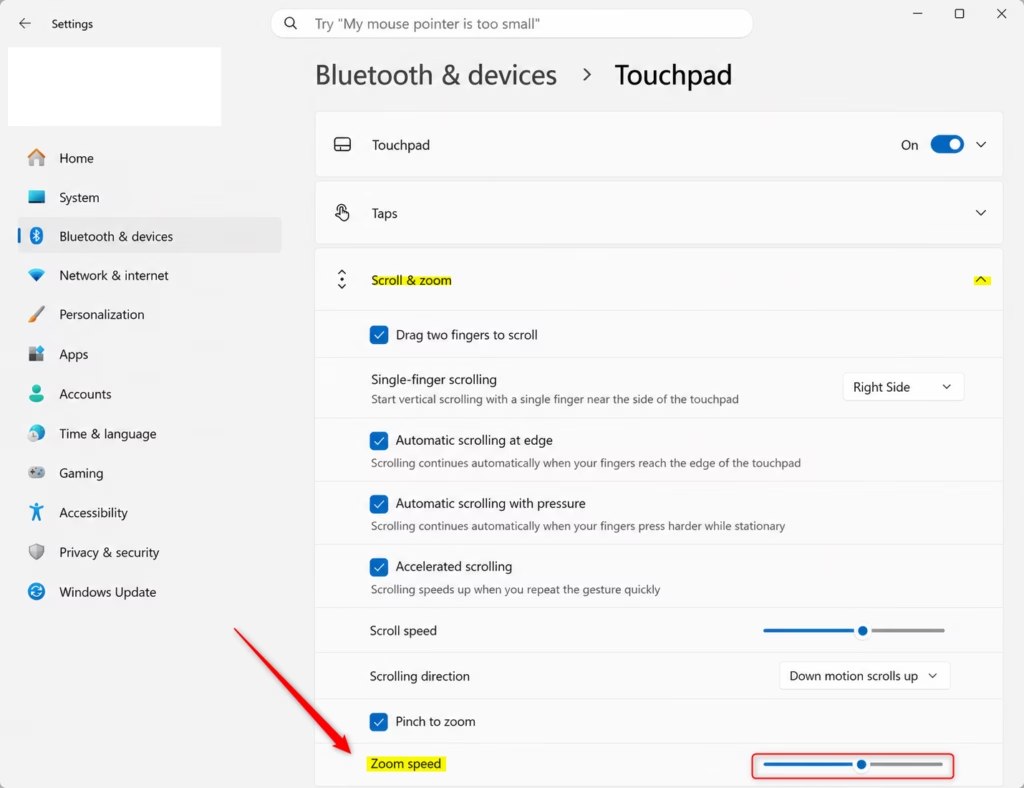
Adjust zoom speed in Settings under Bluetooth & devices > Touchpad > Scroll & zoom. If the slider is missing, update drivers via Device Manager or check manufacturer software. Advanced users can modify the Registry.
Updating Drivers via Device Manager
Your touchpad zoom speed settings might be missing because your drivers are out of date.
- Right-click the Start button and select Device Manager.
- Expand Mice and other pointing devices.
- Right-click your touchpad (often labeled as HID-compliant mouse or Precision Touchpad) and select Update driver.
- Choose Search automatically for drivers.
Change Touchpad Zoom Speed in Settings
If your device supports it, you can adjust the speed directly in the system menu.
- Open Settings (⊞ Win+I).
- Click Bluetooth & devices, then select Touchpad.
- Click Scroll & zoom to expand the section.
- Move the Zoom speed slider to your preferred level.
Change Touchpad Zoom Speed in Registry Editor
If the touchpad zoom speed slider isn’t showing up in settings, you can manually adjust it using the Registry Editor.
- Press ⊞ Win+R, type regedit, and press Enter.
- Navigate to:
HKEY_CURRENT_USER\Software\Microsoft\Windows\CurrentVersion\PrecisionTouchPad - Double-click ZoomSensitivity.
- Set the value to a number between 0 and 100.
Third-Party Utilities and Manufacturer Software
If Windows settings don’t let you change your touchpad zoom speed, look for special software from your laptop maker, like Dell or HP, which often has more options.
Summary
Your touchpad zoom speed in Windows 11 is controlled by your Precision Touchpad drivers.
Why can’t I change the zoom speed in 🪟 Windows 11 settings?
Windows 11 only provides zoom speed controls for devices using Precision Touchpad drivers. If your laptop uses older Synaptics or ELAN drivers, these settings will be missing from the Windows menu. You may need to update your drivers or use manufacturer-specific software to adjust these gestures.
Are there apps to customize touchpad gestures in 🪟 Windows 11?
Yes, third-party apps like GestureSign or TouchMe Gesture Studio allow you to create custom gestures and sensitivity profiles. These tools are helpful if your hardware manufacturer does not provide a dedicated control panel for fine-tuning your touchpad behavior beyond the basic Windows defaults.
Was this guide helpful?

About the Author
Richard
Tech Writer, IT Professional
Richard, a writer for Geek Rewind, is a tech enthusiast who loves breaking down complex IT topics into simple, easy-to-understand ideas. With years of hands-on experience in system administration and enterprise IT operations, he’s developed a knack for offering practical tips and solutions. Richard aims to make technology more accessible and actionable. He's deeply committed to the Geek Rewind community, always ready to answer questions and engage in discussions.



No comments yet — be the first to share your thoughts!