How to Change Touchpad Cursor Speed in Windows 11

You can change your touchpad cursor speed in Windows 11 right from the Settings app.
Adjusting your touchpad cursor speed lets you fine-tune how quickly the pointer moves across your screen when you use your touchpad. This makes navigating with your touchpad more comfortable.
Windows 11 gives you direct control over this setting, especially for precision touchpads, which are standard on most modern laptops.
You can usually find this setting in your Windows 11 Settings under ‘Bluetooth & devices,’ then ‘Touchpad.’ This lets you personalize your experience.
Adjust your touchpad cursor speed in Windows 11 via Settings. Navigate to Bluetooth & devices, then Touchpad, and use the Cursor speed slider to make the pointer move faster or slower.
Option One
Change Touchpad Cursor Speed in Settings
You can easily change your touchpad cursor speed in Windows 11 using the Settings app.- Open Settings (press ⊞ Win+I).
- Click on Bluetooth & devices on the left side. Then click on Touchpad on the right side.
- Find the Cursor speed slider. Move it left to make the cursor slower or right to make it faster. Choose the speed you want.
- When you hover your pointer over the slider, you will see the current speed (it goes from 1 to 10). The default speed is 5.
- You can close Settings when you are done.
Option Two
Change Touchpad Cursor Speed in Registry Editor
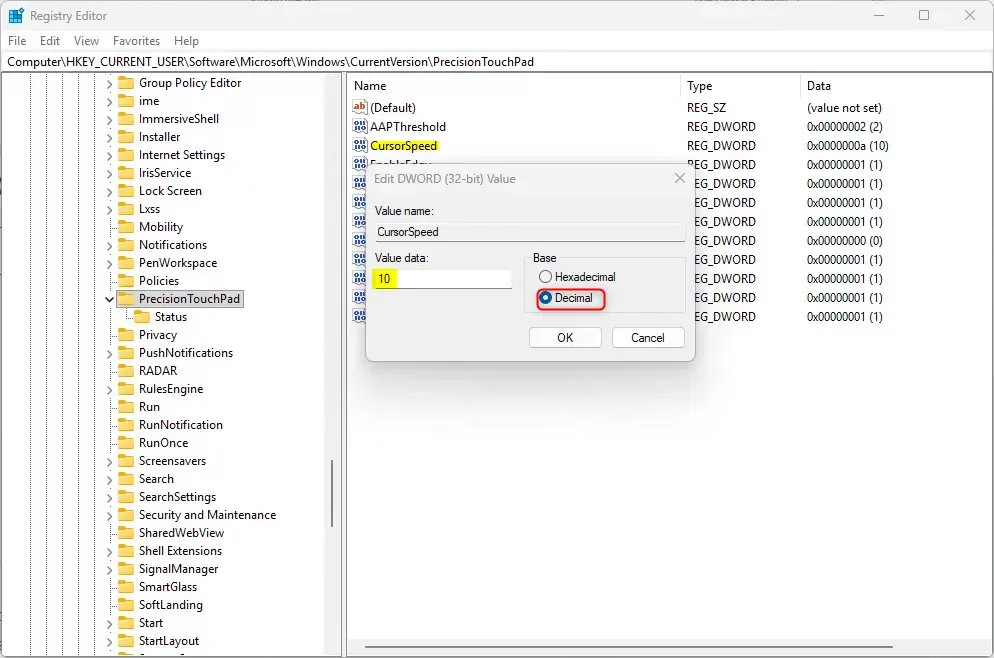
- Admin required: Open Registry Editor by typing
regedit.exein your search bar. - In the left pane, navigate to this location:
Changing your touchpad cursor speed can also be done through the Registry Editor, though this method is a bit more advanced.
- In the right pane, find CursorSpeed and double-click it to open it.
- Click on Decimal. Type a number between 2 (slower) and 20 (faster) for your cursor speed. Click OK.
- The default cursor speed is 10. (Note: The Settings option in Option One divides this number by 2.)
- Close Registry Editor.
Summary
You can change your touchpad cursor speed in Windows 11 using either the simple Settings app or the more technical Registry Editor.
How to change mouse pad speed?
Need to adjust mouse cursor speed instead? Go to ‘System Settings,’ then click ‘Mouse’ or ‘Trackpad.’ Under ‘Point & Click,’ you’ll find the ‘Tracking speed’ slider to adjust sensitivity.
Was this guide helpful?

About the Author
Richard
Tech Writer, IT Professional
Richard, a writer for Geek Rewind, is a tech enthusiast who loves breaking down complex IT topics into simple, easy-to-understand ideas. With years of hands-on experience in system administration and enterprise IT operations, he’s developed a knack for offering practical tips and solutions. Richard aims to make technology more accessible and actionable. He's deeply committed to the Geek Rewind community, always ready to answer questions and engage in discussions.


No comments yet — be the first to share your thoughts!