How to Turn On or Off Touchpad Automatic Scrolling with Pressure in Windows 11

You can enable or disable touchpad automatic scrolling with pressure in Windows 11 to control how you navigate long documents and webpages.
This feature works with Windows 11 precision touchpads. You can scroll by holding your fingers down and increasing pressure; the page scrolls faster the harder you press.
Using this can help you move through extensive content without needing to perform constant swipe gestures.
Go to Settings, then Bluetooth & devices, and select Touchpad. Expand the Scroll & zoom section and check or uncheck the box for Automatic scrolling with pressure to enable or disable it.
Prerequisites and Limitations
This touchpad pressure scrolling feature only works if your laptop has a Precision Touchpad, which is a specific type of hardware.
Turn On or Off Automatic Scrolling with Pressure in Settings
You can quickly turn touchpad pressure scrolling on or off directly within Windows Settings by following a few simple steps.
2. Click Bluetooth & devices on the left, then select Touchpad on the right.
3. Click the Scroll & zoom section to expand it.
4. Check or uncheck the box for Automatic scrolling with pressure to turn it on or off.
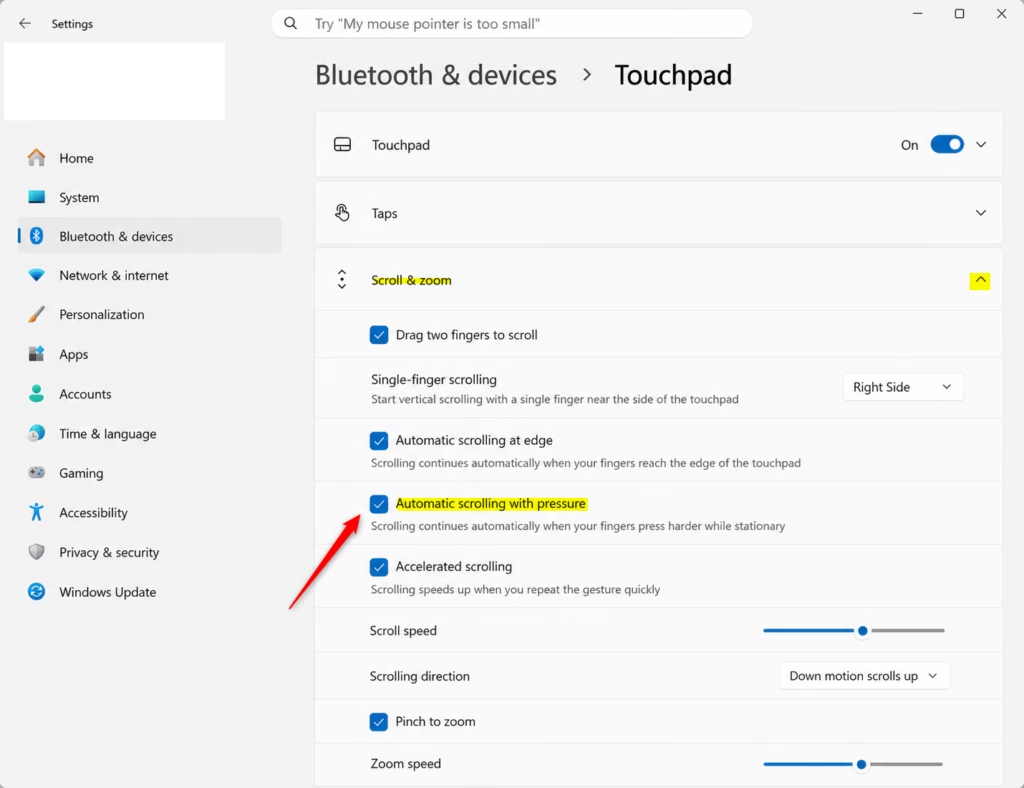
5. Close the window when finished.
Advanced Configuration via Registry Editor
For those comfortable with more advanced system tweaks, changing touchpad pressure scrolling is possible using the Registry Editor.
You can change this setting manually using the Registry Editor. Note: You’ll need standard user permissions for this, though modifying certain system keys might require administrator access.
- Press ⊞ Win+R, type regedit, and hit Enter.
- Navigate to the following path:
HKEY_CURRENT_USER\Software\Microsoft\Windows\CurrentVersion\PrecisionTouchPad
3. If the key isn’t there, right-click in the right pane and choose New > DWORD (32-bit) Value.
4. Name it PressureAutoPanningEnabled.
5. Double-click it and set the value to 1 to turn it on, or 0 to turn it off.
Summary
Windows 11’s touchpad pressure scrolling is a handy feature for browsing long pages, and you can turn it on or off easily.
Why is the touchpad scrolling option missing in 🪟 Windows 11?
The option is likely missing because your laptop does not have a certified Precision Touchpad. Ensure your HID (Human Interface Device) drivers are updated via Device Manager. If your hardware is older, it may rely on legacy drivers that do not support modern Windows 11 gesture features.
Does disabling touchpad pressure scrolling affect external mouse settings?
No, disabling this feature only affects your built-in touchpad. External mouse settings are handled separately by Windows. Your mouse will continue to function based on your primary pointer and scroll wheel settings, regardless of the pressure-sensitive gestures enabled on your laptop’s touchpad.
Can I use Group Policy to enforce touchpad settings across multiple users?
Yes, you can use Group Policy to push registry changes to multiple users. By creating a custom ADMX template or using a Group Policy Preference to set the registry key, you can enforce the PressureAutoPanningEnabled value across all machines in your domain environment.
Was this guide helpful?

About the Author
Richard
Tech Writer, IT Professional
Richard, a writer for Geek Rewind, is a tech enthusiast who loves breaking down complex IT topics into simple, easy-to-understand ideas. With years of hands-on experience in system administration and enterprise IT operations, he’s developed a knack for offering practical tips and solutions. Richard aims to make technology more accessible and actionable. He's deeply committed to the Geek Rewind community, always ready to answer questions and engage in discussions.


No comments yet — be the first to share your thoughts!