How to Enable or Disable Touchpad in Ubuntu Linux

You enable or disable your touchpad in Ubuntu Linux by using a quick setting or a keyboard shortcut.
A touchpad is the integrated pointing device on your laptop that allows cursor control via finger movements, essentially acting as a built-in mouse. Disabling it becomes useful when an external mouse is preferred or to prevent accidental input while typing.
Many laptops provide a dedicated function key combination, often labelled with a touchpad icon, to toggle its functionality instantly. For instance, Fn + F9 is a common shortcut on various HP models.
If your hardware lacks a direct shortcut, Ubuntu’s system settings offer a user-friendly software solution within the “Mouse & Touchpad” section, giving you full control.
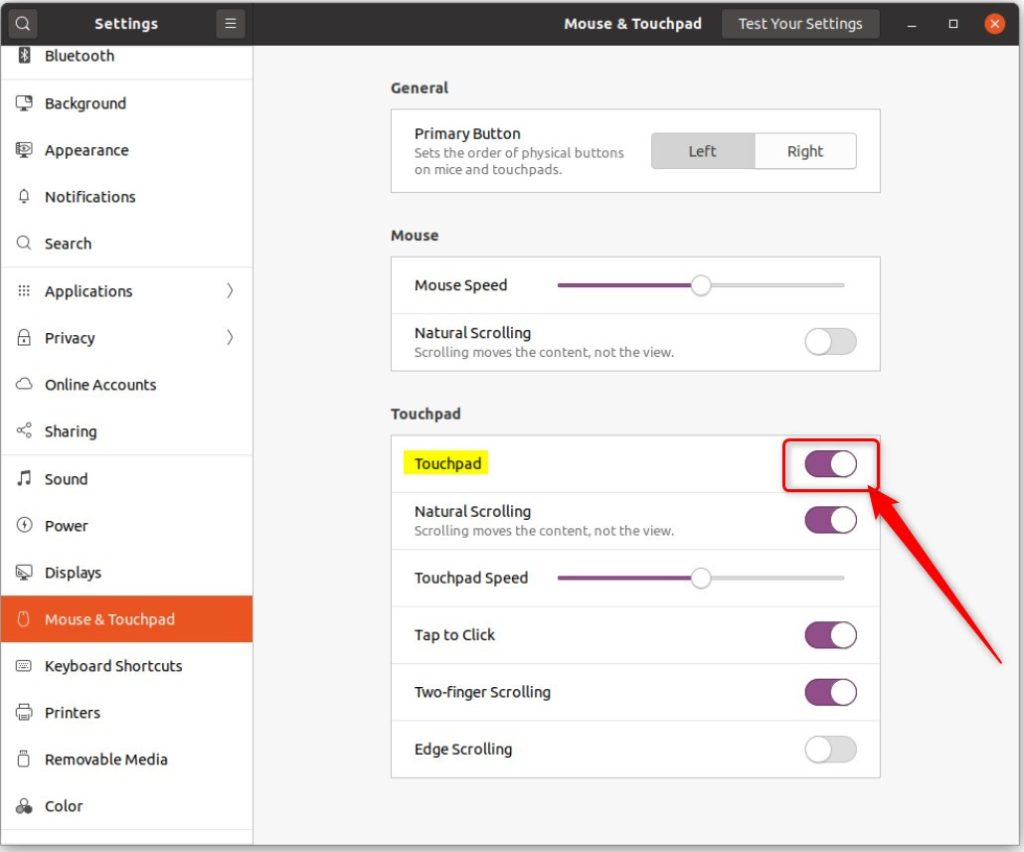
You can disable or enable your Ubuntu touchpad by navigating to Settings > Mouse & Touchpad and toggling the Touchpad switch. Some laptops also offer a dedicated keyboard shortcut or a tap-sensitive area on the touchpad itself for quick toggling.
How to turn off laptop touchpad when using Ubuntu Linux
Now that you know why you might want to adjust your touchpad, let’s walk through how to do it in Ubuntu Linux.
Ubuntu Linux has a centralized location for the majority of its settings. From system configurations to creating new users and updating, all can be done from the System Settings panel.
To get to System Settings, open the Activities overview and start typing Settings.
Alternatively, click on the System menu at the top-right corner of the top bar on your desktop.
On the System menu, select Settings, as highlighted below.

In the Settings app, click on the Mouse & Touchpad tile.
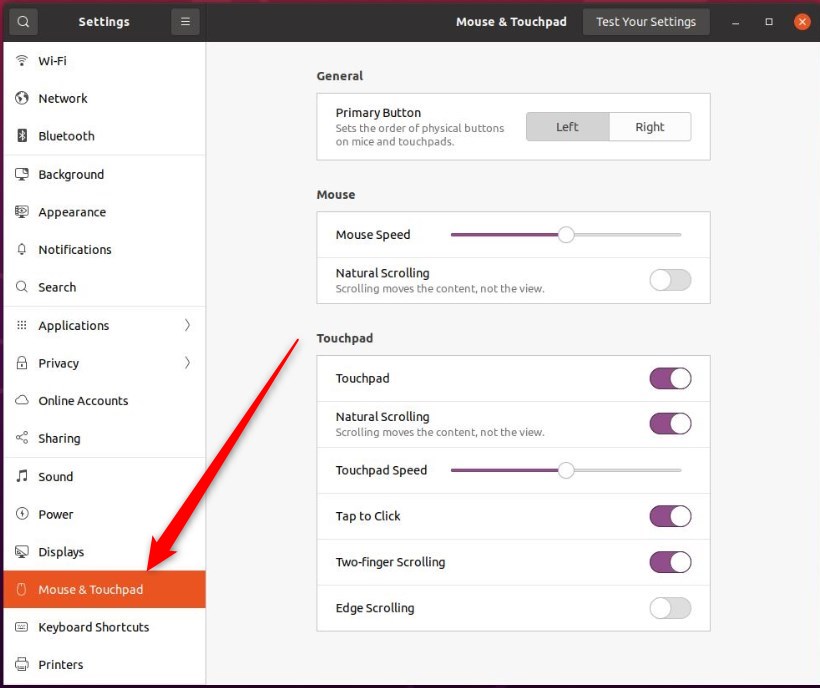
You’ll see a switch for Touchpad. Slide it to On to enable it. To disable it, slide it back to Off.
Alternatively, you may install a third-party app called Touchpad Indicator that allows you to enable or disable Touchpad on your device.
Touchpad Indicator allows you to disable the Touchpad on demand and automatically disables the Touchpad while typing and when a mouse is plugged in.
To install Touchpad Indicator, open a terminal and run these commands:
sudo add-apt-repository ppa:atareao/atareao
sudo apt update
sudo apt install touchpad-indicator
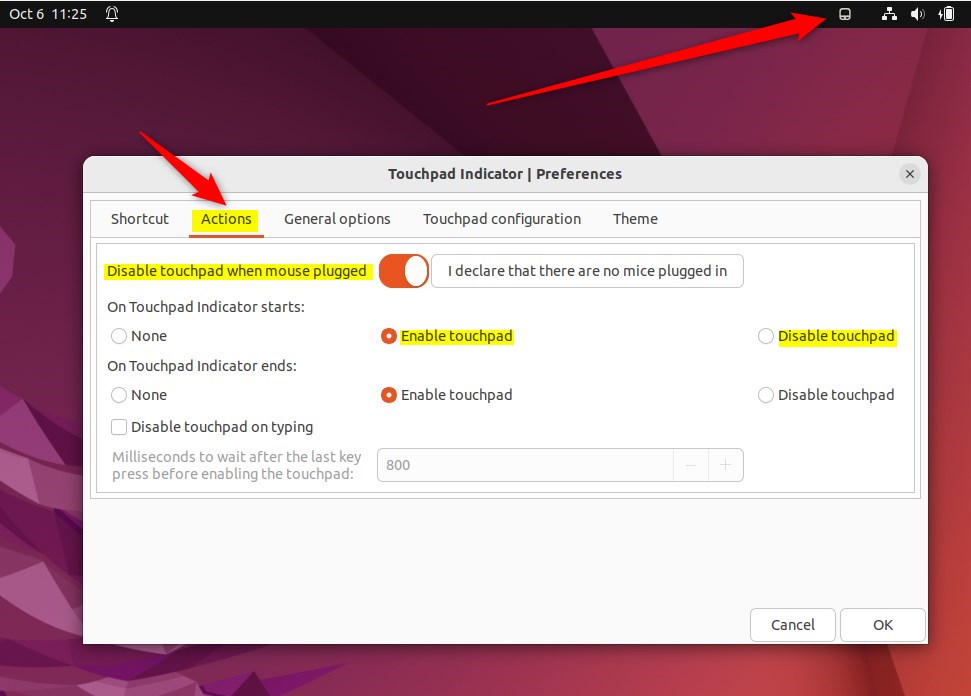
Once installed, search and open the app from the Activities overview, then click on the Top bar and select the app’s icon.
On the Actions tab, you can choose different settings to control the Touchpad on your device.
That should do it! You can now close the Settings app.
Conclusion:
- Disabling or enabling the Touchpad on laptops running Ubuntu Linux is a straightforward process through the System Settings panel or using a third-party app like Touchpad Indicator.
- The Touchpad can be toggled on and off easily, allowing users to disable it when using an external mouse or to prevent accidental movements while typing.
- Users can choose between the System Settings method or installing the Touchpad Indicator app based on their preferences and specific needs.
- The step-by-step instructions and accompanying visual aids make it simple for users to follow along and successfully manage their Touchpad settings in Ubuntu Linux.
Was this guide helpful?

About the Author
Richard
Tech Writer, IT Professional
Richard, a writer for Geek Rewind, is a tech enthusiast who loves breaking down complex IT topics into simple, easy-to-understand ideas. With years of hands-on experience in system administration and enterprise IT operations, he’s developed a knack for offering practical tips and solutions. Richard aims to make technology more accessible and actionable. He's deeply committed to the Geek Rewind community, always ready to answer questions and engage in discussions.




No comments yet — be the first to share your thoughts!