How to Turn On or Off Touchpad Accelerated Scrolling in Windows 11

Want to control how fast pages move when you swipe on your Windows 11 touchpad? You can enable or disable accelerated scrolling.
Accelerated scrolling means the page moves faster the more force you use when flicking your fingers. This differs from inertial scrolling, a feature where the page keeps moving for a moment after you lift your fingers.
This setting helps you quickly navigate long documents or web pages, mimicking the fluid motion of a smartphone touchscreen.
When you turn on accelerated scrolling, you get a fluid and fast scrolling experience. Turning it off provides more precise, manual control, stopping scrolls the moment your fingers stop.
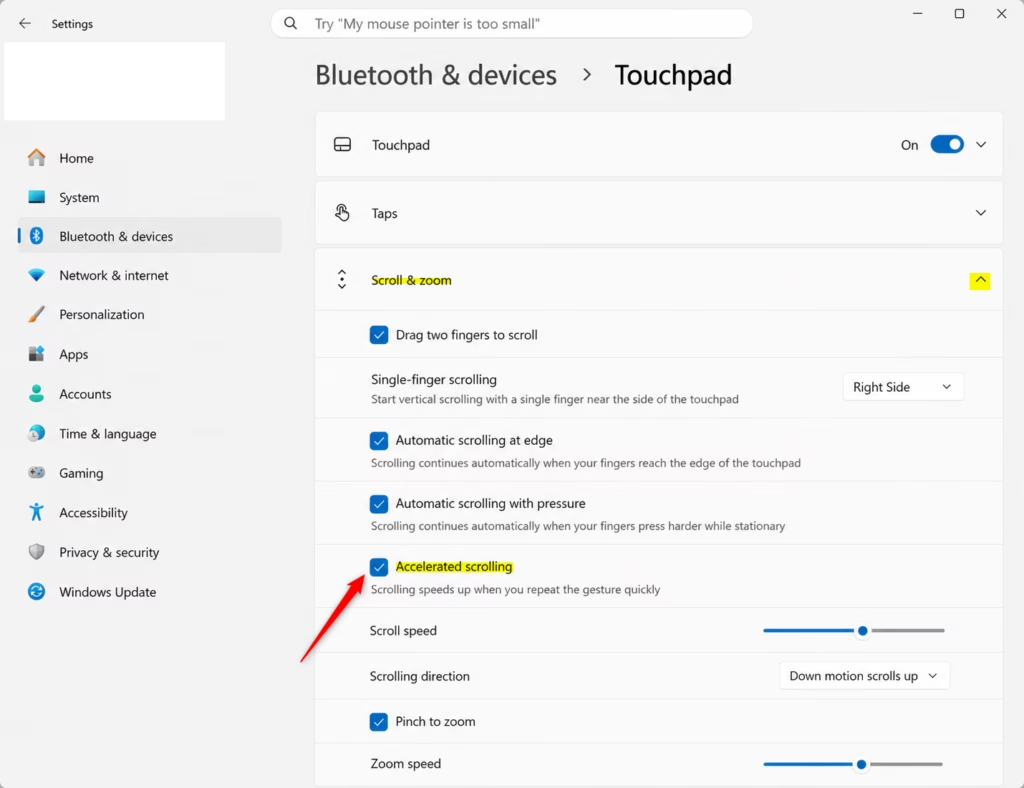
Go to Settings > Bluetooth & devices > Touchpad > Scroll & zoom. Check the box for Accelerated scrolling to turn it on, or uncheck it to turn it off.
How to Turn On or Off Accelerated Scrolling on Touchpad in Settings
You can quickly turn on or off accelerated scrolling for your Windows 11 touchpad right in the Settings app.
2. Click Bluetooth & devices on the left, then select Touchpad on the right. Open Touchpad settings
3. Click Scroll & zoom under the Gestures & interaction section to expand the menu.
4. Check or uncheck the box labeled Accelerated scrolling to toggle the feature.
How to Disable Accelerated Scrolling via Registry Editor
You can also disable accelerated scrolling in Windows 11 using the Registry Editor, but proceed with caution as incorrect changes can cause problems.
- Press `⊞ Win+R` to open the Run dialog, then type `regedit` and press Enter.
- Navigate to the following path:
HKEY_CURRENT_USER\Software\Microsoft\Windows\CurrentVersion\PrecisionTouchPad - Right-click `BoostedPanningEnabled` and choose ‘Modify’.
- Set the value to `0` to disable it , or `ffffffff` to enable it .
Troubleshooting and Related Issues
If your touchpad feels erratic, ensure you are using Precision Touchpad drivers. Non-precision drivers often lack these advanced settings. If you experience palm rejection issues or sensitivity problems, check the Touchpad sensitivity slider in the same Settings menu.
Summary
Accelerated scrolling and momentum features help you navigate Windows 11 faster. You can toggle these settings directly in the Settings app or through the Registry Editor. If you prefer scrolling that stops immediately, you can disable the BoostedPanningEnabled key or uncheck the box in your touchpad settings.
Why does my touchpad keep scrolling after I stop moving my fingers?
This is known as inertial or momentum scrolling. It is designed to mimic smartphone behavior by letting the page glide after you lift your fingers. If you dislike this, you can disable accelerated scrolling or adjust your touchpad sensitivity settings in Windows 11 to stop the drift.
Can I disable touchpad momentum without editing the registry?
Yes. Most modern Windows 11 laptops with Precision Touchpads allow you to toggle these features directly through the Settings app under Bluetooth & devices > Touchpad. You only need the registry editor if the setting is missing or if you are managing settings for multiple users via group policy.
Was this guide helpful?

About the Author
Richard
Tech Writer, IT Professional
Richard, a writer for Geek Rewind, is a tech enthusiast who loves breaking down complex IT topics into simple, easy-to-understand ideas. With years of hands-on experience in system administration and enterprise IT operations, he’s developed a knack for offering practical tips and solutions. Richard aims to make technology more accessible and actionable. He's deeply committed to the Geek Rewind community, always ready to answer questions and engage in discussions.



No comments yet — be the first to share your thoughts!