How to Turn On or Off Touchpad Accelerated Scrolling in Windows 11

This tutorial will describes how to turn on or off accelerated scrolling on the touchpad in Windows 11.
Many users confuse accelerated scrolling with inertial or momentum scrolling. Accelerated scrolling makes your page move faster the more you flick your fingers. Inertial scrolling, or touchpad momentum, is when the page keeps moving for a moment after you lift your fingers. Both features aim to make navigating long documents easier, but they can feel like ‘cursor drift’ if you prefer a static, controlled feel.
Why use these features?
These features help you scroll through long web pages or documents without needing to swipe your fingers repeatedly. They make the touchpad feel more like a smartphone screen.
What happens when you change these settings?
When enabled, your scrolling will feel fluid and fast. When disabled, your scrolling will stop exactly when your fingers stop moving, providing a more precise, manual control experience.
How to Turn On or Off Accelerated Scrolling on Touchpad in Settings
1. Open Settings by pressing Win+I on your keyboard.
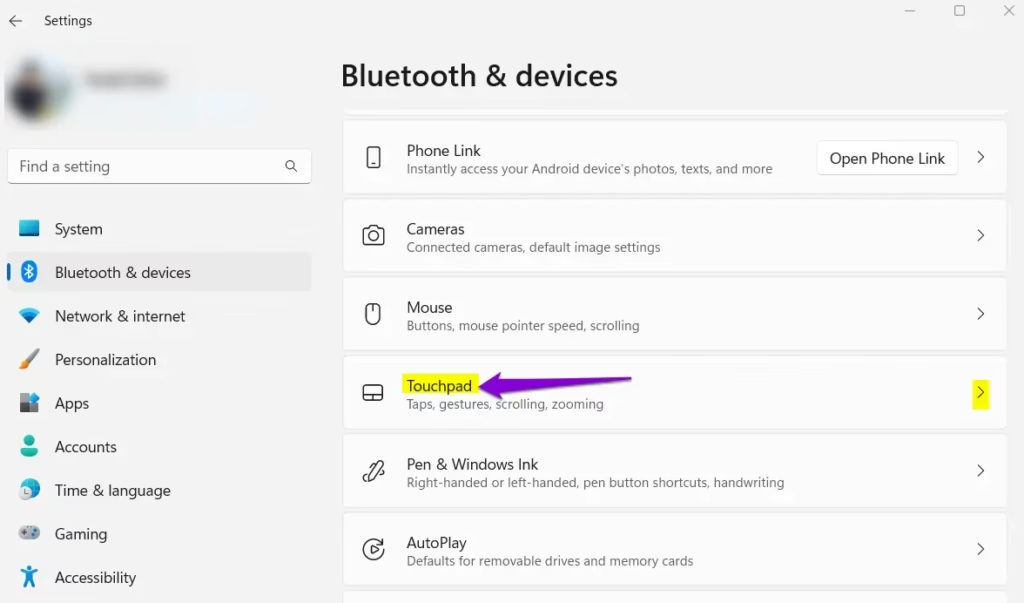
2. Click Bluetooth & devices on the left, then select Touchpad on the right. Open Touchpad settings
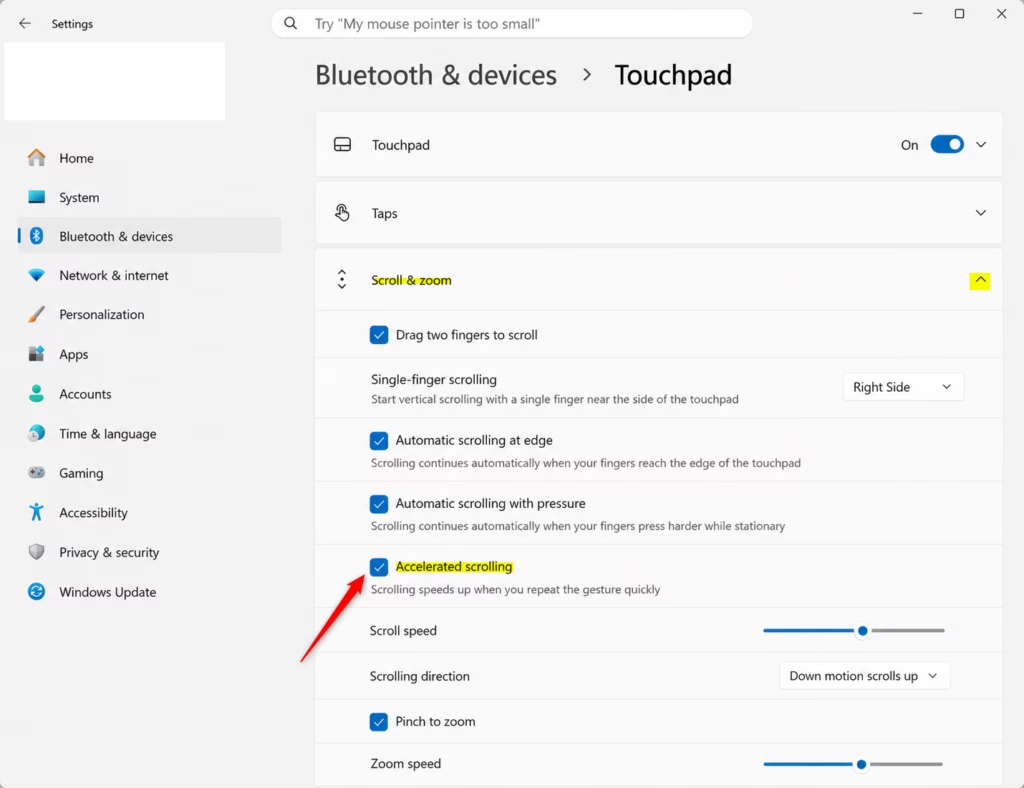
3. Click Scroll & zoom under the Gestures & interaction section to expand the menu.
4. Check or uncheck the box labeled Accelerated scrolling to toggle the feature.
How to Disable Accelerated Scrolling via Registry Editor
Warning: Modifying the registry incorrectly can cause system issues. This step requires administrative privileges.
1. Press Win+R, type regedit, and press Enter.
2. Navigate to the following path: HKEY_CURRENT_USER\Software\Microsoft\Windows\CurrentVersion\PrecisionTouchPad
3. Right-click BoostedPanningEnabled and select Modify.
4. Set the value to 0 to disable it or ffffffff to enable it.
Troubleshooting and Related Issues
If your touchpad feels erratic, ensure you are using Precision Touchpad drivers. Non-precision drivers often lack these advanced settings. If you experience palm rejection issues or sensitivity problems, check the Touchpad sensitivity slider in the same Settings menu.
Summary
Accelerated scrolling and momentum features help you navigate Windows 11 faster. You can easily toggle these settings in the Settings app or via the Registry Editor. If you prefer a static scrolling experience, simply disable the BoostedPanningEnabled key or uncheck the box in your touchpad settings.
Why does my touchpad keep scrolling after I stop moving my fingers?
This is known as inertial or momentum scrolling. It is designed to mimic smartphone behavior by letting the page glide after you lift your fingers. If you dislike this, you can disable accelerated scrolling or adjust your touchpad sensitivity settings in Windows 11 to stop the drift.
Can I disable touchpad momentum without editing the registry?
Yes. Most modern Windows 11 laptops with Precision Touchpads allow you to toggle these features directly through the Settings app under Bluetooth & devices > Touchpad. You only need the registry editor if the setting is missing or if you are managing settings for multiple users via group policy.
Was this guide helpful?



Leave a Reply Cancel reply