How to Change or Disable Touchpad Single-finger Scrolling Side in Windows 11

You can change or disable the single-finger scrolling side in Windows 11 to prevent accidental page jumps.
This setting controls which edge of your touchpad triggers vertical scrolling when you use a single finger.
Many people find the default way it works, which is often set for touchpads like Elan or Synaptics, leads to accidental scrolling.
This adjustment stops those unwanted movements and lets you set the scrolling zone to a spot that feels better for your hand.
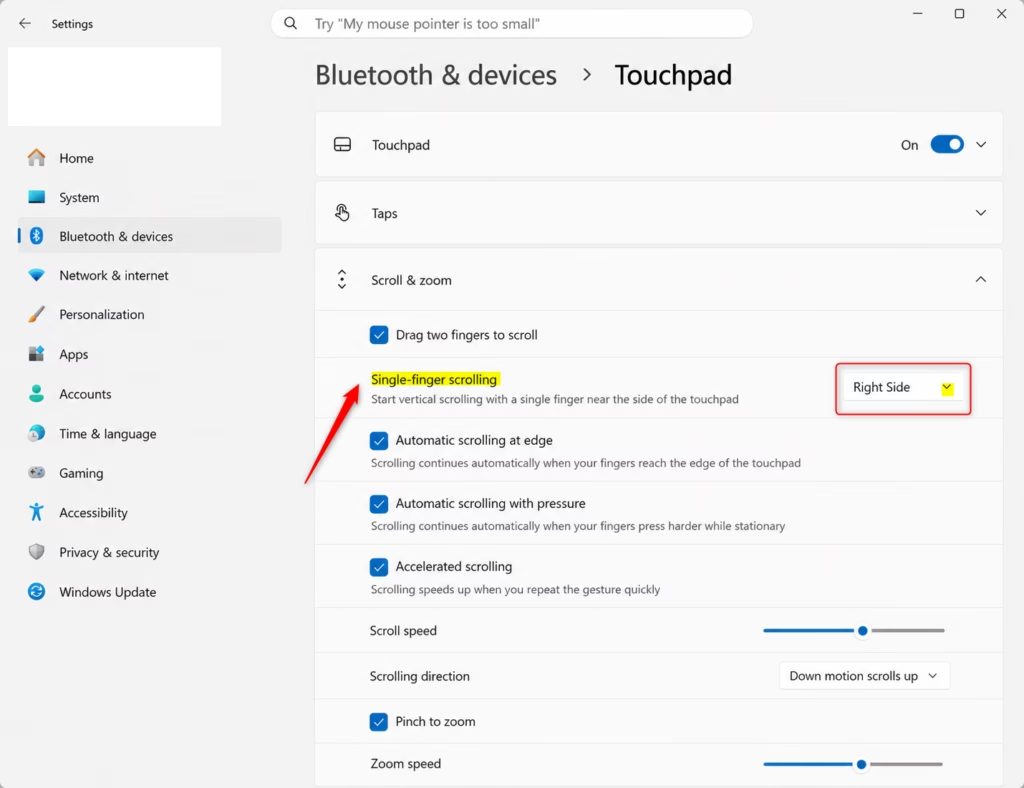
Open Settings, go to Bluetooth & devices, then Touchpad. Click Scroll & zoom and choose Disabled, Left Side, or Right Side for single-finger scrolling. If the option is missing, you may need to use your touchpad manufacturer’s control panel software.
Precision Touchpad vs. Legacy Touchpad
Knowing if you have a Precision Touchpad or a Legacy Touchpad in Windows 11 helps you understand how settings work.
Method 1Change Scrolling via Windows Settings
This is the quickest way to adjust your settings using the built-in Windows interface.
- Press ⊞ Win+I to open Settings.
- Click Bluetooth & devices on the left, then select Touchpad.
- Click Scroll & zoom to see more options.
- Under Single-finger scrolling, choose Disabled, Left Side, or Right Side.
Method 2Change Scrolling via Registry Editor
You can change your Windows 11 touchpad scrolling direction using the Registry Editor, but you’ll need admin rights to do it.
To change the setting manually:
- Press ⊞ Win+R, type regedit, and press Enter.
- Navigate to:
HKEY_CURRENT_USER\Software\Microsoft\Windows\CurrentVersion\PrecisionTouchPad - Right-click the empty space on the right, select New > DWORD (32-bit) Value.
- Name it SingleFingerPanningMode.
- Double-click it and set the value to 0 (Disabled), 1 (Left), or 2 (Right).
Troubleshooting Common Issues
If your Windows 11 touchpad isn’t working right, try updating its driver through Device Manager first.
Summary
You can easily change or disable your Windows 11 touchpad scrolling side using the Settings app or Registry Editor.
Why is my single-finger scrolling option missing in 🪟 Windows 11?
If the option is missing, your laptop likely uses a legacy touchpad driver rather than a Precision Touchpad driver. You may need to visit your laptop manufacturer’s support website to download the latest driver updates or use the specific Synaptics or ELAN control panel software provided by your OEM.
Was this guide helpful?

About the Author
Richard
Tech Writer, IT Professional
Richard, a writer for Geek Rewind, is a tech enthusiast who loves breaking down complex IT topics into simple, easy-to-understand ideas. With years of hands-on experience in system administration and enterprise IT operations, he’s developed a knack for offering practical tips and solutions. Richard aims to make technology more accessible and actionable. He's deeply committed to the Geek Rewind community, always ready to answer questions and engage in discussions.


No comments yet — be the first to share your thoughts!