How to Enable or Disable Touchpad in Windows 11

You enable or disable your touchpad in Windows 11 through the Settings app. A touchpad is that touch-sensitive surface on your laptop that works like a mouse, letting you move your cursor and click around.
This guide will show you how to find your touchpad settings and switch it on or off. For example, many laptops, including those running Windows 11 version 22H2, let you quickly disable the touchpad with a keyboard shortcut.
Knowing how to control your touchpad is important for a smooth experience. You might want to disable it temporarily to avoid accidental clicks while typing or to use an external mouse.
Open Settings, navigate to Bluetooth & devices, then click Touchpad. Toggle the switch to turn your touchpad On or Off. Some laptops also offer a keyboard shortcut for quick toggling.
Option 1Turn On or Off Touchpad in Settings
- Open Settings by pressing
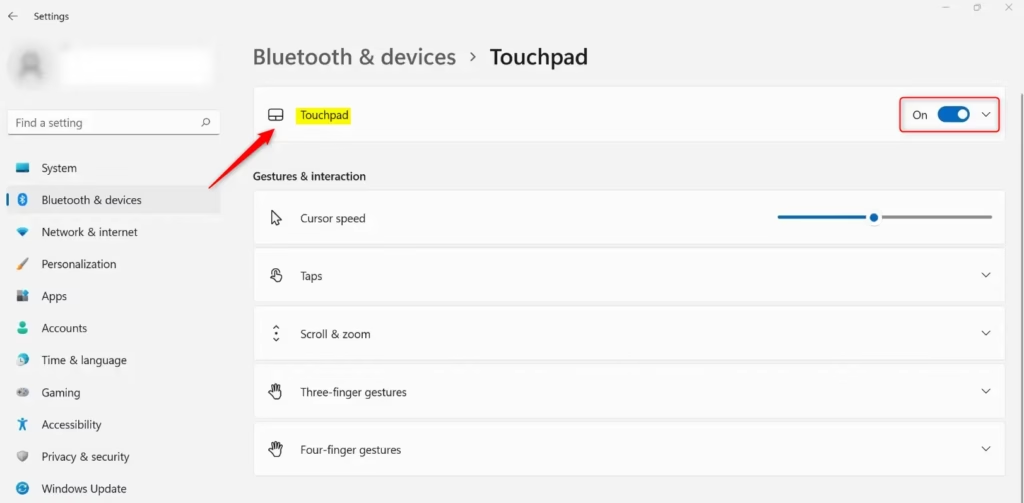
Win+I. - Click on Bluetooth & devices on the left side. Then click on Touchpad on the right side. (see screenshot below)
You can easily turn your touchpad on or off in Windows 11 using the Settings app, which is the quickest method for most users wanting to disable touchpad windows 11.
- Click on Touchpad to expand the menu. (see screenshot below step 4)
- Turn the touchpad On (default) or Off based on what you want. (see screenshot below)
- You can now close Settings if you like.
Option 2Turn On or Off Touchpad Using Registry
Turn On Touchpad
This is the default setting.
Run the command below.
reg add "HKEY_CURRENT_USER\Software\Microsoft\Windows\CurrentVersion\PrecisionTouchPad\Status" /v Enabled /t REG_DWORD /d 1 /f
Turn Off Touchpad
⚠️ Admin privileges required
Run the command below.
reg add "HKEY_CURRENT_USER\Software\Microsoft\Windows\CurrentVersion\PrecisionTouchPad\Status" /v Enabled /t REG_DWORD /d 1 /f
Summary
Managing your touchpad in Windows 11 is straightforward, with the Settings app offering the simplest way to disable touchpad windows 11 by just toggling a switch.
Was this guide helpful?

About the Author
Richard
Tech Writer, IT Professional
Richard, a writer for Geek Rewind, is a tech enthusiast who loves breaking down complex IT topics into simple, easy-to-understand ideas. With years of hands-on experience in system administration and enterprise IT operations, he’s developed a knack for offering practical tips and solutions. Richard aims to make technology more accessible and actionable. He's deeply committed to the Geek Rewind community, always ready to answer questions and engage in discussions.




No comments yet — be the first to share your thoughts!