How to Turn On Android Suggestions on Windows 11

You turn on Android Suggestions on Windows 11 to get helpful prompts for integrating your phone with your PC.
Android Suggestions are proactive notifications that appear on your Windows 11 PC, guiding you on how to best use your connected Android device.
These suggestions are part of the Phone Link app, offering up to three useful tips to improve cross-device productivity.
Enabling them helps you discover features like accessing apps or viewing messages from your Android phone directly on your Windows 11 computer.
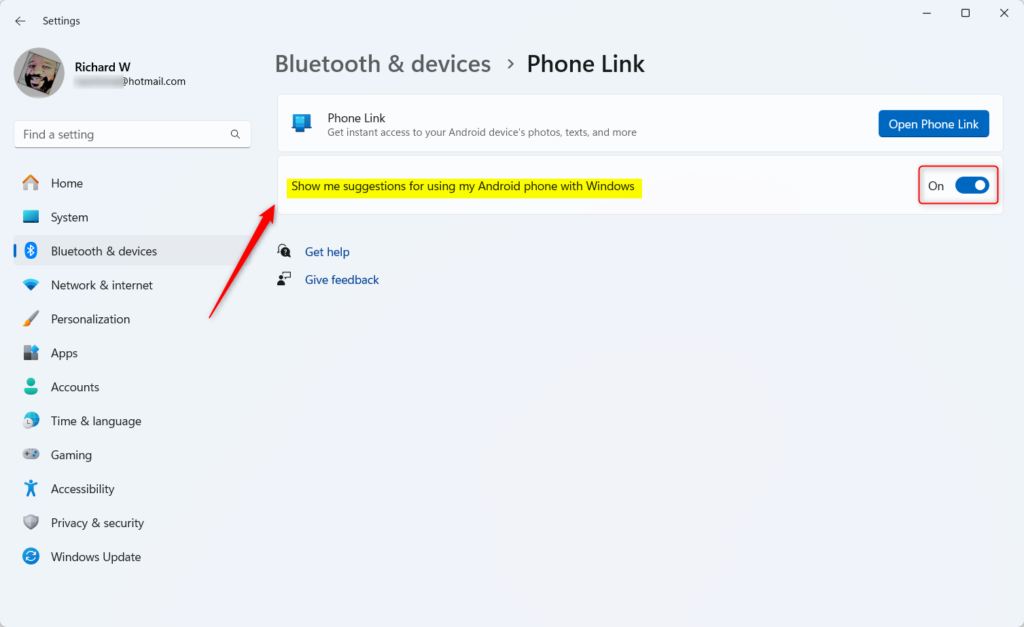
Open Settings, go to Bluetooth & devices, select Phone Link, and toggle “Show me suggestions for using my Android phone with Windows” to On. This enables helpful tips for integrating your phone and PC.
How to Link Your Android Phone to 🪟 Windows 11
Linking your Android phone to Windows 11 lets you use your phone’s features right on your PC, and it’s simple to set up using the Phone Link and Link to Windows apps.
- Open the Phone Link app on your PC.
- Follow the on-screen instructions to generate a QR code.
- On your Android phone, open the Link to Windows app and scan the code.
- Follow the prompts to grant permissions for notifications, messages, and photos.
For more details, visit the official Microsoft Phone Link support page.
Method 1Using the Settings App
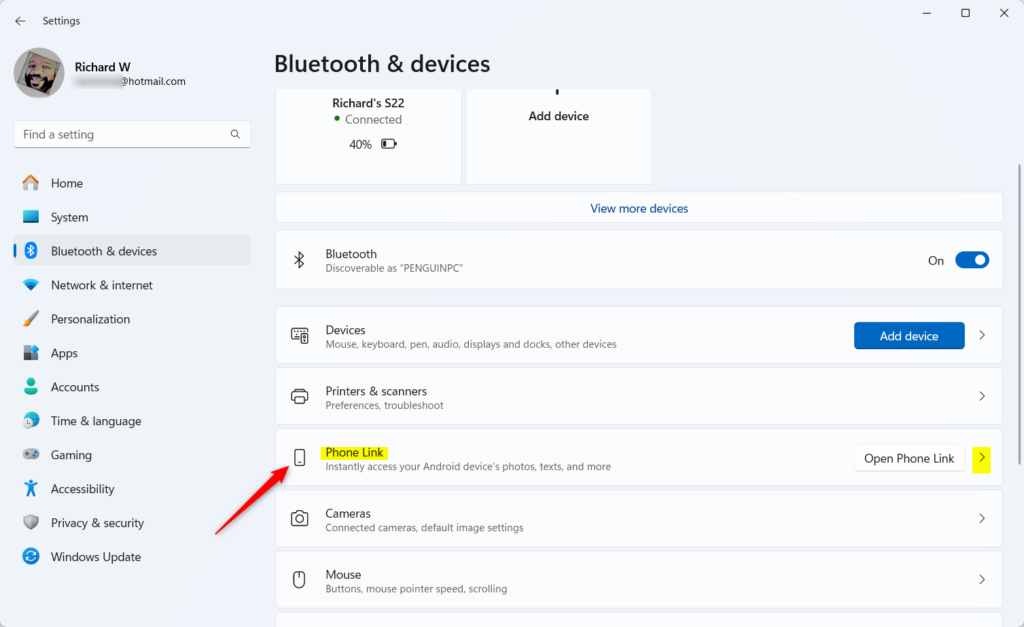
You can easily turn on Android suggestions for your Windows 11 PC using the Settings app by going to Bluetooth & devices and selecting Phone Link.
- Open the Settings app by pressing Windows key + I.
- Click on Bluetooth & devices in the left menu.
- Select the Phone Link tile.
- Toggle the switch for Show me suggestions for using my Android phone with Windows to your preferred state.
Method 2Using the Registry Editor (Advanced)
For advanced users, you can enable Android suggestions on Windows 11 by editing the Registry Editor, but be careful as incorrect changes can cause problems.
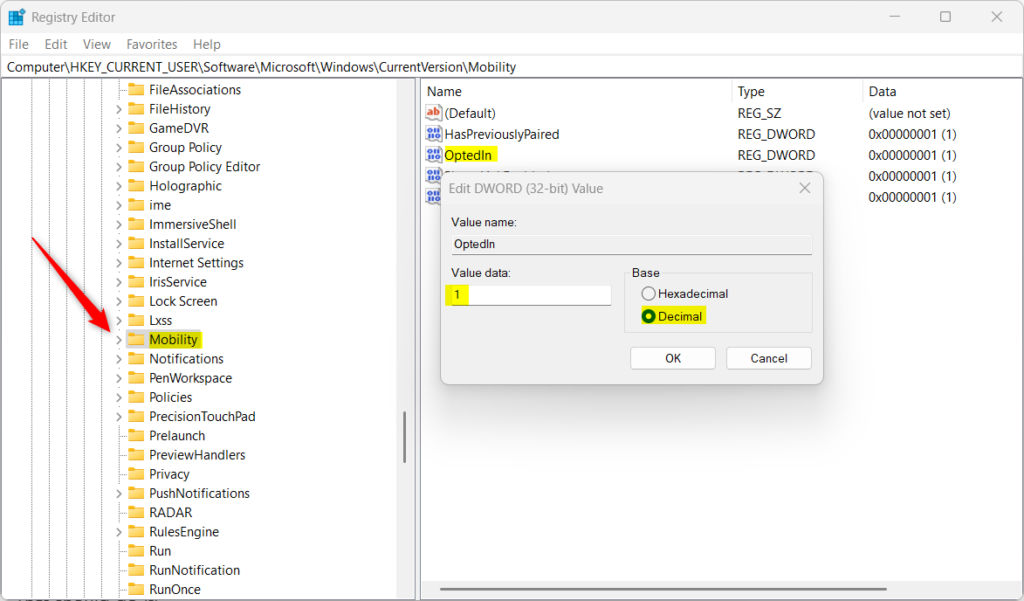
- Press Windows key + R, type
regedit, and press Enter. - Navigate to:
HKEY_CURRENT_USER\Software\Microsoft\Windows\CurrentVersion\Mobility - Find the OptedIn value on the right. If it does not exist, right-click, select New > DWORD (32-bit) Value, and name it
OptedIn. - Double-click OptedIn and set the value to
1to enable or0to disable. - Restart your computer to apply the changes.
Troubleshooting Sync Issues
If your Android app suggestions aren’t showing up on Windows 11, try these quick fixes to get them syncing again, like checking Focus Assist and your Microsoft account.
- Ensure Focus Assist or Do Not Disturb is turned off on your PC.
- Check that your Microsoft account is signed in on both devices.
- Verify that your Android phone has the Link to Windows app updated to the latest version.
- Disable battery optimization for the Link to Windows app on your phone to allow background syncing.
Summary
Managing your Android phone suggestions in Windows 11 helps you customize how your devices work together. You can easily turn them on or off using the Settings app or, for more control, by editing the Registry Editor, ensuring your devices are linked and updated.
Why are my Android app suggestions not showing on 🪟 Windows 11?
Your Android app suggestions might not be showing on Windows 11 if your devices aren’t synced correctly or if the Phone Link feature is turned off.
Is Phone Link compatible with all Android phones?
Phone Link works with most modern Android devices running Android 9.0 or later. However, advanced features like cross-device app streaming and screen mirroring are primarily optimized for specific devices, such as Microsoft Surface Duo, Samsung Galaxy devices, and select HONOR or OPPO smartphones.
How do I disable cross-device suggestions in 🪟 Windows 11?
To disable these suggestions, navigate to Settings > Bluetooth & devices > Phone Link. Locate the option labeled ‘Show me suggestions for using my Android phone with Windows’ and toggle the switch to the Off position. This will stop Windows from displaying tips related to your mobile integration.
Does 🪟 Windows 11 support Android app streaming?
Yes, Windows 11 supports Android app streaming through the Phone Link app. This feature allows you to pin your favorite mobile apps directly to your taskbar or Start menu, letting you open and interact with them on your PC screen as if they were native Windows applications.
Was this guide helpful?

About the Author
Richard
Tech Writer, IT Professional
Richard, a writer for Geek Rewind, is a tech enthusiast who loves breaking down complex IT topics into simple, easy-to-understand ideas. With years of hands-on experience in system administration and enterprise IT operations, he’s developed a knack for offering practical tips and solutions. Richard aims to make technology more accessible and actionable. He's deeply committed to the Geek Rewind community, always ready to answer questions and engage in discussions.



[…] for all my apps on or off, show notifications in the Phone Link feature feed, enable or disable using Phone Link with Windows suggestions, open Phone Link notification banners in the mobile app or Phone Link, enable or disable […]
[…] show notifications for all my apps on or off, show notifications in the Phone Link feature feed, enable or disable using Phone Link with Windows suggestions, open Phone Link notification banners in the mobile app or Phone Link, enable or disable showing […]
[…] show notifications for all my apps on or off, show notifications in the Phone Link feature feed, enable or disable using Phone Link with Windows suggestions, open Phone Link notification banners in the mobile app or Phone Link, enable or disable Phone Link […]